
Selling from stock
Use this guide when you sell goods (care products, films, accessories) to a customer without a job in the workshop. FoxFix offers two routes:
| Situation | Route |
|---|---|
| The customer takes the goods away straight away or pays on the spot | Sale from the warehouse – an invoice is created immediately |
| The goods are packed and shipped, and invoiced later | Sales order – reservation, shipping, delivery note and invoice |
In both cases the goods are first reserved, and they are only written off stock when they are issued in the Inventory Queue. That way Inventory always knows what has been sold but has not physically left yet.
Before you start
- Module and plan: Inventory (the Profi plan and above, switched on in Application modules) and Invoices.
- Role: anyone who can see Inventory can create a sale or a sales order. However, only a user with access to Invoices can open and send the invoice – the Warehouse clerk only picks and issues the goods in the Queue. Only an Administrator or Manager can allow a discount above the stock card limit.
- Goods: you can only sell what is in the catalogue and has an Available quantity (On hand − Reserved).
Route A – Sale from the warehouse with an invoice
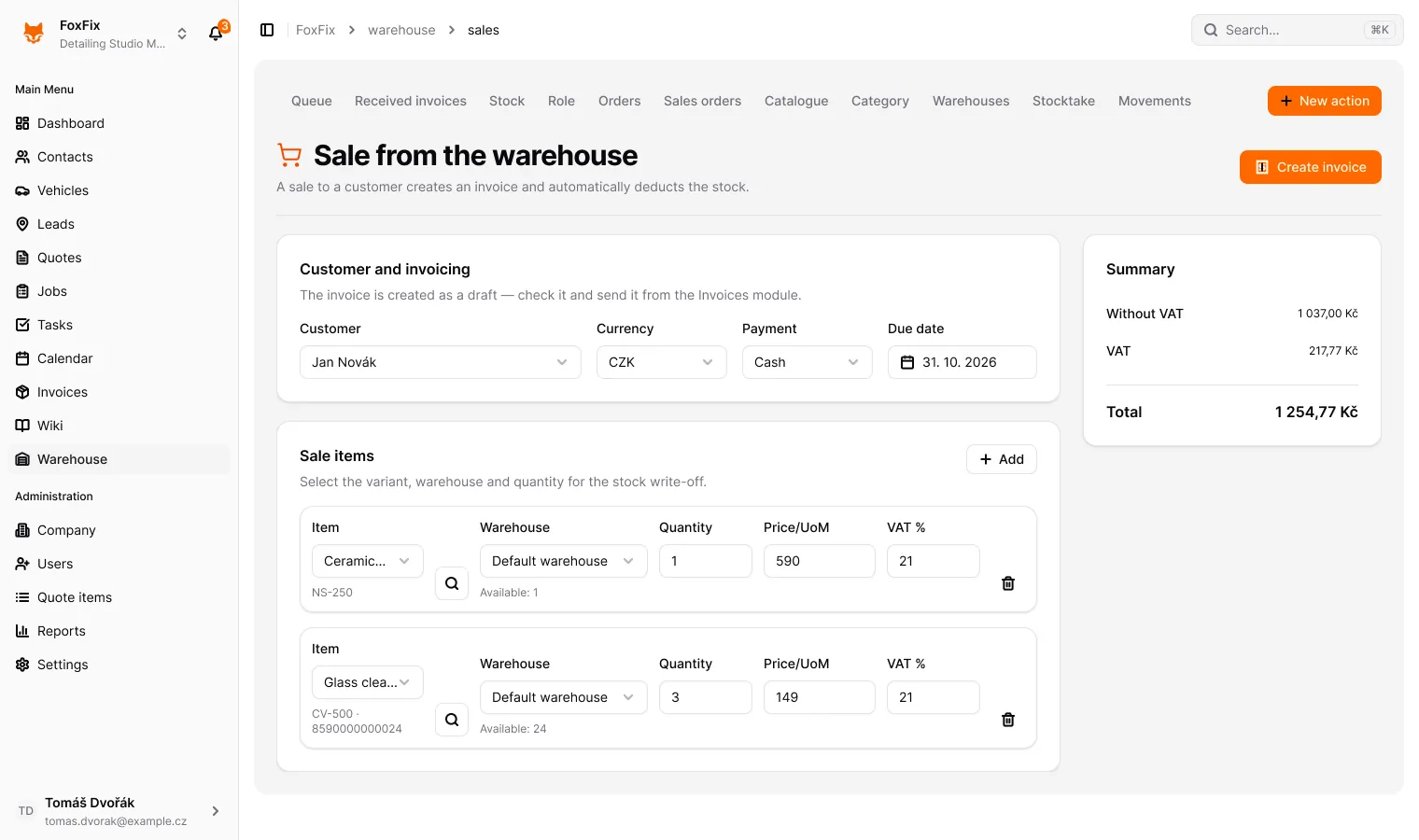
- In Inventory, click New action → Sale. The Sale from the warehouse page opens.
- In the Customer and invoicing card, choose the Customer, Currency, Payment (Cash, Bank transfer, Card or Other) and the Due date.
- In the Sale items card, on each row choose the Item (the magnifying-glass button lets you browse stock items) and the Warehouse – below it you see “Available: N” – and enter the Quantity, Price/UoM, VAT % and, if needed, the Discount %. Add adds another row.
- On the right, in the Summary, check Excl. VAT, VAT and Total.
- Click Create invoice. You will see “Invoice … created, goods reserved for picking” and the invoice detail opens as a draft.
- Check the invoice and send it with Send invoice, or, if the customer pays on the spot, mark it as Paid – see Invoicing and payment.
 (opens the full-size image in a new tab)
If the discount is higher than the stock card limit, the sale stops with the message “The …% discount on … is above the card's …% limit…”. An Administrator or Manager can enter a reason in the dialog and sell with Sell with reason; the reason is stored with the invoice.
The goods are now in stock, reserved for the invoice. Issue them as described in step C.
Route B – Sales order
B1 – Create and confirm the order
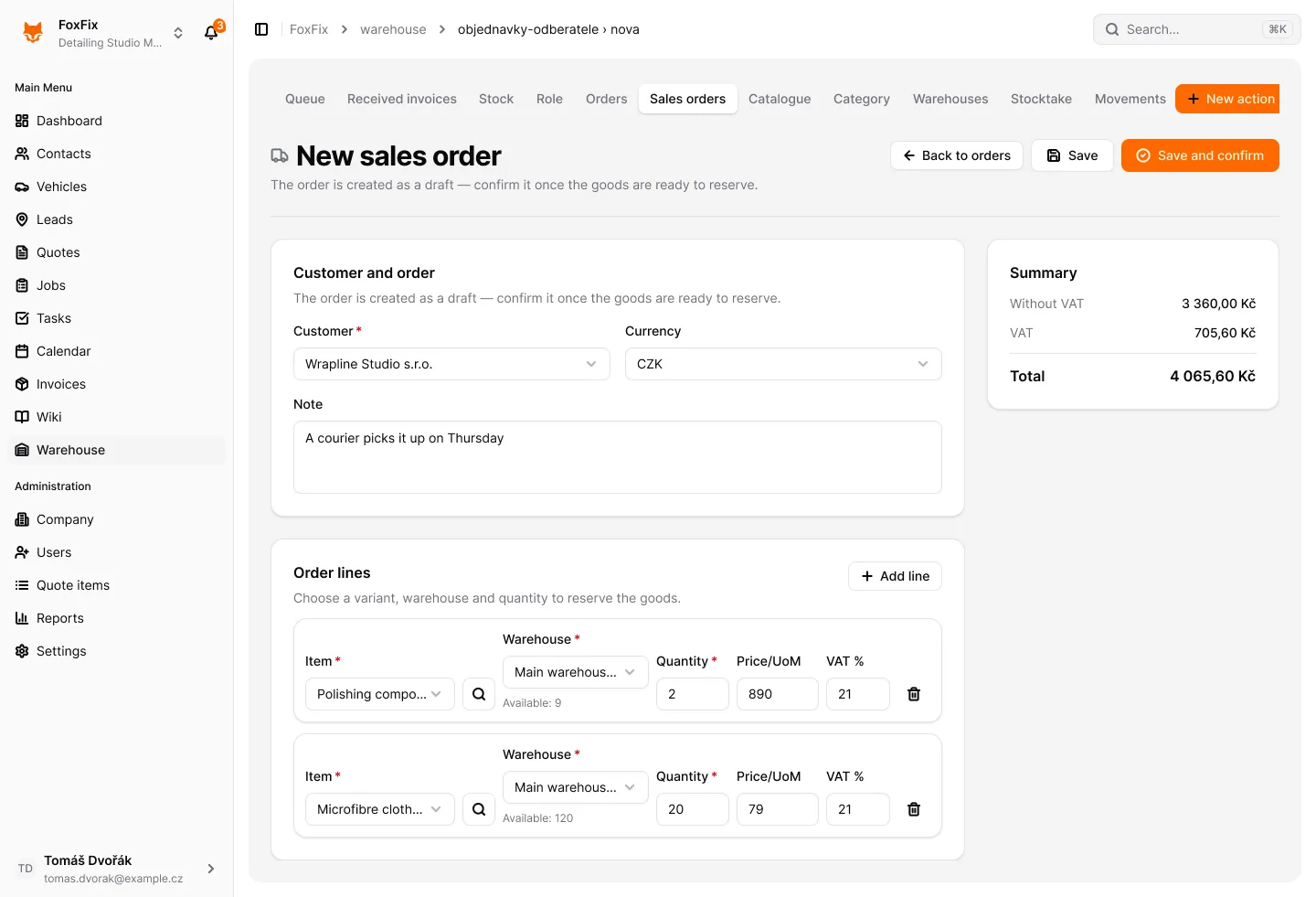
- In Inventory, open the Sales orders tab and click New order.
- In the Customer and order card, choose the Customer and Currency, and use the Note for an internal note (e.g. how the goods will be collected).
- In the Order lines card, on each row choose the Item, the Warehouse (with the available quantity), the Quantity, Unit price and VAT %.
- Save:
- Save and confirm – the order is confirmed and the goods are reserved straight away (“Order … confirmed and goods reserved”);
- Save – the order stays Draft and nothing is reserved. You confirm it later in the detail with the Confirm button.
 (opens the full-size image in a new tab)
B2 – Prepare and ship the parcel
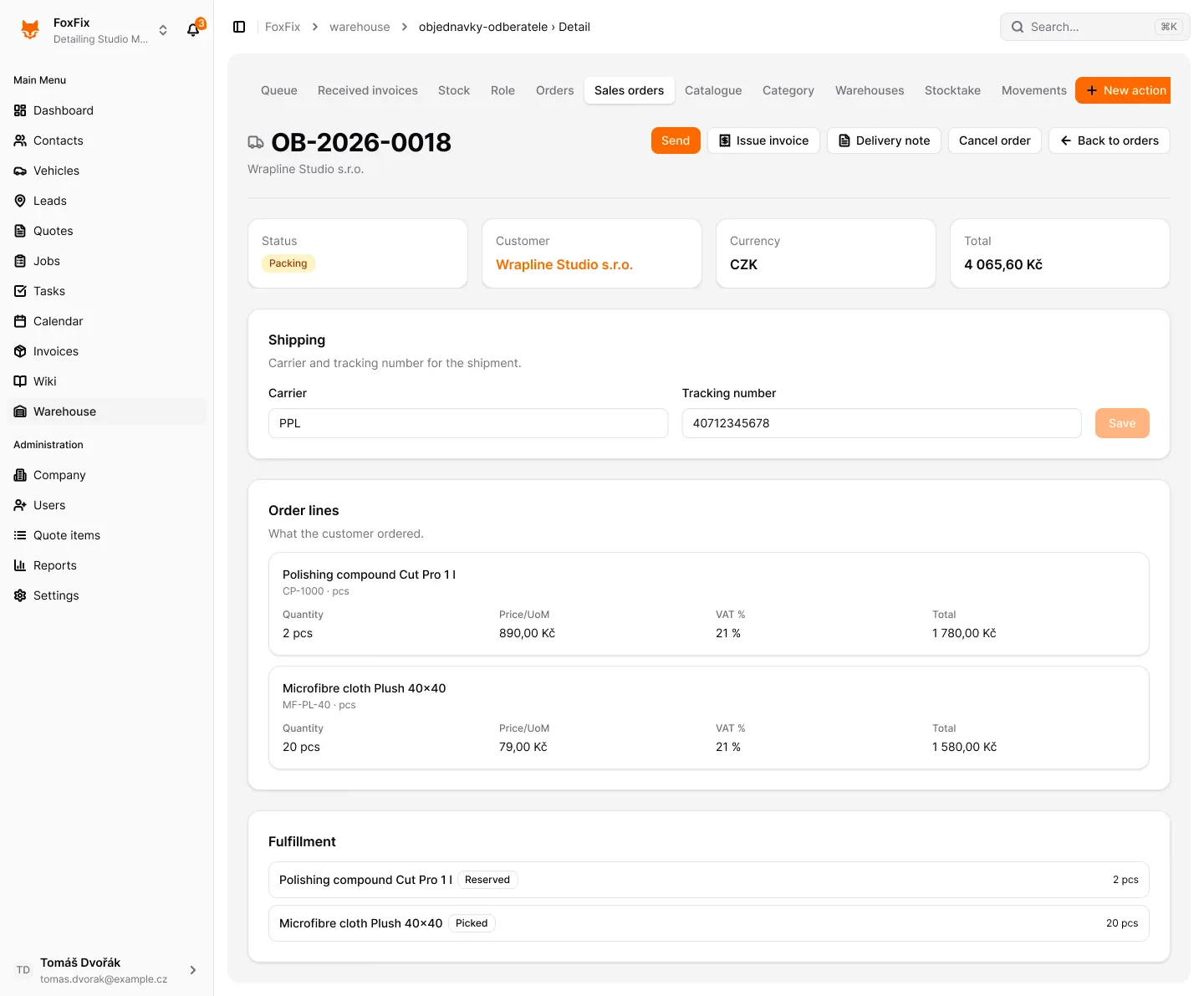
In the order detail, work through the buttons at the top:
- Start packing → status Packing. Now pick the goods in the Queue (step C).
- In the Shipping card, fill in the Carrier (“E.g. PPL, DPD, Zásilkovna…”) and the Tracking number and click Save. You cannot ship the order without a carrier.
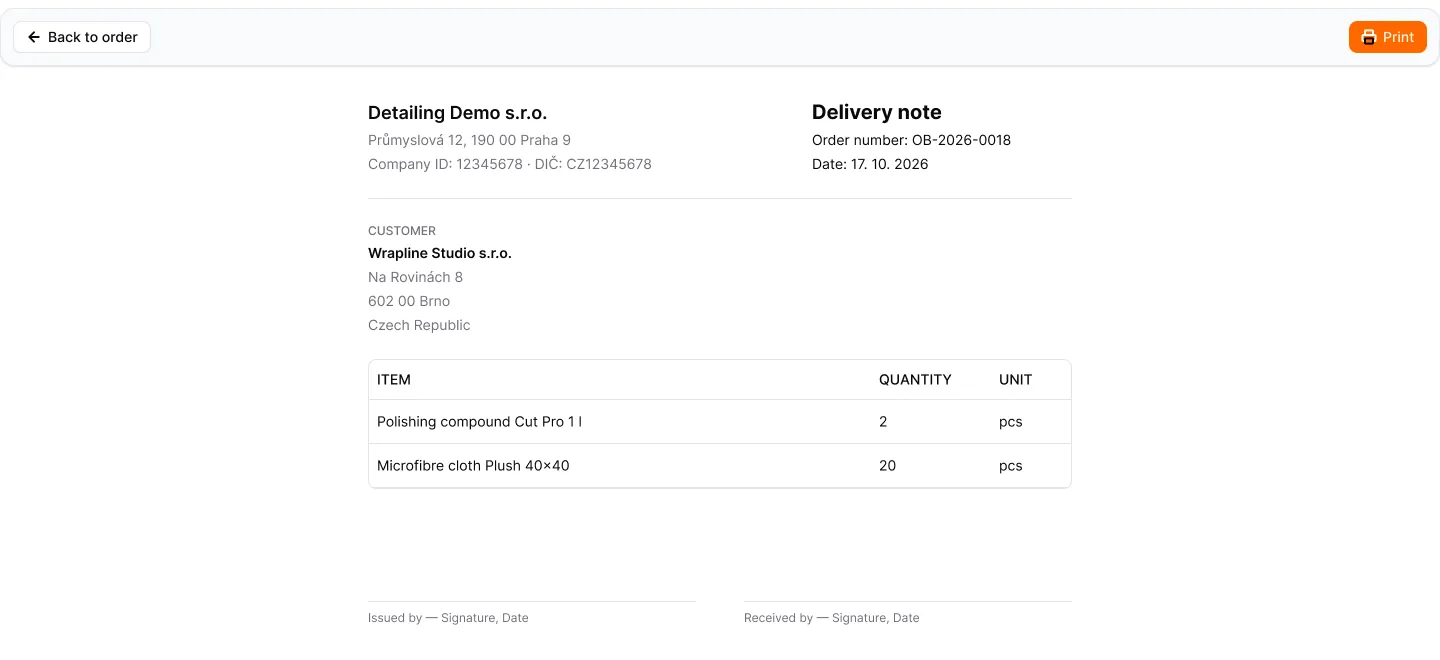
- Delivery note opens a printable delivery note with the customer and the items; print it with Print and put it in the parcel.
- Ship → status Shipped.
- When the customer has received the goods, click Confirm delivery, fill in who accepted the parcel and confirm. The status changes to Delivered.
The Fulfilment card shows for each item whether it is Reserved, Picked or Dispatched.
 (opens the full-size image in a new tab)
 (opens the full-size image in a new tab)
B3 – Issue the invoice
- In the detail of a confirmed order, click Issue invoice. You will see “Invoice … issued” and the button changes to View invoice.
- The order's reservations are linked to the invoice. In the Queue they stay in the Order OB-… group, but the issue is recorded against the invoice.
- Open the invoice and send it the usual way. For a foreign company with a VAT number, reverse charge is set automatically.
Only invoice a confirmed order
Issue invoice can be clicked even on a draft order. But such an invoice has no reservation in stock and the goods are not written off against it. So confirm the order first.
Cancelling the order (Cancel order) releases the reservations. If an invoice already exists, the app warns you that the invoice will be left without stock cover.
C – Issue the goods in the Queue
Writing goods off stock works the same way for both routes:
- In Inventory, open the Queue tab and, in the To issue section, find the Invoice … or Order OB-… group.
- Click Pick, scan the bin and the QR labels of the pieces, and confirm – see Issuing material to a job, step 4.
- Click Issue. The goods are written off stock and an Issue with the reason “Issue for invoice …” appears in the movement history (for an order that has no invoice yet, “Issue for order …”).
If an Administrator or Manager deletes the invoice, its reservations are released and any goods not yet issued become available again.
Result: the customer has an invoice (and, for an order, a delivery note as well), the goods are written off stock and the invoice detail shows how much is reserved, picked and issued.