
First steps
New to FoxFix? This guide takes about ten minutes. You will sign in, walk through the main parts of the app, open your first record and find out where to get help when you are stuck.
Before you start, you need an account. An administrator or manager invites you to the company (you will get a link from them), or you can set up a company yourself.
1. Sign in
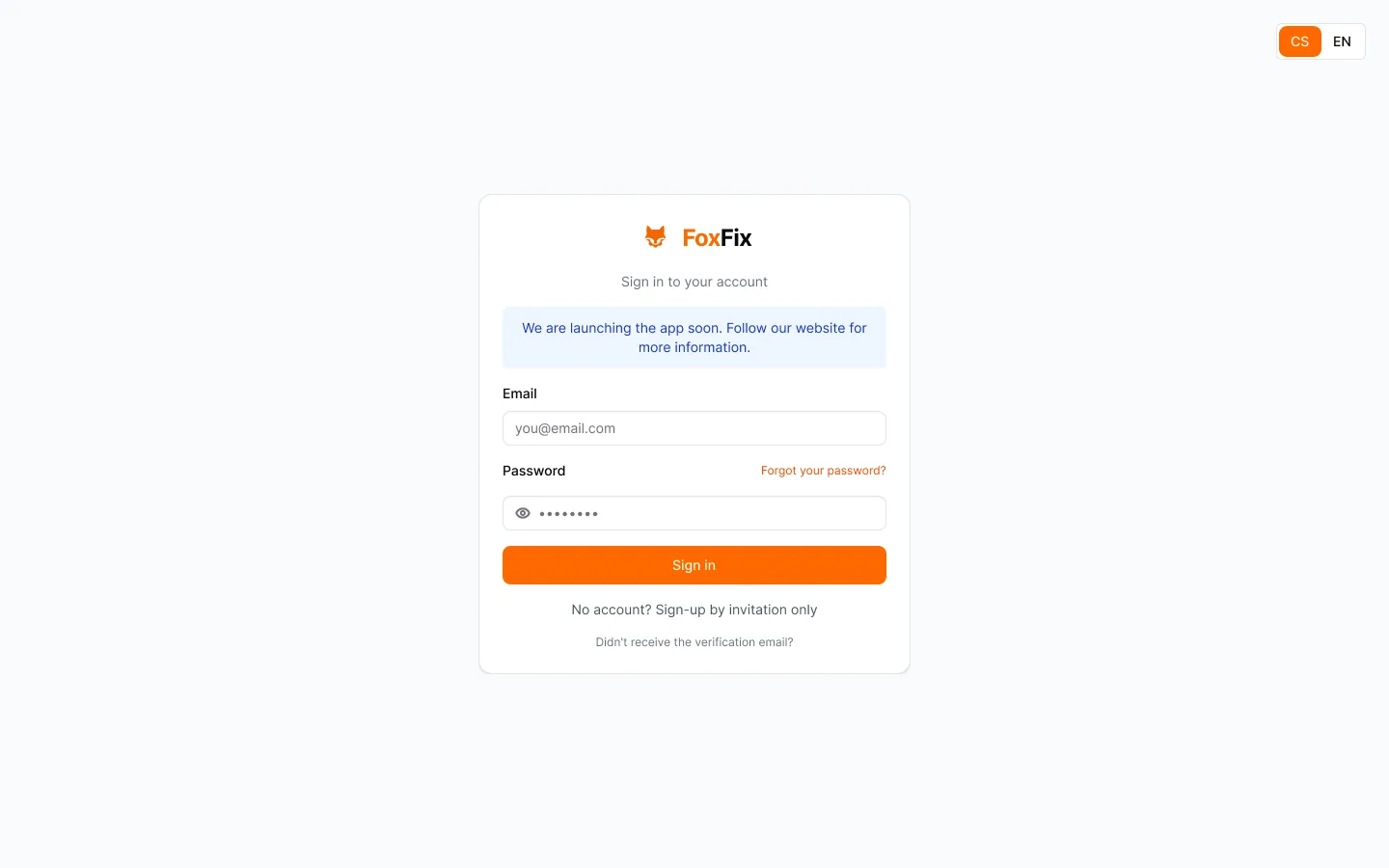
- Open the invitation link, or go to app.fox-fix.com (opens in a new tab) in your browser.
- Have an invitation but no account yet? Fill in your name and password, click Create account and enter the code you receive by email.
- Already have an account? Enter your Email and Password and click Sign in.
For details, including what to do if you forget your password, see Signing in and your account.
 (opens the full-size image in a new tab)
2. Look around
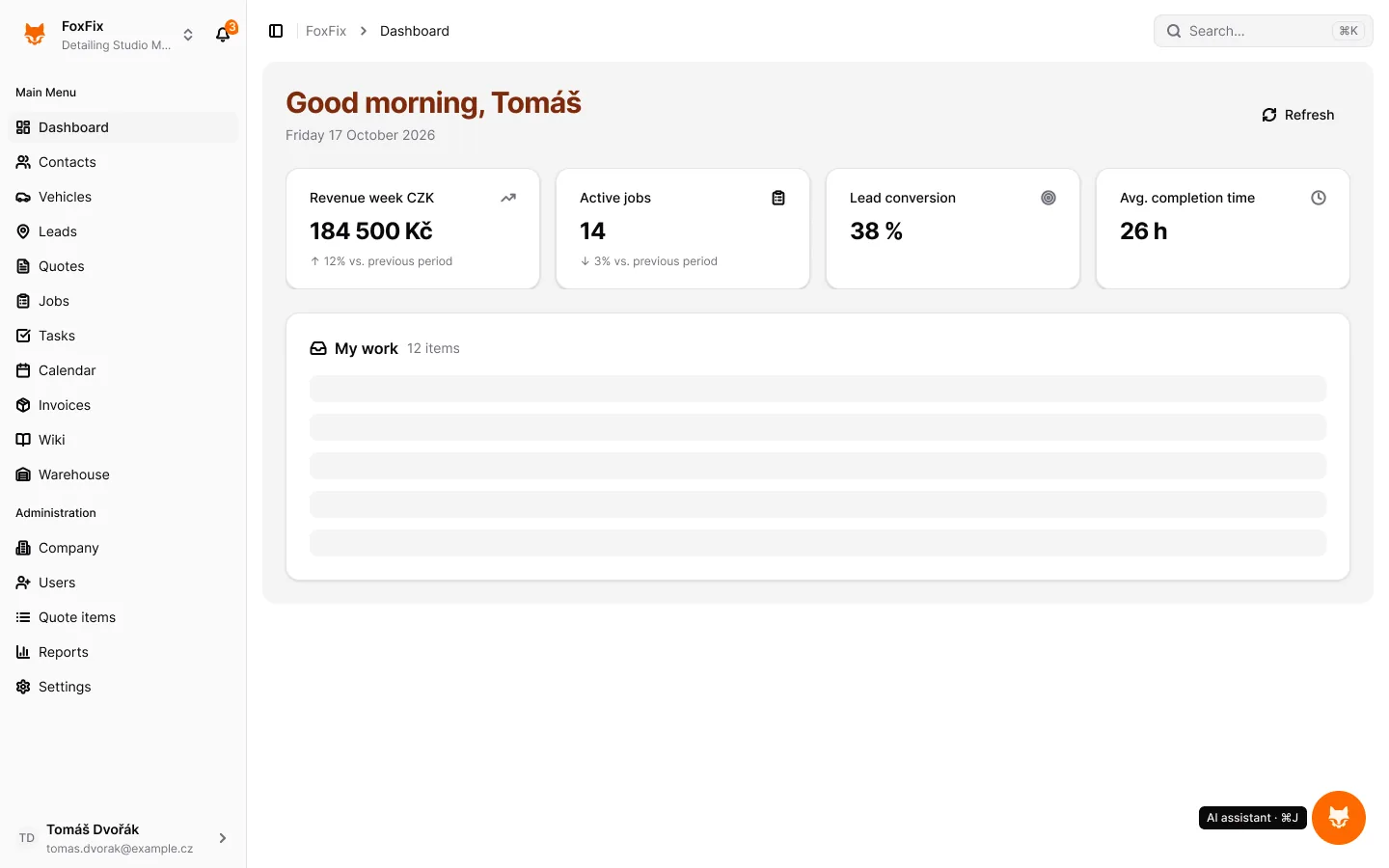
After you sign in, the Dashboard opens: a greeting, quick actions (such as New lead or New job) and your work for today. What exactly you see there depends on your role. The Warehouse clerk role goes straight to Inventory instead of the Dashboard.
 (opens the full-size image in a new tab)
Take a look at the app's frame:
- Left menu – all sections: Contacts, Vehicles, Leads, Price Quotes, Jobs and more. What you see in the menu depends on your role and the modules that are switched on.
- Company name at the top left – if you work in more than one company, this is where you switch between them.
- Bell next to the company name – your notifications.
- Search... at the top right – search across the whole app (shortcut ⌘K / Ctrl+K).
- Your name at the bottom left – profile, help, language and signing out.
Each of these parts is described in detail in Finding your way around the app.
Switch the language
FoxFix is available in Czech and English. To change the language, click your name at the bottom left → Language → Čeština or English.
3. Open your first record
Try moving around the app:
- In the left menu, click Contacts. The customer list opens.
- Click any row. The contact detail opens with all of its details.
- Look at the top bar. The breadcrumbs show where you are (FoxFix › Contacts › Detail). Click Contacts to go back to the list.
- Now try the same through search: press ⌘K / Ctrl+K, type at least two letters of a customer's name or a licence plate and click a result.
All sections work the same way: list → detail → actions in the detail (edit, create a quote, add a task…).
4. Find out where to get help
- This handbook – publicly available at app.fox-fix.com/prirucka. At the top there is a Search help… field (shortcut ⌘K / Ctrl+K or /).
- AI assistant – if your company has it switched on, click the fox button at the bottom right and ask, for example, “How do I create a quote?”. It answers from this handbook. See AI assistant.
- FAQ – solutions to the most common problems.
- Your company's administrator – can help with your role, modules and invitations.
- FoxFix support – write to info@fox-fix.com.
What next
Carry on depending on what you do in the company:
- Sales and customer intake: New job from an enquiry
- Workshop: Jobs and Vehicle handover
- Inventory: Getting started with Inventory
- Owner and administrator: Company setup and Inviting a new user
- Out and about or in the workshop with a phone: FoxFix on mobile