
Receiving wizard
The wizard guides the receipt of one document (delivery note, received invoice or advice note) in four steps: ① Document → ② Count + labels → ③ Scan + store → ④ Done. Open it with Receive, Continue or Receive the rest in Documents to receive. It is part of the November 2026 update and appears once your company has it switched on. Until then, Receiving goods applies.
The wizard is made for a phone: large buttons, the camera for scanning and a fixed header with the document, order, supplier and delivery time. You can click the steps in the top bar at any time.
 (opens the full-size image in a new tab)
① Document
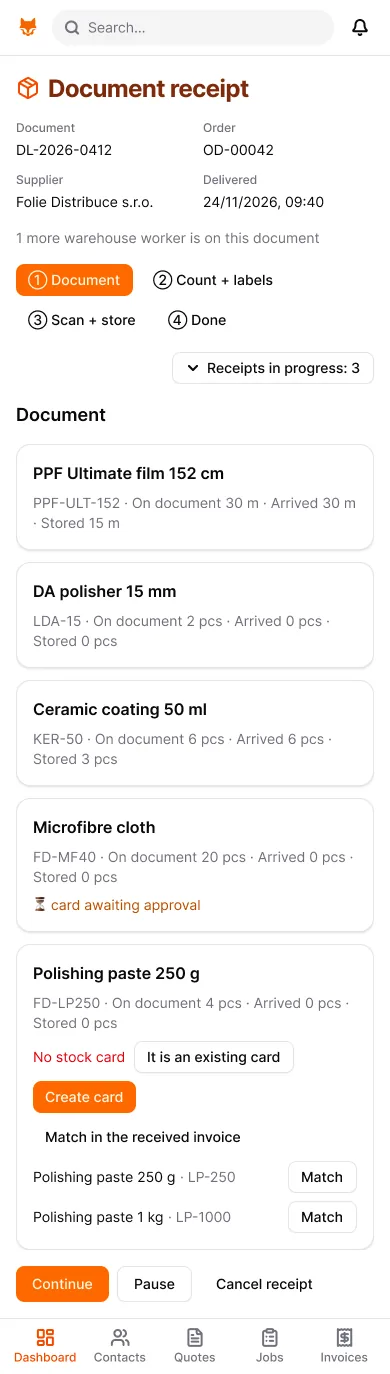
The stock lines of the document without prices: how much is on the document, how much arrived and how much is stored.
- No stock card — when the goods already have a card, click It is an existing card. The wizard offers similar cards (by EAN, supplier code and name) and Match links the line to the chosen card.
- For new goods click Create card. The card is created at once from the assortment template with the supplier from the document and as ⏳ awaiting approval; the line is matched to it and receiving does not stop. What the document did not provide (assortment group, sale price …) is marked ⚠ on the card and the manager completes it on approval.
- A line without a supplier code gets no automatic card — the same description could merge with other goods. Choose an existing card or match the line in the received invoice.
- When the line has no warehouse, open Match in the received invoice and match the line there.
- Whatever the old receiving screen already received on a line counts as arrived and stored in the wizard — nothing is received twice.
 (opens the full-size image in a new tab)
② Count + labels
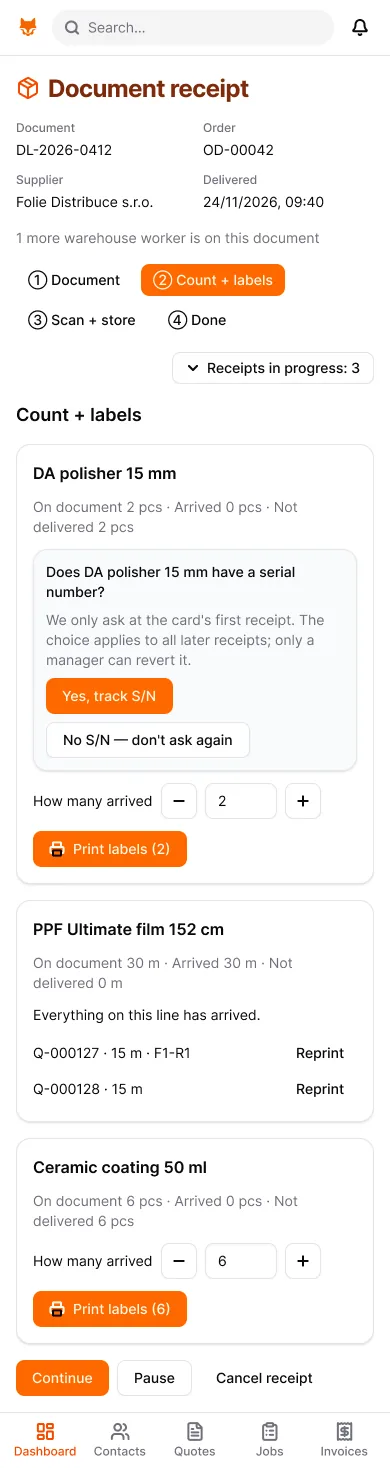
For each line you enter how much physically arrived and print QR labels:
| Goods | What you enter |
|---|---|
| Piece goods | The number of pieces (−/+). One label = one piece. |
| Rolls (film) | The metres on each roll. The wizard pre-fills a suggestion from the roll length; correct it to what you are holding. |
| Measured goods (kg, l) | The quantity in each package. One label = one package. |
Print labels prints labels numbered from the Q-… series (set the series format in Settings → Numbering). Whatever did not arrive stays on the line as not delivered — you cannot receive more than the document says.
- Reprint on a piece prints a label with the same number. The original label becomes void; scanning it shows "label replaced".
- A label goes live at its first scan.
Serial numbers
At a card's first receipt the wizard asks "Does it have a serial number?"
- Yes, track S/N — you then scan or type the S/N for each piece. The same S/N twice in the company is refused.
- No S/N — don't ask again — the choice applies to all later receipts of the card. Only a manager can revert it in Serial numbers.
 (opens the full-size image in a new tab)
③ Scan + store
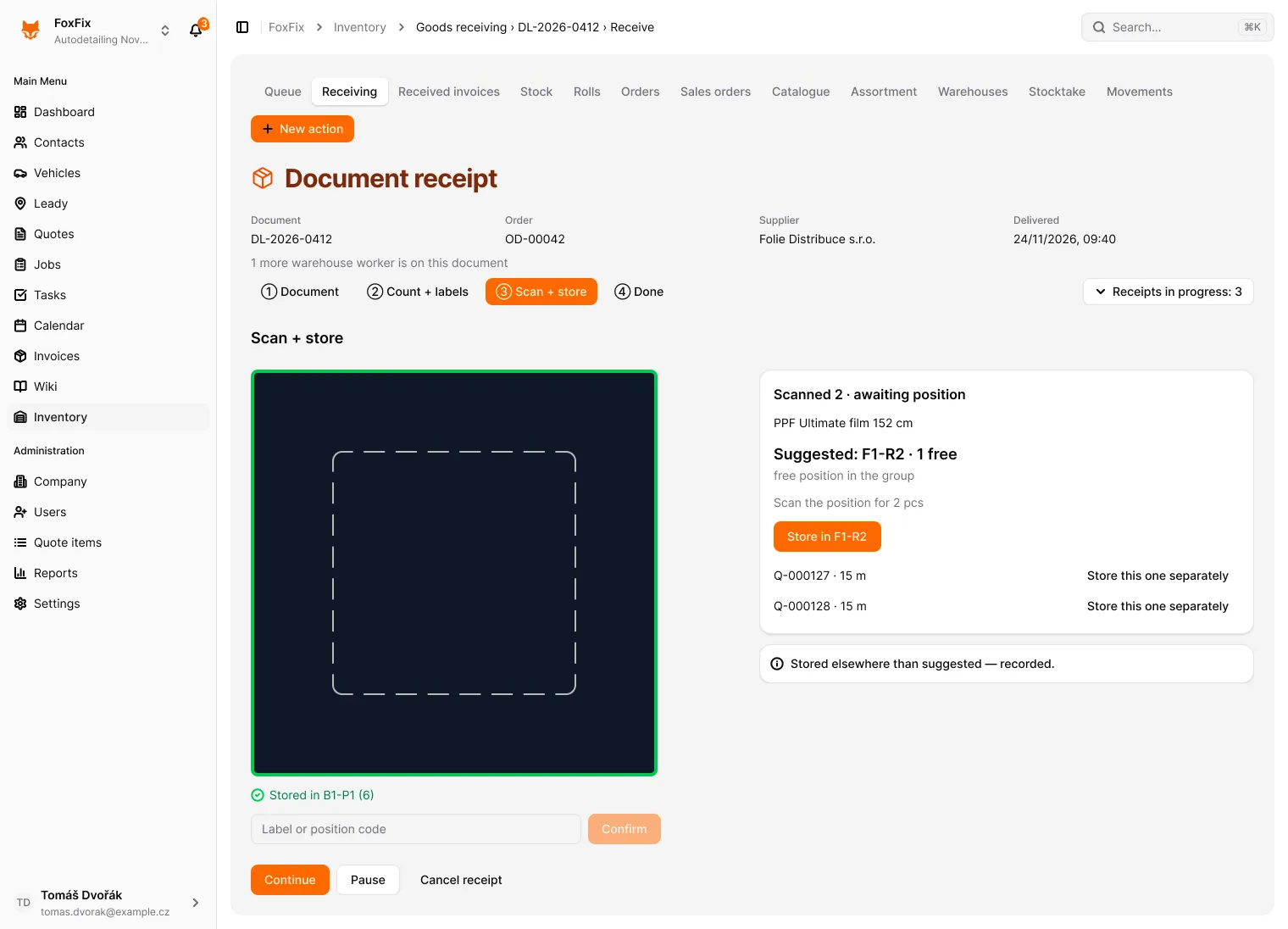
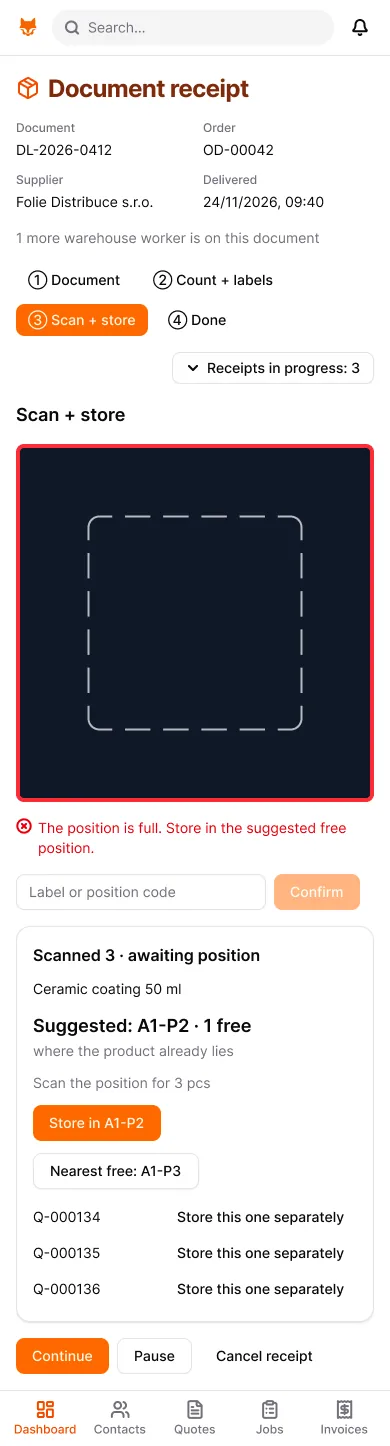
- Scan the piece label. The piece joins the batch and the wizard suggests a position: first where the product already lies, then the card's default position, a free position in the same group (the rack where the product lies, or the zone from the assortment template — the zone is matched by the code of a position group in the warehouse) and finally any free position in the warehouse. The suggestion shows how much room the position has.
- Scan more pieces of the same goods — one bin scan stores the whole batch.
- Scan the position QR (or tap Store in …). The pieces are stored, the stock is on hand and can be issued at once. Jobs waiting for the goods get their reservation right after storing (earlier start first).
- A position other than suggested stores the goods where they really are; the deviation is recorded.
- When the position does not fit the type (e.g. a roll on a pieces shelf), is full or is blocked (stocktake), storing stops and the wizard offers the nearest free position.
- Store this one separately stores just one chosen piece of the batch.
- You can also type the position code into the field under the camera.
- A piece a colleague scanned in their receipt is stored by that colleague.
- A document in a foreign currency (e.g. EUR): the system converts the price with the CNB rate of the day the goods arrived. When the rate cannot be loaded, storing is refused and you try again in a moment — goods never get a zero price.
- In a very large warehouse where a position's occupancy cannot be loaded in full, nothing can be stored there; choose another position or tell your administrator.
Scanned but not stored pieces are awaiting a position and show up in Today.
 (opens the full-size image in a new tab)
④ Done
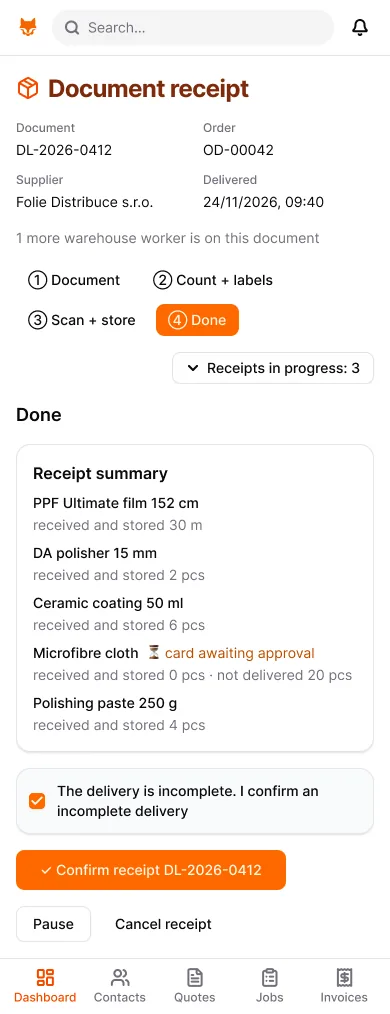
A summary per line: received and stored, awaiting position, not delivered, and cards ⏳ awaiting approval.
When something did not arrive, tick I confirm an incomplete delivery. Then click ✓ Confirm receipt. Only the confirmation:
- sets the document state (done 🔒, or incomplete — receive the rest later with Receive the rest),
- writes the received quantity to the supplier order,
- sends the notification card awaits approval to everyone who may approve cards (purchasing, branch manager, CFO, managing director, admin); the card is also in the approval queue in the Catalogue,
- checks job reservations that were waiting for the goods once more.
 (opens the full-size image in a new tab)
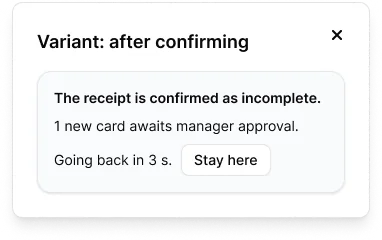
After the confirmation the wizard goes back where you started after 3 seconds; Stay here stops it.
 (opens the full-size image in a new tab)
Receipts in progress
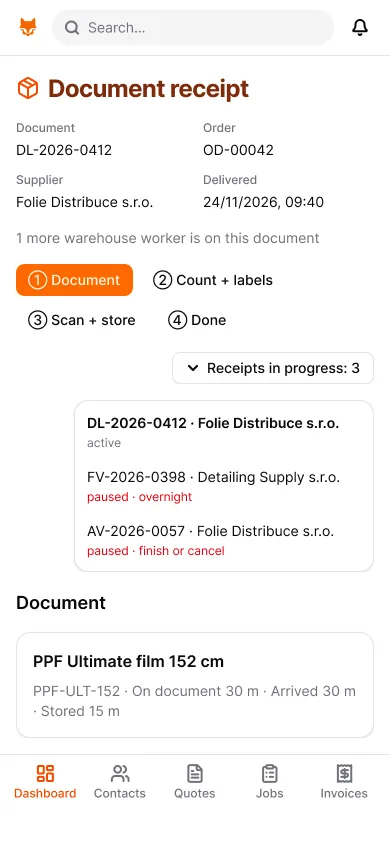
Each warehouse worker has one active receipt; opening another document pauses the current one. The Receipts in progress: n switcher at the top lists all your open receipts and takes you back to them. Several workers can receive one document at the same time — each has their own receipt and the same label is never counted twice.
- Pause saves the receipt and takes you to the document detail.
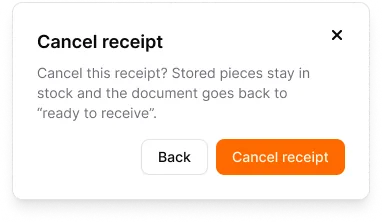
- Cancel receipt closes your receipt in progress; pieces already stored stay in stock and the document goes back to ready to receive.
- A receipt left open overnight is highlighted; after the company's limit (3 days by default, Settings → Limits and rules) finish or cancel it.
 (opens the full-size image in a new tab)
 (opens the full-size image in a new tab)
Who may do what
Anyone with write access in the Today · receiving · issue · movements row of the matrix on every warehouse of the document may receive — the warehouse worker, branch manager (warehouses of their branch), CFO, managing director and admin. The wizard shows no prices to anyone.