
New supplier order
The Warehouse → Orders → New order screen is part of the November 2026 update and appears once your company has it switched on. Until then the form described in Purchase orders applies.
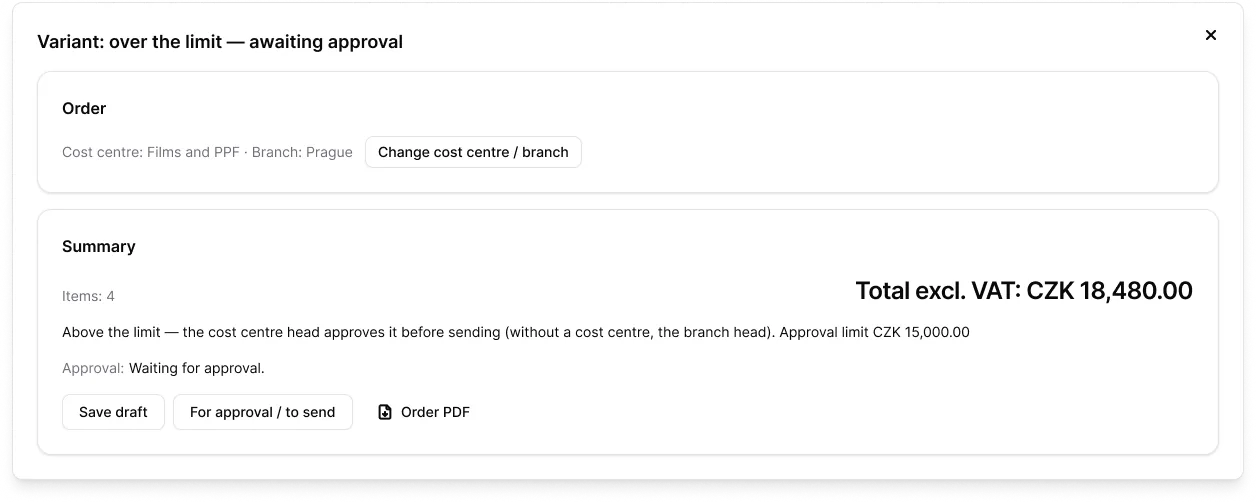
Orders are created and sent by the warehouse, purchasing or management. Within the approval limit (default CZK 15,000 excl. VAT) an order goes straight to the supplier; above the limit the cost centre head approves it before sending — for an order without a cost centre, the branch head. Nobody approves their own order.
 (opens the full-size image in a new tab)
Supplier
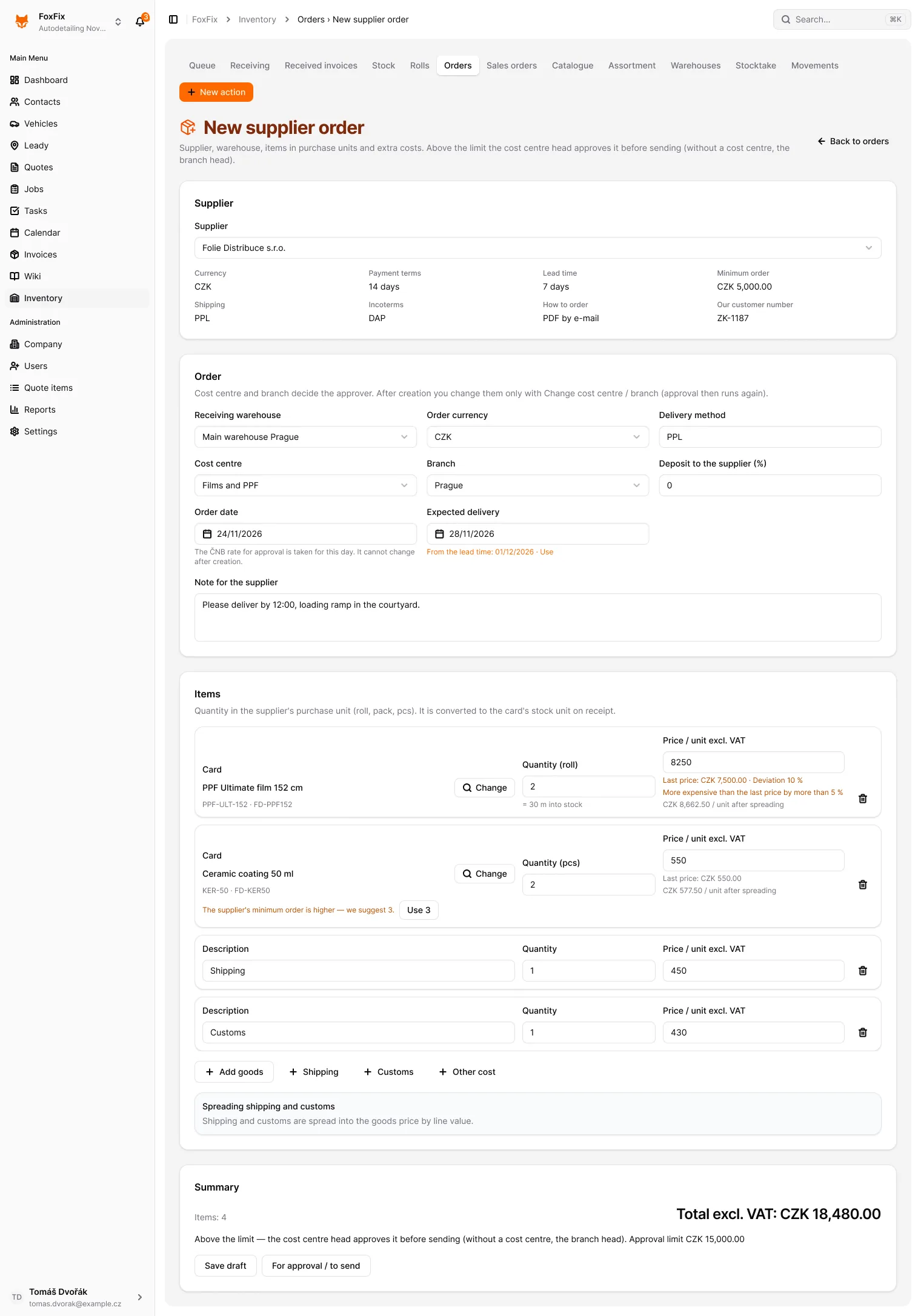
Choose the Supplier — contacts with the Supplier category are offered. Below the picker you see its terms from the contact: currency, payment terms, lead time, minimum order, shipping, Incoterms, how to order (PDF by e-mail / FoxFix ⇄ FoxFix) and our customer number. Currency and delivery method are prefilled from the contact; you can change them.
When the order is below the supplier's minimum order, a warning is shown.
Order
| Field | What goes in |
|---|---|
| Receiving warehouse | Where the goods arrive. A branch head chooses only warehouses of their branch. |
| Order currency | CZK or EUR — all lines are in this currency. |
| Delivery method | E.g. PPL, pickup. |
| Deposit to the supplier (%) | When the supplier wants a deposit. |
| Cost centre and Branch | Decide who approves the order. Set only at creation. |
| Order date | The ČNB rate for approval is taken for this day. It cannot change after creation. |
| Expected delivery | Below the field is a suggestion from the supplier's lead time — Use fills it in. |
| Note for the supplier | Printed on the order PDF. |
Changing the cost centre or branch
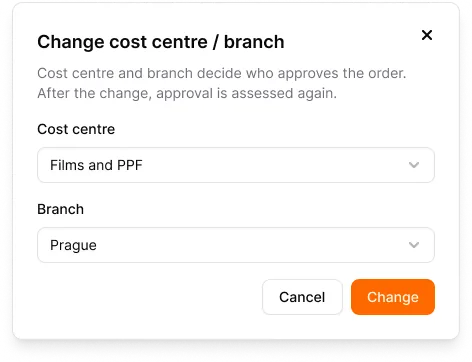
After saving, you change the cost centre or branch only with Change cost centre / branch. The order then returns to draft and approval runs again — even if it was already approved. If the order is waiting for approval, the pending request is cancelled on the next For approval / to send and goes to the new approver; the earlier approver can no longer approve it.
 (opens the full-size image in a new tab)
Items
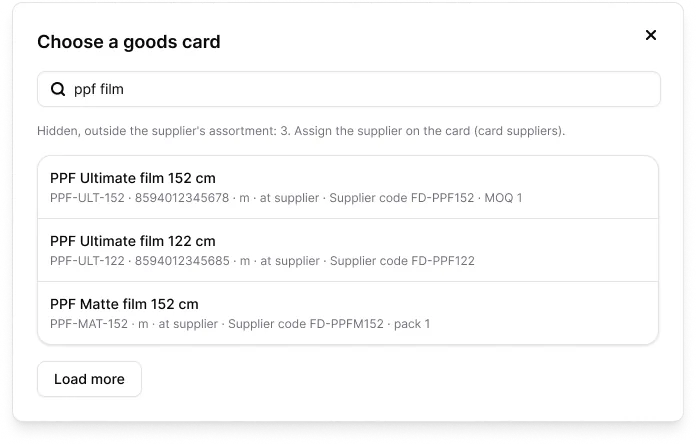
Add goods adds a line; Choose card opens a search by name, code or EAN (at least two characters). The search runs on the server page by page, so it works in a large catalogue too; Load more adds further results. Only cards from the supplier's assortment are offered — cards that have the supplier in their card terms (Card suppliers and minimum per warehouse). Other goods cannot go on the order: assign the supplier on the card first. Above the results you see how many cards found are outside the assortment.
 (opens the full-size image in a new tab)
On each line:
- You enter the Quantity in the supplier's purchase unit (roll, pack, pcs). Below the field you see how much that is in the card's stock unit — for example “= 30 m into stock” for two rolls of 15 m.
- When the supplier sells only by pack or has a higher minimum quantity (MOQ), a suggestion appears, e.g. “The supplier's minimum order is higher — we suggest 3.” The Use 3 button changes the quantity; nothing changes on its own.
- Price / unit excl. VAT with the last price and the deviation in % below it. When the price is higher than the last one by more than the tolerance (default 5 %, the Last purchase price tolerance setting in Limits and rules), the line is highlighted.
- A card outside the supplier's assortment (for example after changing the supplier) shows “The card is not in this supplier's assortment — the order will not accept it.” You can save once you remove the line or assign the supplier on the card.
- A line from a proposal for a job or customer order shows whom the goods are reserved for after receipt.
The warehouse role and prices
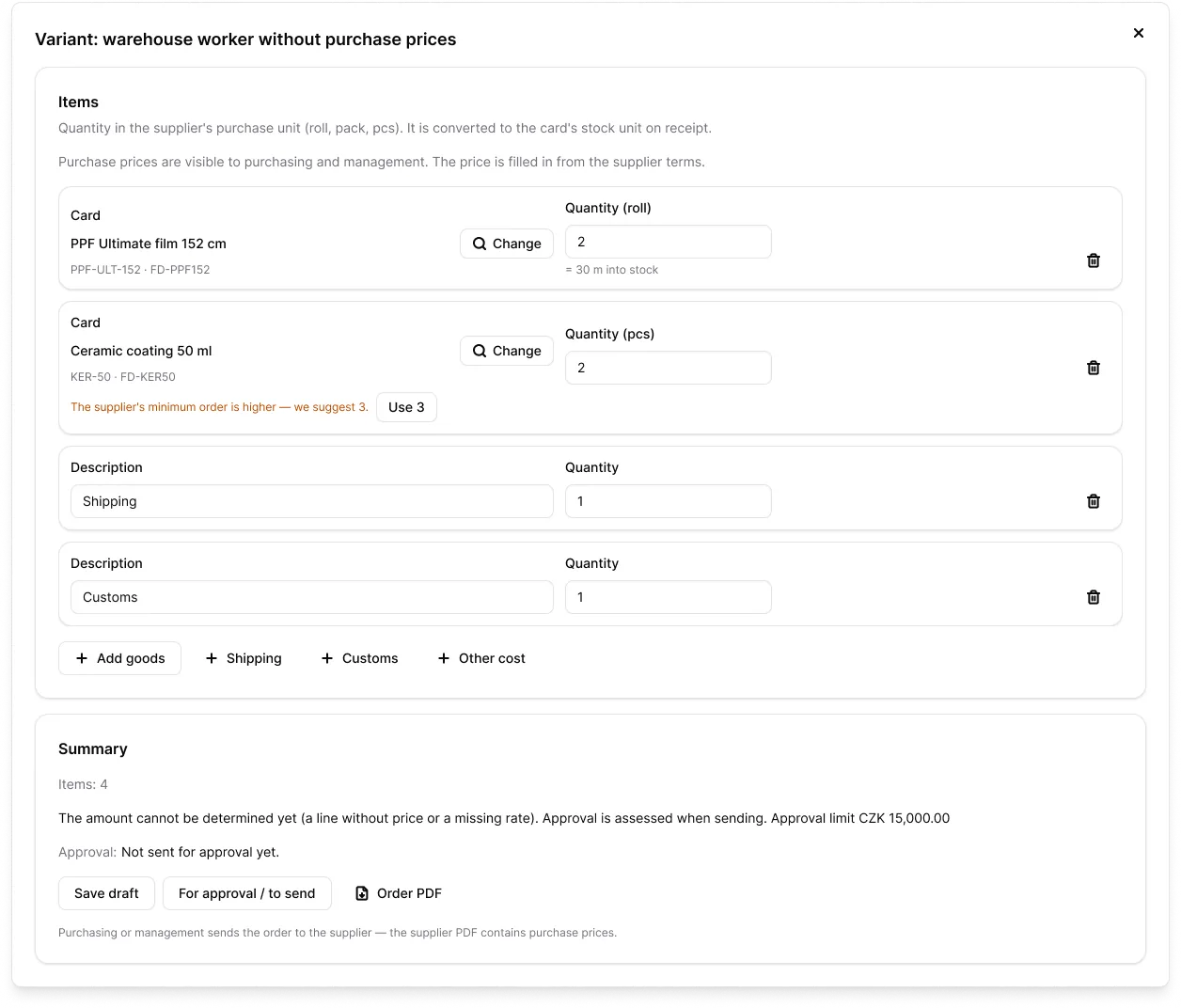
Purchase prices are visible to purchasing and management. The warehouse role does not see them in the form — the price is filled in from the supplier terms on the card. When the card has none, purchasing fills in the price; otherwise the order cannot be sent for approval. Purchasing or management sends the order to the supplier — the supplier PDF contains prices.
 (opens the full-size image in a new tab)
Shipping, customs and other costs
The Shipping, Customs and Other cost buttons add a separate line with a description, quantity and price. Shipping and customs are spread into the goods price by line value — on a goods line you see the price per unit after spreading. Other cost stays a separate item of the order.
Summary, approval and sending
The Summary shows the number of items, the total excl. VAT (only with purchase prices) and whether the amount will need approval.
- Save draft — the order gets a number (e.g. OD-00042) and stays in progress. You can come back to it later.
- For approval / to send — the server calculates the amount excl. VAT in CZK (EUR at the ČNB rate of the order date, without the markup). Above the limit it sends the order to the approver (status Waiting for approval; the approver finds it in For approval); within the limit you can send it straight away. When the ČNB rate is not available, the order is neither assessed nor sent — try again later.
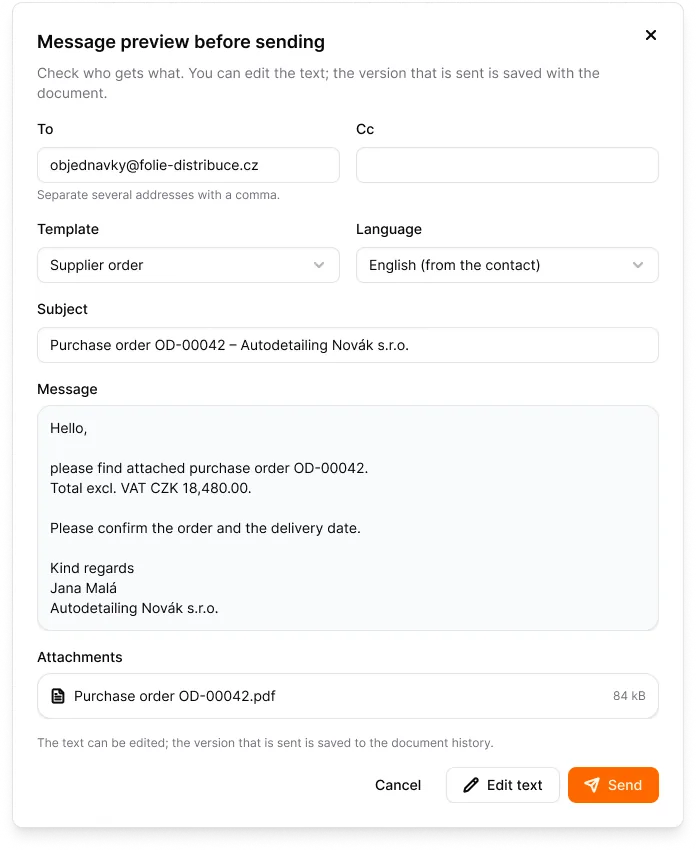
- Preview and send — opens the message preview: recipients, subject, text, language and the order PDF as an attachment. You can edit the text; the version sent is stored with the order. Only an order within the limit or an approved one can be sent. When the amount, cost centre, branch, supplier, warehouse or items change after approval (even at the same amount), it has to be approved again.
 (opens the full-size image in a new tab)
 (opens the full-size image in a new tab)
Order PDF downloads the order as the supplier receives it: your company details from Settings, the supplier, delivery place and method, items with prices and the total excl. VAT. Internal details (last price, deviation, approval, cost centre) are not on the PDF.
FoxFix ⇄ FoxFix
Ordering straight into the supplier's FoxFix is not available yet. Send the order as a PDF by e-mail.
After sending, the order detail opens, where you follow confirmation, delivery date and receipt (Purchase orders).