
Stocktake
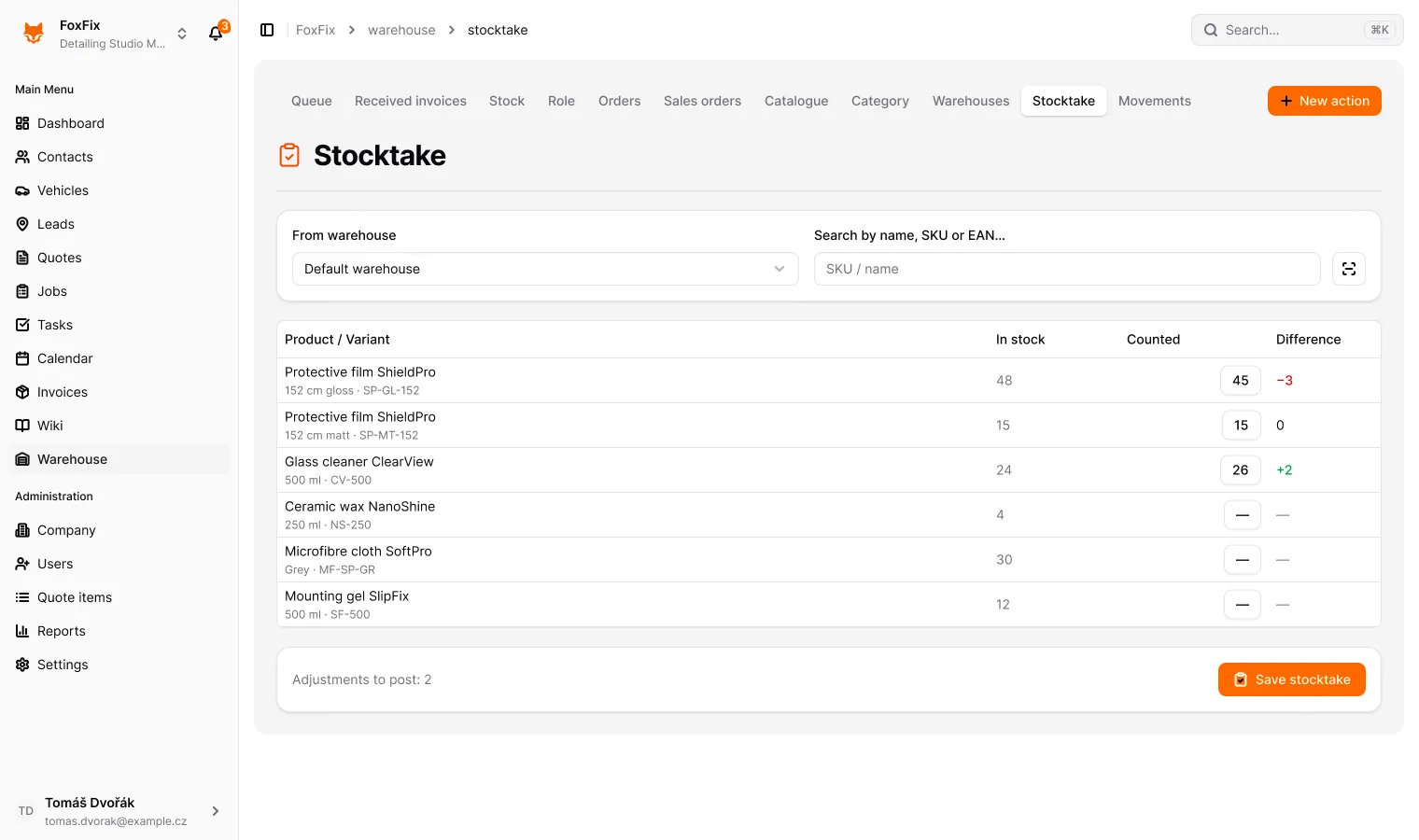
The Stocktake tab is for recounting the warehouse regularly: you select a warehouse, physically count the goods and enter the counted quantities — and the system posts the exact adjustments itself so that the stock in the app matches reality. Every change stays traceable in the movement history.
 (opens the full-size image in a new tab)
How to do a stocktake
-
Open Inventory → Stocktake.
-
In the From warehouse field, select the warehouse you are counting.
-
A table of all items you hold in this warehouse appears:
Column Meaning Product / Variant The item's SKU and name. On hand How many the system has on record. Counted Enter here how many you actually counted. Difference Calculated as you go: counted − system (e.g. +2surplus,−1missing). -
Go through the warehouse and enter Counted for each item. To find an item quickly:
- use the search field (“SKU / name”) — it searches by SKU and name, or
- scan the barcode with the scanner icon — once read, “Item found” appears and the row is located automatically.
-
Keep an eye on the “Adjustments to post: N” counter — it shows how many rows will be corrected when you save.
-
Click Save stocktake. “Stocktake saved: N adjustments” appears and the stock levels are reconciled.
What exactly gets saved
- Only rows with a Counted value that differs from the system are posted: a surplus creates an Adjustment (+) movement, a shortfall an Adjustment (−).
- Rows where you left Counted empty are not changed — so you can do a stocktake in parts (e.g. only rack A today).
- Rows with a zero difference are skipped (no unnecessary movement).
- Each adjustment gets a reason in the history in the form “Inventura (systém X → napočítáno Y)” (stocktake, system X → counted Y), so it is always clear what was changed and why.
- Stock cannot be reduced below the quantity reserved for jobs, invoices or orders — such a row is not saved. Resolve the reservations first (issue or cancel them in the queue).
Common situations
- “Saved X, failed Y” — some of the adjustments did not go through (e.g. a dropped connection, or a count lower than the reserved quantity). The posted rows are done. The counted values are cleared after saving, so enter the counted quantity again for the remaining rows and save.
- “This item is not in this warehouse” — the scanned goods are not held in the selected warehouse. Either you are counting a different warehouse, or you need to transfer / receive the goods first.
- “No stock to count in this warehouse.” — the warehouse does not have any stock items yet.
- A single item outside a full stocktake is quicker to reconcile with a manual adjustment in the variant detail.
Count at your own pace
Nothing changes until you click Save stocktake — you can correct the values as often as you like. Save only once you have finished counting the whole section.
The new Stocktake (November 2026 update)
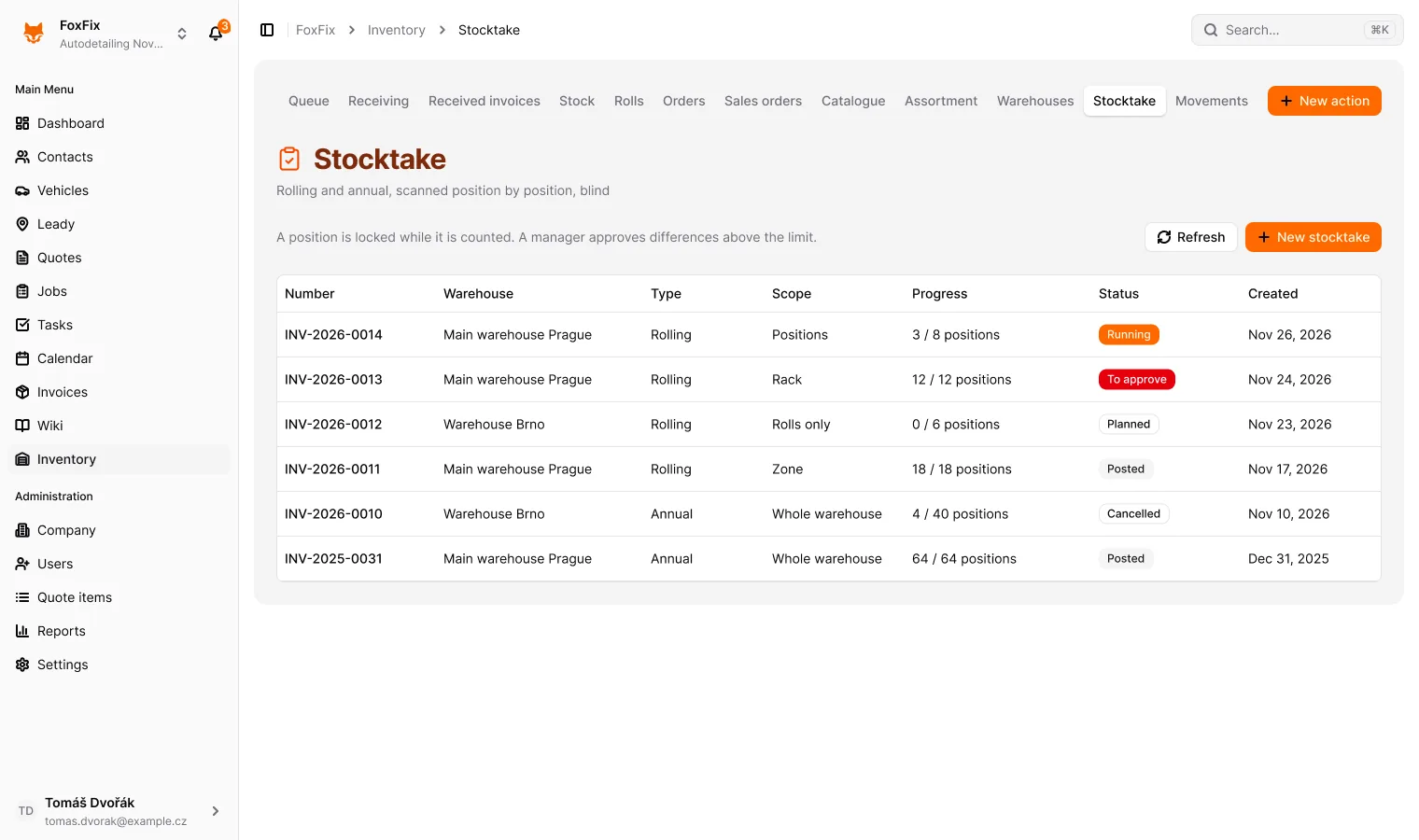
When your company has the November 2026 update enabled, a stocktake is done by scanning position by position, blind. The warehouse does not close: the system takes the stock of each position at the moment you scan it and locks the position until posting.
 (opens the full-size image in a new tab)
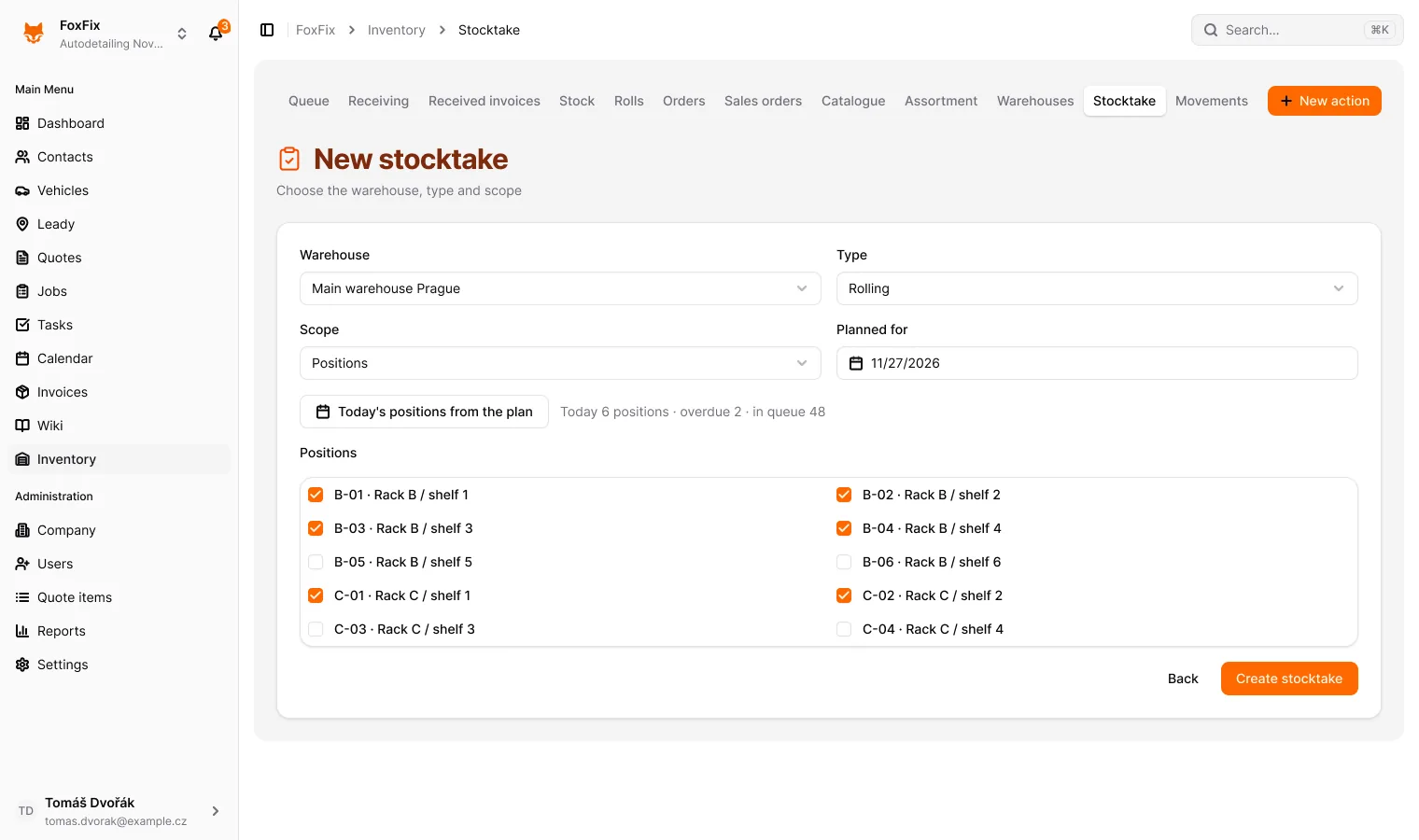
Create a stocktake
A manager creates the stocktake (a role allowed to approve stocktakes in the warehouse).
- On the Stocktake tab, click New stocktake.
- Choose the Warehouse and the Type: Rolling (small parts over the year) or Annual (the whole warehouse, protocol for the accountant).
- Choose the Scope: Whole warehouse, Zone, Rack, Assortment (positions holding goods of the selected groups), Rolls only or selected Positions.
- For a rolling stocktake you can click Today's positions from the plan — the app picks the positions that are due today so that everything is counted within a year (the period and the catch-up of overdue positions are in Settings).
- Confirm Create stocktake. The stocktake gets a number INV-… and the status Planned.
 (opens the full-size image in a new tab)
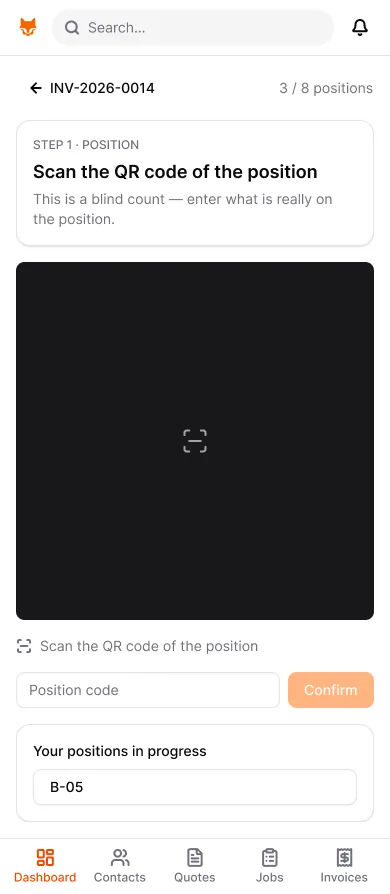
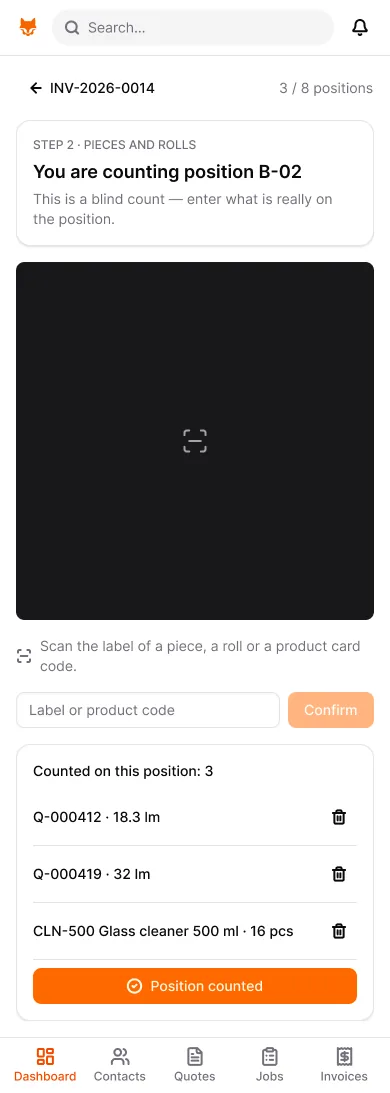
Count (phone with the scanner)
- In the stocktake detail, click Count.
- Scan the QR code of the position. The position is locked for you — no other warehouse worker can count it at that moment and no other stock movement can go to or from it.
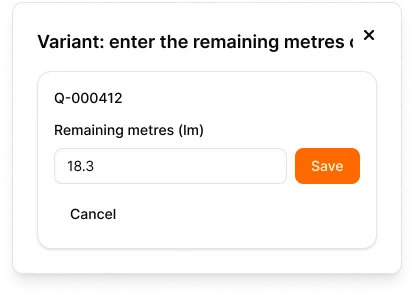
- Scan the label of every piece and roll. For a roll, enter the remaining metres (lm). Scan goods without a label by the card code (SKU / EAN) and enter the counted quantity.
- Made a mistake? Scan the same label or card again — the last scan counts. A row can also be removed.
- Click Position counted and continue with the next position.
Counting is blind: the worker does not see what the system expects, only what they scanned. Goods tracked piece by piece with a label can only be counted by label. Transfer a piece from another warehouse first.
 (opens the full-size image in a new tab)
 (opens the full-size image in a new tab)
 (opens the full-size image in a new tab)
Finish, approve and post
- When all positions are counted, click Finish in the detail.
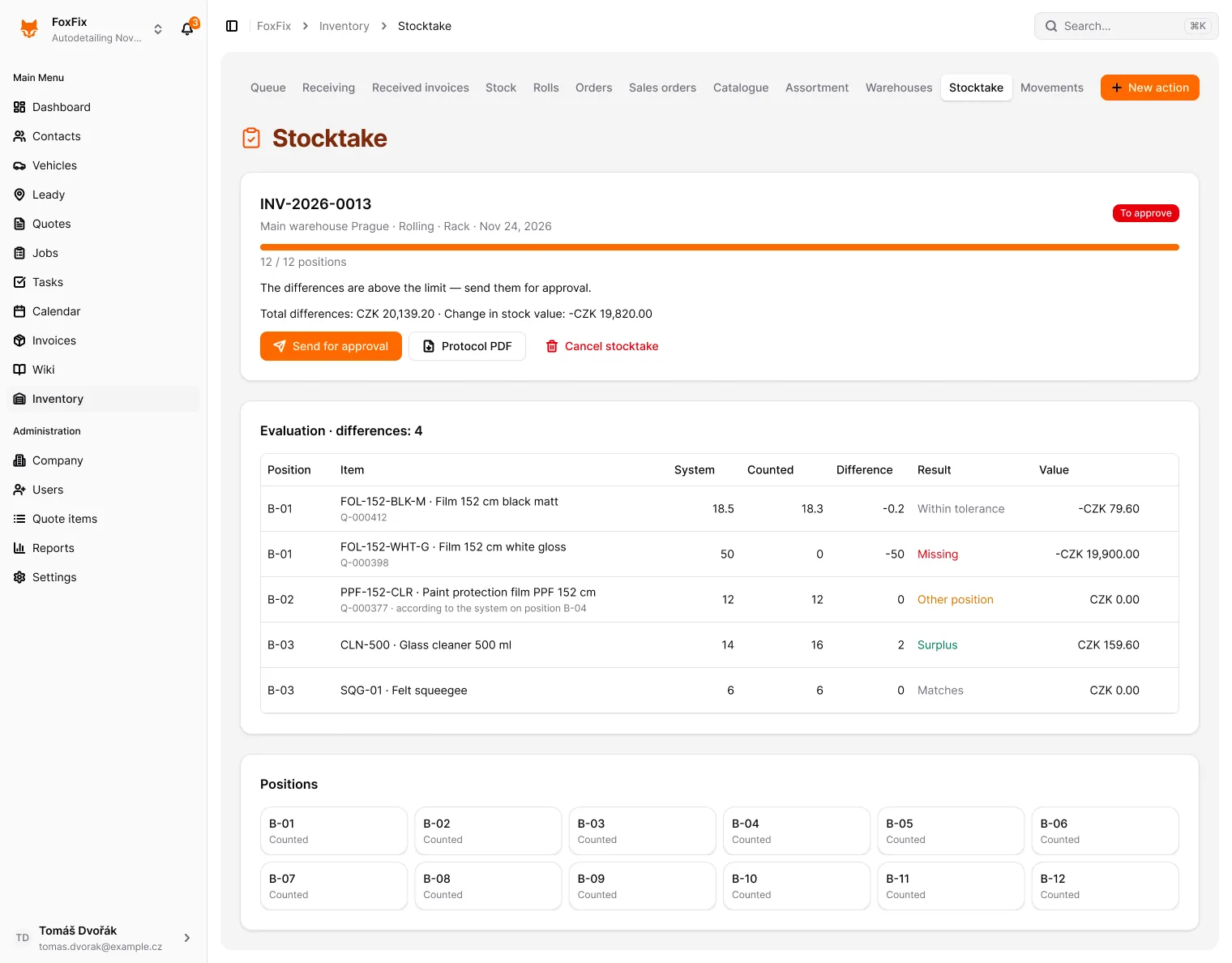
- The system evaluates every row: Matches · Within tolerance (roll metres ±0.3 lm per Settings — record only) · Other position (the piece lies elsewhere, posted as a move) · Missing · Surplus.
- If the value of the differences outside the tolerance is within the limit from Settings (default CZK 15,000 excl. VAT), the stocktake is posted straight away.
- Above the limit (or when an item has no purchase price), click Send for approval. The branch manager approves the differences in To approve; nobody who counted may approve them (four eyes).
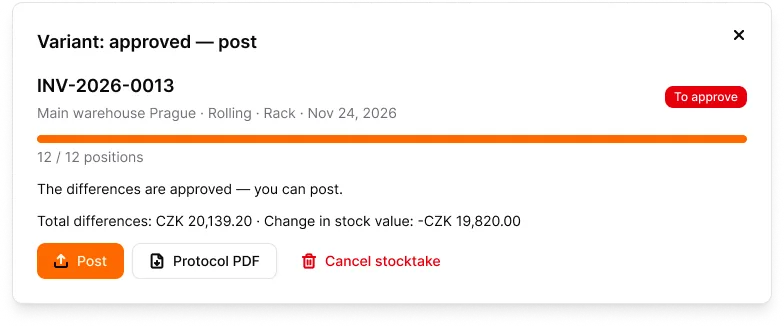
- After approval, click Post. The differences are written to the movement history as a stocktake difference (shortage / surplus) with the stocktake number, the stock and the roll metres are corrected, missing pieces are written off and the positions are unlocked.
 (opens the full-size image in a new tab)
 (opens the full-size image in a new tab)
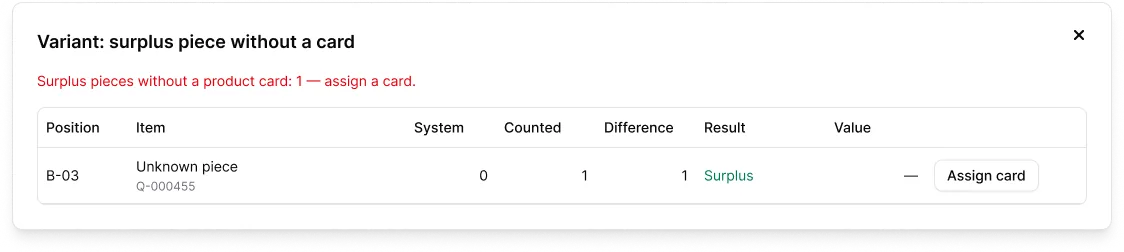
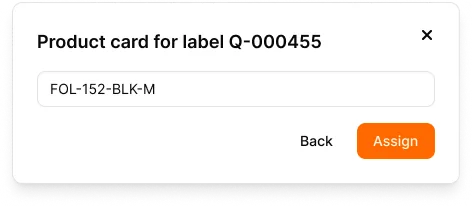
A surplus piece with an unknown label? The manager clicks Assign card on the row and enters the SKU or EAN of the card. Without a card the stocktake is not posted.
 (opens the full-size image in a new tab)
 (opens the full-size image in a new tab)
Before the first write the system checks all cards at once. It refuses a position that is no longer locked, goods whose stock has changed since counting, and a shortage below the reservations — nothing is written at that point; cancel such a stocktake and count again. A manager may Cancel stocktake until posting has started; nothing is posted and the positions are unlocked (for a large stocktake in batches — wait until it finishes).
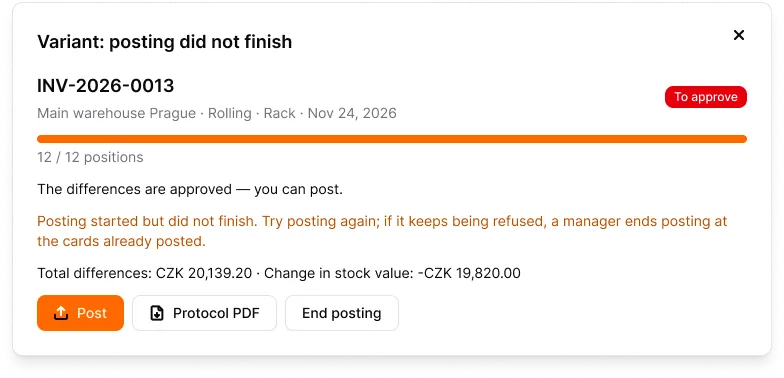
If something changes only during posting (some cards are already written), the detail says that posting did not finish. Try Post again; if the refusal repeats, a manager clicks End posting. The written cards stand, the unposted ones stay unchanged, the positions are unlocked and the detail lists them — count them in a new stocktake.
 (opens the full-size image in a new tab)
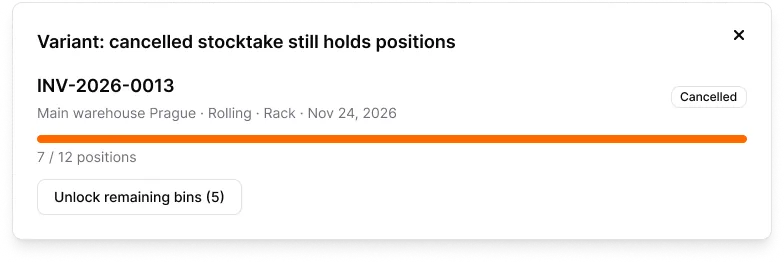
If a cancelled or posted stocktake shows Unlock remaining bins, the unlocking was interrupted (for example a closed browser); click it.
 (opens the full-size image in a new tab)
Protocol PDF
In a finished or posted stocktake, the manager downloads the Protocol PDF: positions, items, system, counted, difference, result, summary and space for signatures. Values in CZK appear only for roles that see purchase prices.
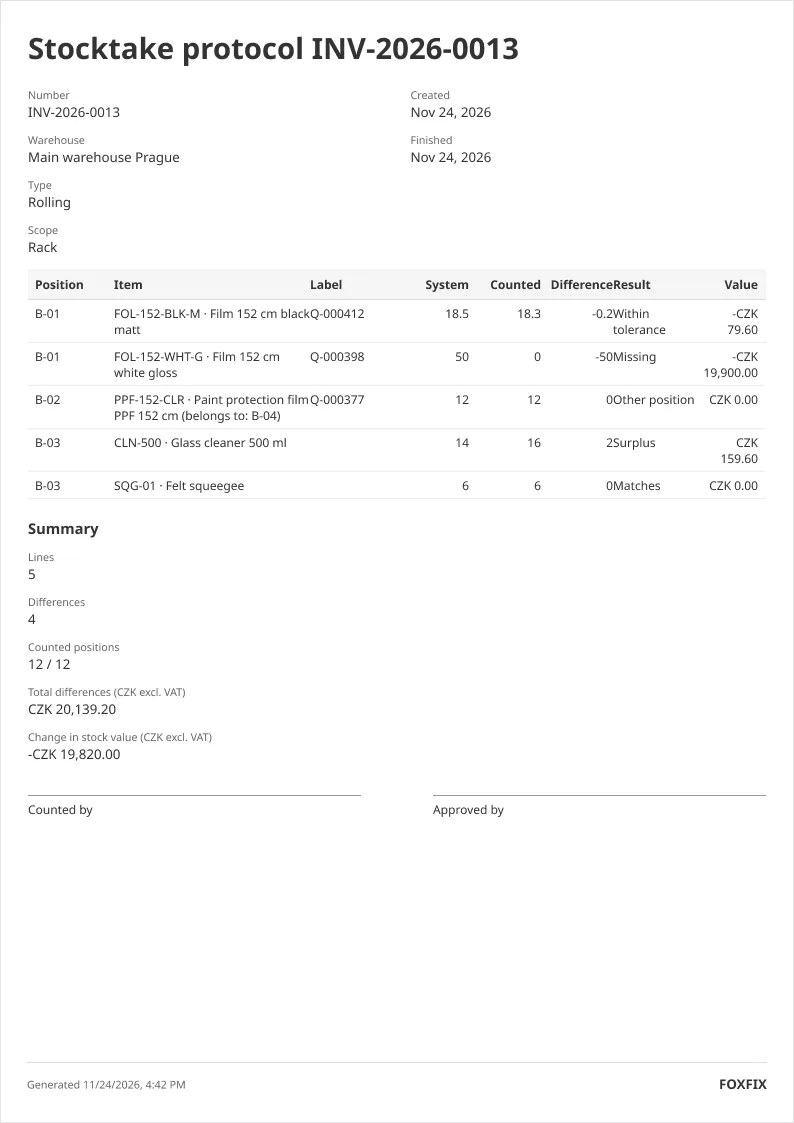 (opens the full-size image in a new tab)
Related
- How-to: Stocktake — how to plan, prepare and evaluate a stocktake
- Movement history
- Manual stock adjustment