
Quote detail
Open the quote detail by clicking a row in the Quotes list. Here you see the full content of the quote and, above all, the buttons that take it from a draft all the way to approval and a job.
 (opens the full-size image in a new tab)
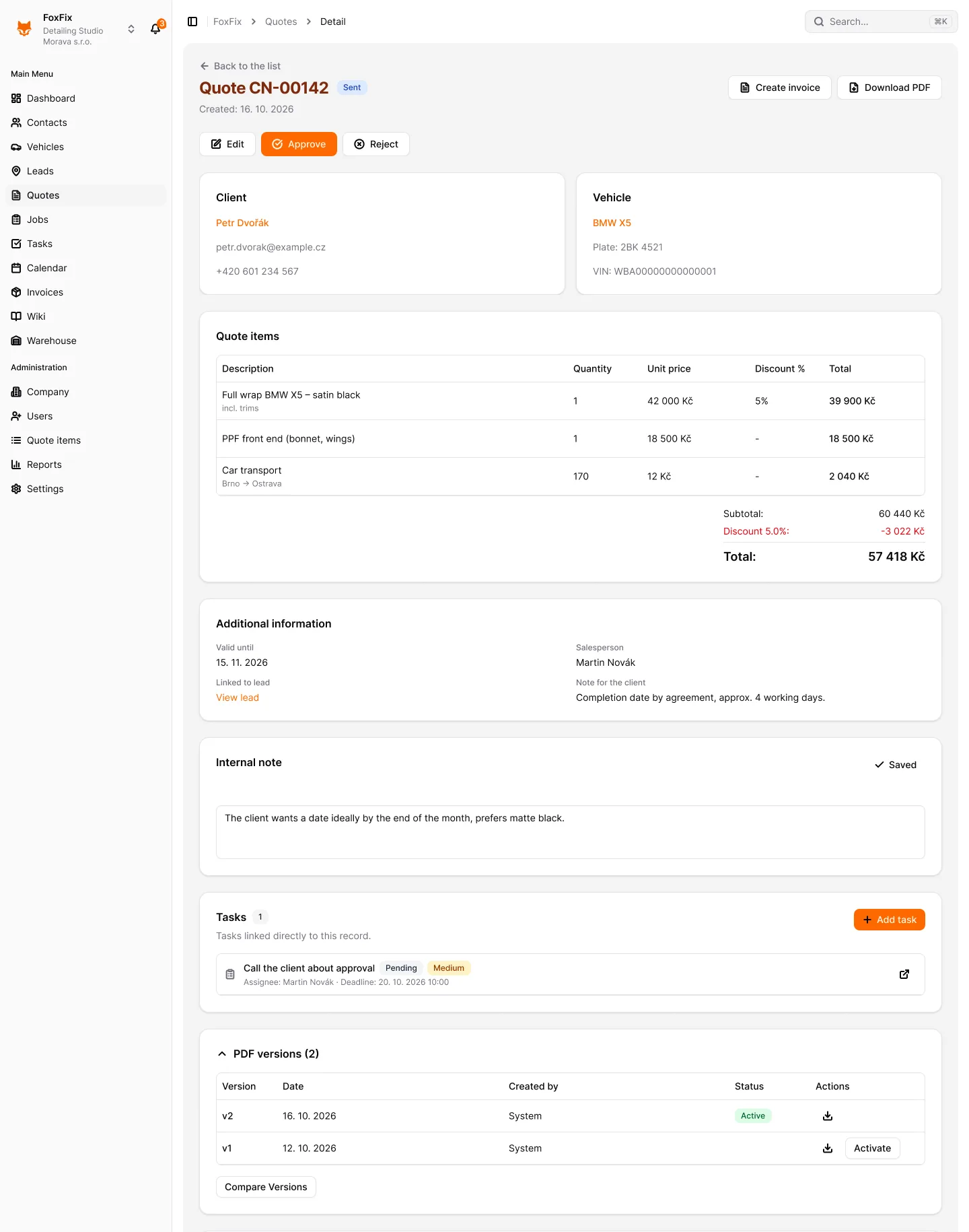
What you will find on the page
From top to bottom:
- Header — the quote number (Quote CN-…), the status label, possibly an invoice payment label, a link to the revision and the creation date. On the right are the Create invoice and Download PDF buttons.
- Action bar — buttons that depend on the quote status (see below).
- Client and Vehicle — the client's contact details and the vehicle's make, model, licence plate and VIN. Click the name or the vehicle to open its record. For a quote without a vehicle the Vehicle card is not shown.
- Quote items — description (with the item note), quantity, unit price, discount and total. Below the table: subtotal, overall discount and Total.
- More information — Valid until, Salesperson, the link to the lead (the View lead link) and the Note for the client.
- Internal note — a field that saves itself (see below).
- Tasks — tasks linked to this quote.
- PDF versions — the saved PDF versions of the quote.
- Quote history — who changed the quote and when.
Buttons by quote status
| Status | Buttons in the action bar |
|---|---|
| Draft | Edit, Prepare to send |
| Ready to send | Edit, Send to client |
| Sent | Edit, Approve, Reject |
| Approved | Edit, Create job |
| Rejected | Edit |
| Job created | View job #… |
You bring a rejected quote back into play by editing it — once saved, it switches to Ready to send. Editing is described in the chapter Creating and editing a quote.
Preparing to send
- Check the items, prices and discounts.
- Click Prepare to send. The status changes to Ready to send and a PDF version is saved.
Sending to the client
- With the Ready to send status, click Send to client.
- The PDF preview window opens, showing the quote exactly as the client will see it. Check it.
- Click Confirm sending. The status changes to Sent and the preview is saved as another PDF version.
Confirming the send does not email the quote by itself — it marks it as sent. You send the PDF to the client yourself (download it with the Download PDF button).
Send by e-mail with a message preview
In companies with the 5 November 2026 update switched on, the quote detail has a Send by e-mail button. It opens the message preview with the quote PDF attached: you check the recipients, subject and text, can edit the text and send the message straight from FoxFix. The sent version is saved to the quote history. This does not change the quote status – you switch it to Sent as before.
Approving a quote
When the client agrees, click Approve while the quote is Sent. “Quote approved” appears, the status changes to Approved and a PDF version is saved. You can now create a job.
Rejecting a quote
- With the Sent status, click Reject.
- In the Reject quote window, choose a Rejection reason and optionally write a note.
- Confirm with Reject quote.
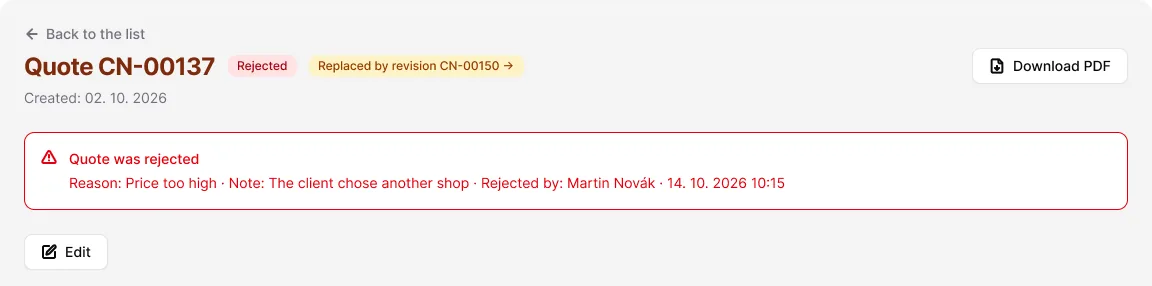
The detail of the rejected quote then shows a red box at the top, The quote was rejected, with the reason, the note, the name of the person who rejected it and the time.
 (opens the full-size image in a new tab)
More about rejection reasons is in the chapter Quotes.
Creating a job
- For a quote with the Approved status, click Create job.
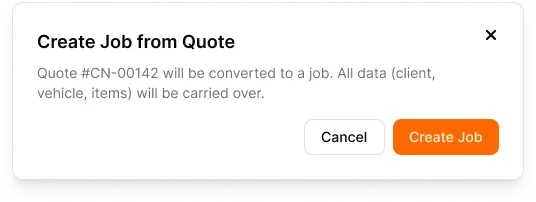
- The Create a job from the quote window opens: “Quote #… will be converted to a job. All data (client, vehicle, items) will be carried over.”
- Click Create job.
 (opens the full-size image in a new tab)
“Job created successfully” appears and the detail of the new job opens. The quote moves to the Job created status and at the top you see the bar “This quote has been converted to a job.” with a View job #… link.
If the quote items refer to stock goods, the system also:
- creates purchase requests for the material that is missing,
- reserves the material that is in stock for the job straight away. If something is missing or an item has no stock card, you will see a warning.
The job's material overview is then on the Material tab. What happens during the conversion in detail is described in the guide Turning a quote into a job.
You cannot create a second job from the same quote
Before creating a job, the system checks whether one already exists for the quote. If it does, it reports “A job … already exists for this quote.”. For an approved revision the job already exists — the revision is attached to it automatically.
Invoice straight from the quote
The Create invoice button in the header is visible only to an Administrator and is not shown for a rejected quote. It is for cases where you don't need to record work in the workshop (for example a plain sale of goods).
- Click Create invoice.
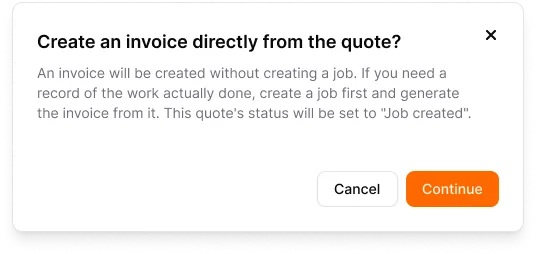
- Read the warning in the Create an invoice directly from the quote? window — the invoice is created without a job and the quote moves to the Job created status.
- Click Continue. The new invoice form opens, pre-filled from the quote.
 (opens the full-size image in a new tab)
If an invoice from the quote already exists, you will see the link “Invoice … already exists” instead of the button. More in the chapter Invoices.
Downloading the PDF
The Download PDF button is available in every status. The PDF contains your company's logo and details, the customer and vehicle details, the quote number, date and validity, a table of services (with notes and the availability of stock items), the note for the client, totals with discounts, and the name, email and phone of the user who created the PDF.
- The PDF language (Czech or English) follows the language set on the contact; if the contact has none, the company language is used. Item names are translated into English automatically.
- In Without VAT mode, prices including VAT are not shown on the PDF.
- If the vehicle has neither a licence plate nor a VIN, the app warns you with the The vehicle has no identification window. You can carry on (Continue), but we recommend adding the detail on the vehicle record first.
With the 5 November 2026 update
In companies with the update switched on, the service table in the PDF changes as follows:
- The ID column is gone — the client sees no internal numbers.
- An item at 0 never shows “0.00”: a package, an add-on or an item with a 100 % discount shows included, a “price per quote” item shows depending on scope. With a 100 % discount the original price and the discount stay visible.
- The overall discount is spread over the items and the summary adds up to the cent: price before discount − item discounts − additional discount = price after discount.
- VAT is calculated from the rate stored on the quote, after both discounts. If the quote has items with different rates, the PDF shows a VAT row for each rate and then Total incl. VAT.
Internal note
In the Internal note card, write anything the team should know (“Internal note for the quote…”). The text saves itself as you type — at the top right you will see Saving… and then Saved. If there is an error, Saving failed appears with a Try again button. The client does not see this note.
Tasks for the quote
The Tasks card holds tasks linked directly to this quote, for example “Call the client about approval”.
- Click Add task.
- In the New task window, fill in the Title and, if needed, Details, User (the assignee), Priority, Deadline and Attachment.
- Click Create task.
The icon on the right of a task opens its full detail. More about tasks in the chapter Tasks.
PDF versions
Expand the PDF versions (count) section by clicking its title. A new PDF version is saved automatically on Prepare to send, Confirm sending, Approve and when you save an edit of the quote that changed something.
Each version shows its number (v1, v2…), date and status. The current version has an Active label.
- The download icon downloads the version.
- The Activate button on an older version marks it as current again (“Activate version …? The client will see this version.”).
- The Compare versions button (from two versions upwards) opens the Compare PDF versions window: choose the versions on the left and right and see them side by side. Comparison works on a computer only.
Quote history
The Quote history section shows all events: creation, edits, status changes and generated documents — who did them and when. For edits, the “N changes” link expands an overview of what changed (the original value struck through, the new one in green). The Revert changes button undoes a particular edit.
Quote revision
A revision is a new version of a quote for a job that is already under way — typically when the client orders an extra service during the work. You do not create a revision in the quote detail but in the job detail with the Create quote revision button.
- The revision is created as a new quote with the Draft status, containing the items of the original quote, and opens for editing. New items are marked as Upsell.
- The revision detail shows a blue link Revision of the previous quote →. Once the revision is approved, the original quote shows a link Replaced by revision … →.
- A revision goes through the same approval as any quote. After Approve, the job switches to the new quote automatically, the original quote is rejected and the revision moves to the Job created status with a View job #… button (“Revision applied — the old quote was rejected and the job switched.”).
- You cannot create a second job from a revision — the job already exists.
With the 5 November 2026 update
A revision does not take a new number from the series; it gets the original quote's number with a suffix: the first revision of quote CN-00952 is CN-00952-R2, the next one CN-00952-R3. Items keep their identity in the revision, so the chosen Worker, cost centre and standard time stay on them.
On a mobile
The header and buttons are stacked, and the Client and Vehicle cards are in a single column. Swipe the item table sideways with your finger. Comparing PDF versions is not available on a mobile.
Tips and common problems
- I can't see the Create job button. The quote does not have the Approved status. Take it through Prepare to send → Send to client → Approve.
- I can't see the Edit button. The quote has the Job created status; make changes through a revision in the job detail.
- I can't see Create invoice. The button is for an Administrator only.