
Employees
On the Employees page everyone who works on jobs has a card: type of employment, weekly hours, main location and the locations where they may also work, branch and, if they sign in, the linked FoxFix user. The CFO and the managing director also enter the wage or rate here and see what an hour of each person's work costs.
Who can see it
- CFO and Managing director – all cards including wages and rates.
- Administrator – creates and edits cards, does not see wages.
- Branch manager – cards of the people in their branch, without wages.
- Location manager – cards of the people in their location, without wages.
- Other roles – only their own card, without the wage.
Nobody except the CFO and the managing director sees an individual's wage or rate – not even the employee. Permissions follow the roles in Settings → Roles and permissions. A card your role does not cover is not shown to you even through a direct link – the server enforces the scope.
Open the page in Settings → Employees. It is part of the November 2026 update and appears once it is switched on for your company.
 (opens the full-size image in a new tab)
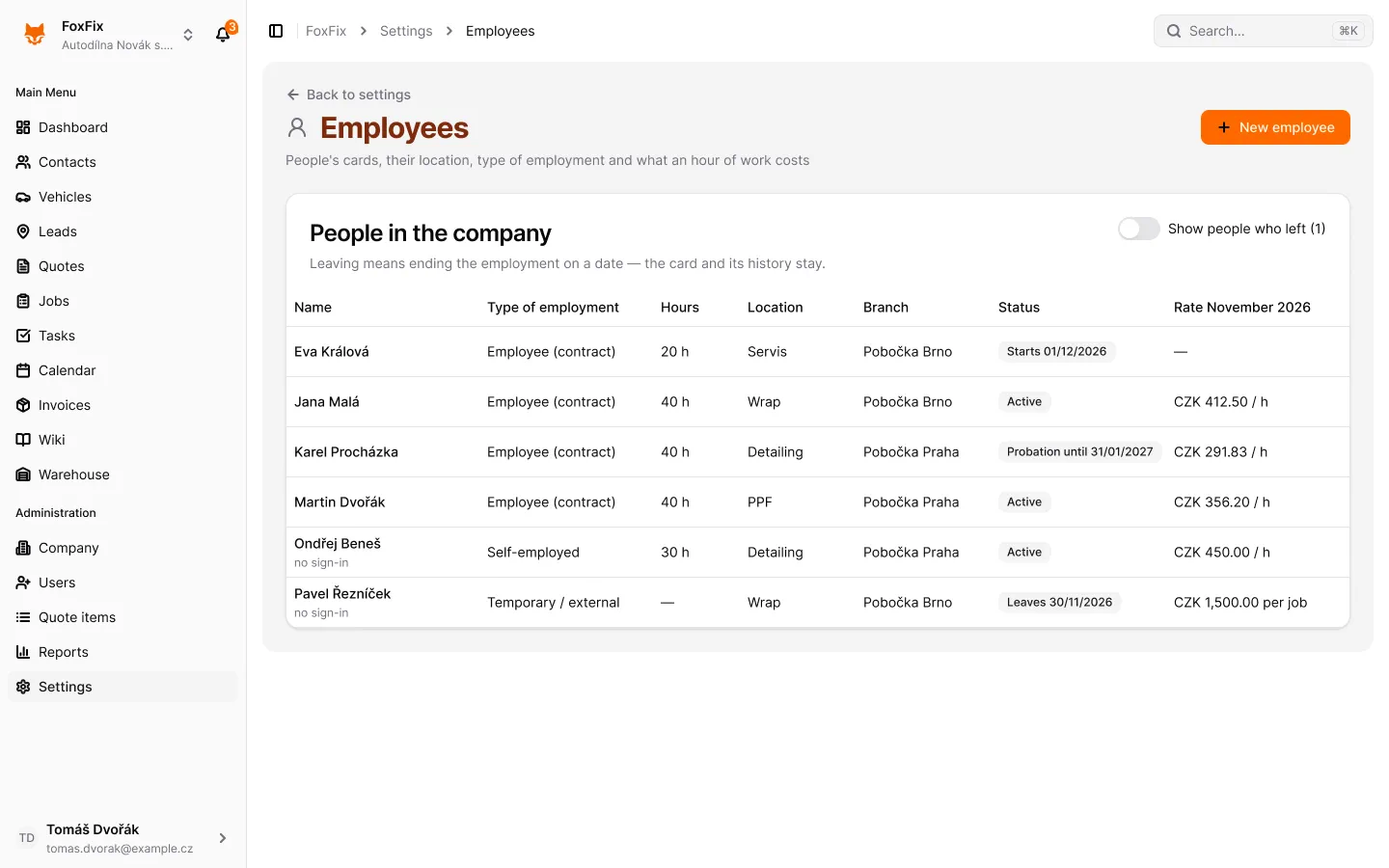
List of employees
The table shows Name, Type of employment, Hours (per week), Location, Branch and Status. The CFO and the managing director also see the Rate column for the current month (CZK per hour, or the amount per job for work paid per job).
- People who have left are hidden. Show them with Show people who left.
- When there are more people than fit on one page, load the rest with Load more.
- Click a name to open the employee card.
Card statuses:
| Status | What it means |
|---|---|
| Starts … | The start date is in the future. |
| Probation until … | The employee is on probation. |
| Active | Working. |
| Leaves … | The employment ends on a future date. |
| Left | The employment has ended; the card and its history stay. |
New employee
- Click New employee.
- Fill in Full name, Type of employment (employee on contract, self-employed, temporary / external), Hours per week and the Start date. Optionally Probation until.
- Choose the Main location and tick the locations where the person may also work. The worker on a job item is picked from the people of these locations.
- Choose the Branch and the FoxFix sign-in – the linked user. A worker who does not sign in to FoxFix stays with no sign-in and identifies with a personal QR code.
- Click Save. Contact details live on the linked user – the card does not hold them.
One user can have only one employee card. You do not enter the wage on the card – the CFO or managing director enters it separately (below).
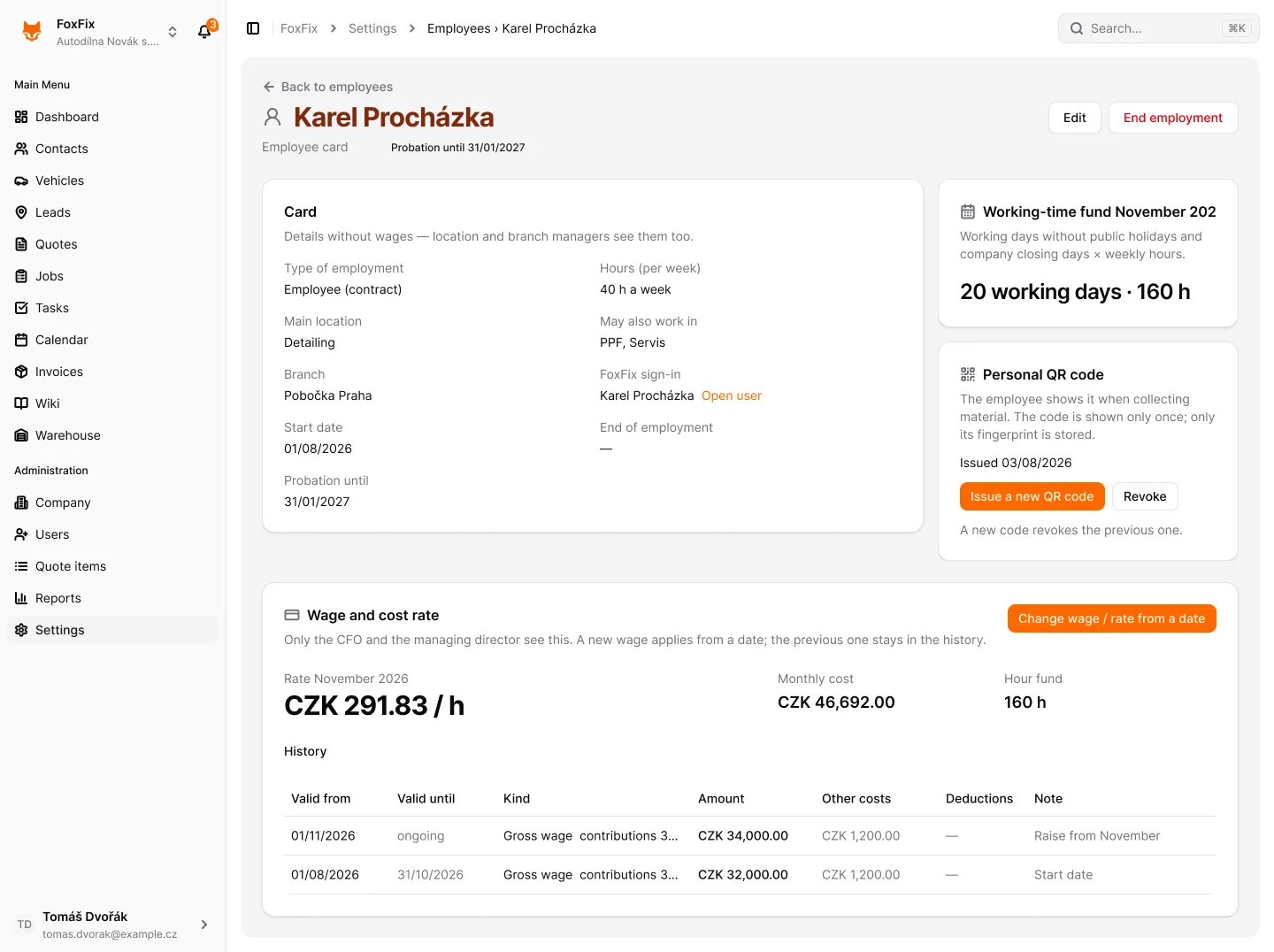
Employee card
The card shows the details without wages and, on the right:
- Working-time fund for the current month – the number of working days and hours. It is working days (Monday–Friday without public holidays and without the company's closing days) × weekly hours / 5. The company's closing days and the contributions are set in Settings → Limits and rules.
- Personal QR code – see below.
Buttons at the top (administrator, CFO, managing director): Edit, End employment and, for ended or ending employment, Restore employment.
 (opens the full-size image in a new tab)
Personal QR code
The employee shows the personal QR code when collecting material.
- On the card click Issue QR code.
- A window with the code opens. Print it right away with Print – once you close the window the code is not shown again. FoxFix stores only its fingerprint, not the code itself. The code prints as a label with the QR and the name on the label printer (62 mm roll), like a job label.
Issue a new QR code revokes the previous one (for example when a card is lost). Revoke cancels the code without a replacement. Ending the employment as of today or a past date revokes the code automatically; with a future date it stops working after the last day of employment.
Wage and cost rate
Only the CFO and the Managing director see the Wage and cost rate block. It shows the rate for the current month, the monthly cost, the hour fund and the wage history.
How the rate is calculated:
| Type of employment | What you enter | Rate per hour |
|---|---|---|
| Employee (contract) | Gross wage and other monthly costs | (wage + employer contributions + other costs) ÷ hour fund |
| Self-employed | A monthly amount, or an hourly rate | amount ÷ hour fund, or the rate itself |
| Temporary / external | An hourly rate, or an amount per job | the rate itself; no hourly rate for an amount per job |
Employer contributions (33.8 % by default) are set by the CFO in Settings → Limits and rules; the wage keeps the percentage valid on the day it was entered. Other costs (car, phone, benefits, fuel card) add to the company's cost. Deductions are only recorded for the monthly payroll basis and do not reduce the company's cost. Amounts are in CZK excluding VAT.
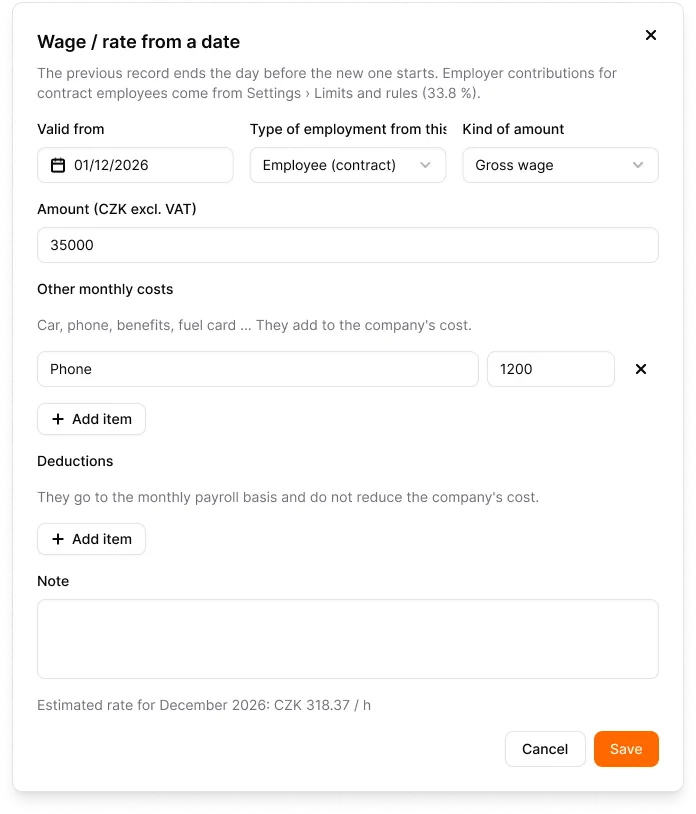
Changing the wage from a date
- Click Change wage / rate from a date (the first time Enter wage / rate).
- Enter Valid from, a new Type of employment from this day if it changes, the Kind of amount and the Amount. Add other costs and deductions.
- Below the form you see the estimated rate for the month the wage starts.
- Click Save.
The previous wage ends the day before the new one starts and stays in the history – nothing is overwritten. A new wage must start after the current one starts. A changed type of employment shows on the card as soon as you save. If someone else saved the wage or the card in the meantime, FoxFix refuses the save – reload the card and save again.
 (opens the full-size image in a new tab)
Ending the employment
- On the card click End employment.
- Enter the Last day of employment and confirm.
The card is not deleted; history and wages stay. From the next day the employee is inactive. Fix a mistake with Restore employment – the personal QR code then has to be issued again.