
Documents to receive
Goods always go into stock against a document: document → labels → bins → done. The Warehouse → Receiving screen shows every delivery note (DN), received invoice and advice note whose goods are expected or being received right now. It is part of the November 2026 update and appears once your company has it switched on. Until then, Receiving goods and the Queue apply.
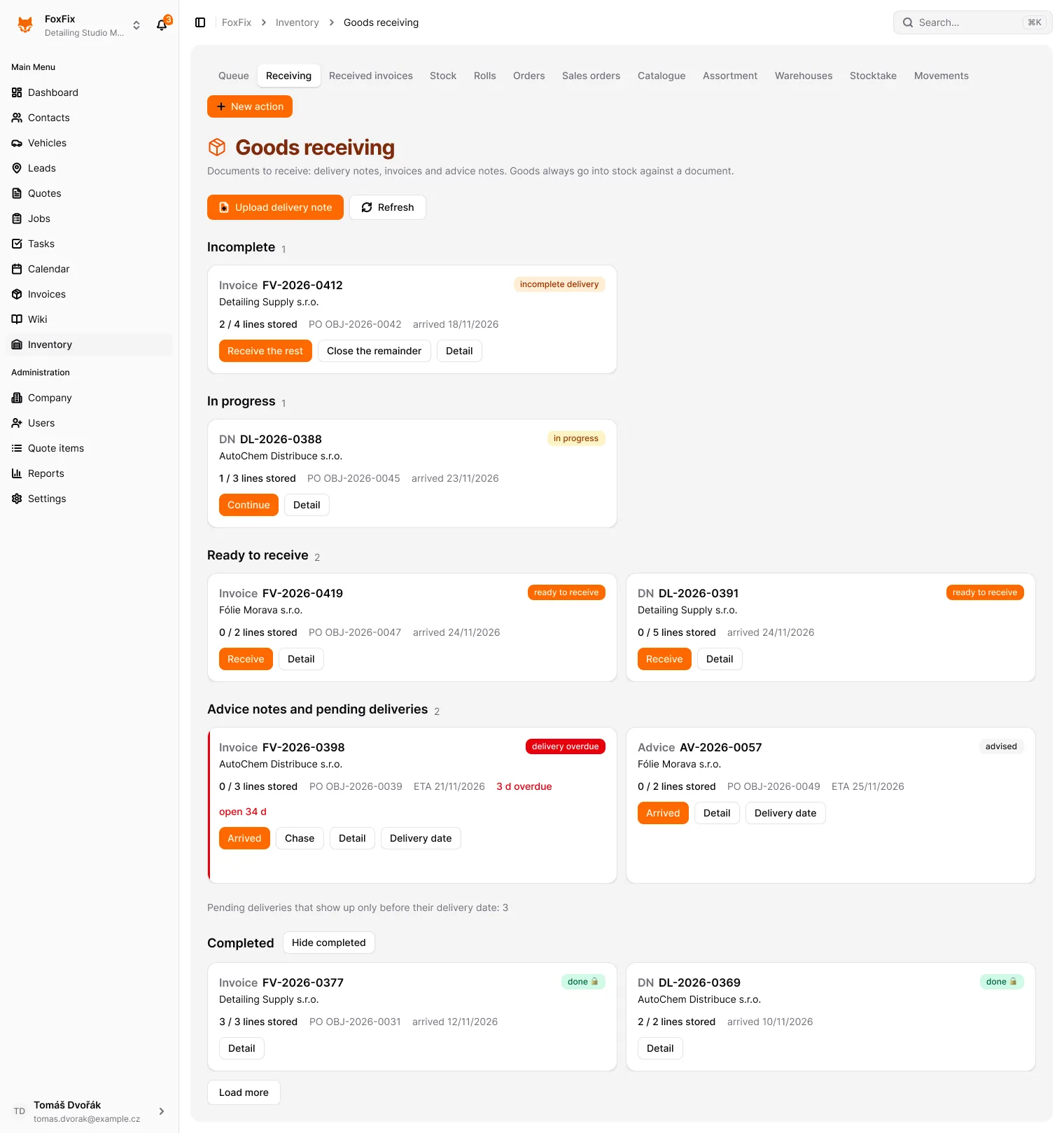 (opens the full-size image in a new tab)
On a phone each document is one card with large buttons — receiving happens at the shelf, phone in hand.
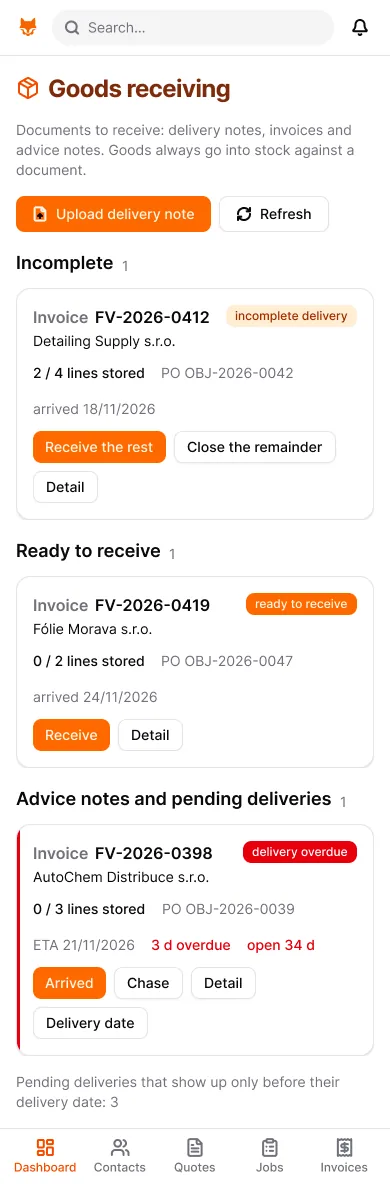 (opens the full-size image in a new tab)
The list
Documents are grouped in this order:
| Group | What it holds |
|---|---|
| Incomplete | Part of the goods is stored, the rest is missing ("incomplete delivery", e.g. "1 / 2 lines stored"). |
| In progress | Someone is receiving right now ("in progress"). |
| Ready to receive | The goods have physically arrived and wait for labels and bins. |
| Advice notes and pending deliveries | The invoice is uploaded but the goods have not come yet ("awaiting delivery", "advised"), or should have come already ("delivery overdue"). |
| Completed | Closed documents 🔒. They appear after Show completed, page by page (Load more). |
A card shows the document type and number, the supplier, the purchase order number, how many lines are stored out of all lines, and the delivery date (ETA) or when the goods arrived.
When a pending delivery shows up
- An invoice without goods shows up for the warehouse the day before the delivery date. How many days ahead is set in Settings → Limits and rules (Deadlines). A delivery without a date is visible at once.
- After the date it shows as delivery overdue with the number of days overdue — counted from the delivery date, not from the invoice date.
- A document open for more than 30 days (also a company setting) gets a red edge and moves up in its group.
- Below the list you see how many pending deliveries will show up only before their delivery date.
Buttons on a card
| Button | What it does |
|---|---|
| Arrived | The goods came: the document moves to Ready to receive. Who and when is recorded. |
| Receive · Continue · Receive the rest | Opens the Receiving wizard: Receive from the document check, Continue at scanning and storing, Receive the rest at the labels. The wizard shows no prices. The next time the list loads, the document moves to the right group by itself (Incomplete, Completed). |
| Detail | The warehouse detail of the document without prices, see below. |
| Delivery date | Sets or removes the delivery date (ETA) until the goods arrive. |
| Chase | Opens the supplier purchase order the document belongs to. |
| Close the remainder | Managers only: closes an incomplete delivery for good, see Closing the remainder. |
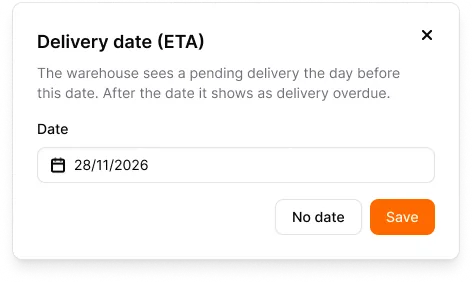 (opens the full-size image in a new tab)
Upload delivery note
The Upload delivery note button above the list (or in the document detail):
- Choose the document the delivery note belongs to. The list also offers deliveries the warehouse does not see yet (the goods came early).
- Choose the file — a phone photo of the delivery note or a PDF.
- Click Upload.
An uploaded delivery note means the goods have arrived: the document moves to Ready to receive. Another delivery note for a document that has already arrived is just added to its history. Delivery notes are listed in the document detail under Delivery notes (button Open).
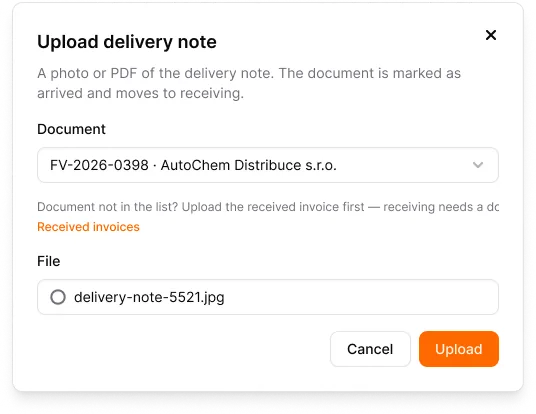 (opens the full-size image in a new tab)
No receiving without a document
If the document is not in the list, upload the received invoice first in Received invoices. With the update on, the Receive page (quick receiving without a document) redirects here and opens the Upload delivery note window right away.
Document detail without prices
The detail is a warehouse view — no prices, VAT or currency. It is the same for delivery notes, invoices and advice notes.
- Header: document, supplier, purchase order, when the goods arrived and who took them over, delivery date, status and the number of stored lines.
- Document lines: for each item On document · Arrived · Stored · Labels · Bins · Status. Quantities are in the stock unit of the item card (rolls invoiced in pieces show in metres). On a phone each line is a card, on a computer a table.
- Line status: waiting, arrived · awaiting bin, partial, stored, unmatched (a line without an item card), skipped.
- Receiving history: who marked the document as arrived and when, changed the date, uploaded a delivery note or closed the remainder.
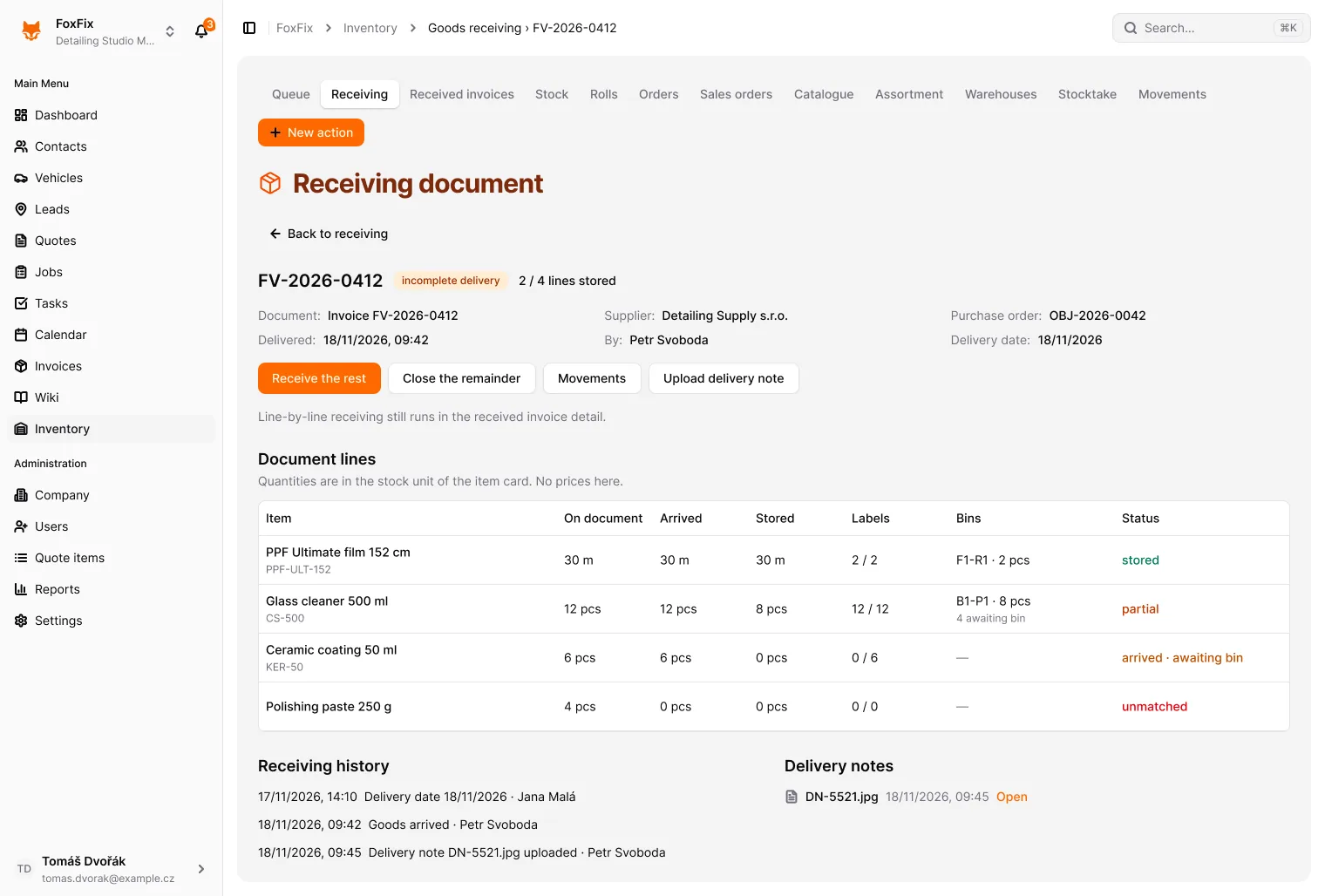 (opens the full-size image in a new tab)
Roles that see purchase prices (purchasing, back office, management) also get an Invoice with prices block at the bottom with the total excluding VAT and a link Open the received invoice.
 (opens the full-size image in a new tab)
Closing the remainder
When the supplier will not deliver the rest, a manager clicks Close the remainder on the incomplete document, fills in the Reason (required) and confirms. The document is then done 🔒 and the detail header shows who closed the remainder, when and why. Purchasing handles the credit note or cancellation with the supplier.
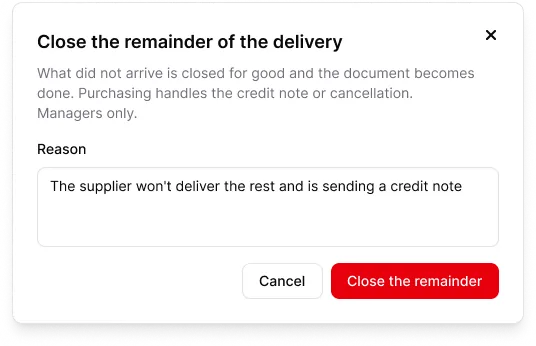 (opens the full-size image in a new tab)
Who may do what
| Action | Who |
|---|---|
| See the list and detail | Warehouse worker, back office (read only), branch manager (warehouses of their branch), CFO, managing director, admin |
| Arrived, Upload delivery note, Receive | Warehouse worker, branch manager (warehouses of their branch), CFO, managing director, admin |
| Delivery date | Whoever may edit supplier purchase orders or received invoices (warehouse worker, purchasing, back office, management) |
| Close the remainder | Branch manager (warehouses of their branch), CFO, managing director, admin — whoever may approve received invoices |
| Prices in the detail | Roles with purchase prices |
Permissions follow the matrix in Settings → Roles and permissions. A document belongs to the warehouse of its lines — a branch manager sees only documents of their branch's warehouses.