
Receiving goods
November 2026 update
With the update on, goods are always received against a document on the Documents to receive screen. The Receive page then leads there and opens the Upload delivery note window.
There are three ways to get goods into stock:
| Route | When to use it |
|---|---|
| From a received invoice | Regular deliveries from suppliers. You upload the invoice, AI extracts the items and you receive them by scanning — every piece or roll gets its own QR label. The only route for goods on rolls. |
| Scanning on the Receive page | Quick receipt of small items without an invoice, or goods with a manufacturer EAN. Ideal on a phone. |
| Manual adjustment | Found stock, correcting a mistake, small changes to a single item. |
The whole journey from delivery to shelf is described in the Goods in procedure.
Before you start
Scanning only finds goods that have a SKU or GTIN / EAN filled in in the catalogue. If the code is not in the catalogue, receiving does not stop there — the Create in catalogue button creates the item straight from the scanned code, see Unknown code.
Quick receipt by scanning (Receive)
Open the page via New action → Receive (“Quick receiving of goods by SKU, EAN or product search.”). The wizard has three steps and returns to the start after each confirmation, so you can receive item after item without a break.
Step 1 — scan the goods
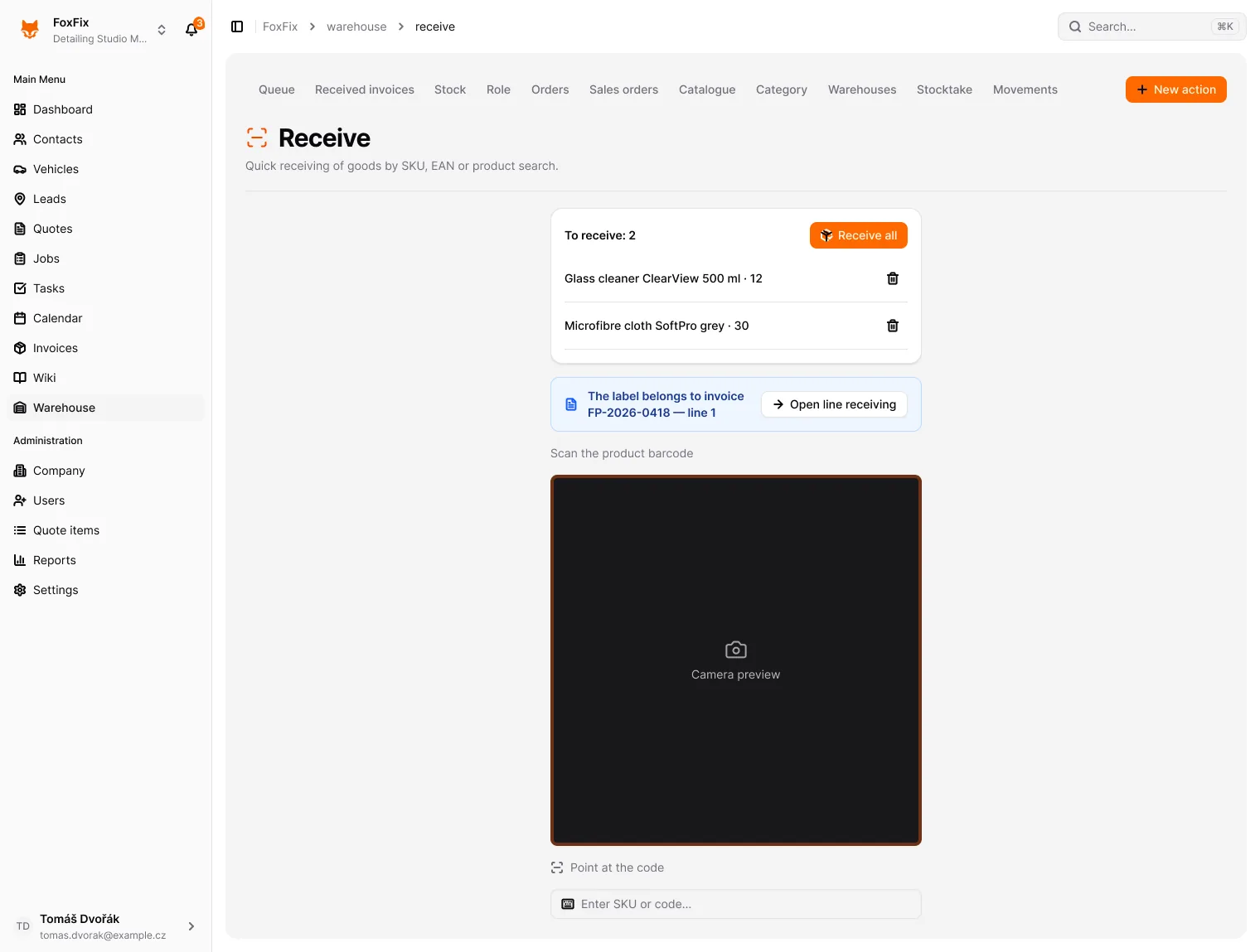
- The page shows the prompt “Scan the product barcode” and starts the rear camera. Point it at the barcode (EAN, UPC, Code 128/39 and QR all work).
- You can also scan the code with a handheld scanner, or type it into the “Enter SKU or code…” field and press Enter.
- As soon as the code is read, the wizard moves on to step 2.
 (opens the full-size image in a new tab)
What the messages mean:
| Message | What to do |
|---|---|
| “Product … is not in the catalogue” | No variant has this code. You are offered Create in catalogue, Enter manually and Try again — see Unknown code. |
| “This is a bin code, not a product” | You scanned a shelf label. Scan the goods. |
| “The label belongs to invoice … — line …” | You scanned a piece label from a received invoice. Open line receiving takes you to the invoice. |
| “Camera unavailable. Check permissions.” | The browser is not allowed to use the camera. Allow it, or type the code into the field. |
Step 2 — scan the bin
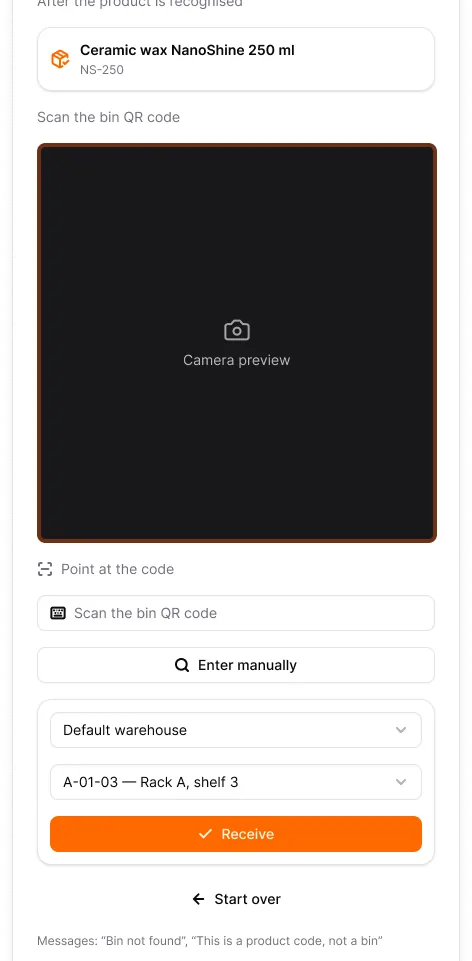
- Prompt “Scan the bin QR code” — scan the QR label of the rack or shelf. The warehouse is recognised from the label automatically.
- No labels? Click Enter manually, choose the warehouse in the “Select warehouse” field, optionally a bin in “Select bin (optional)”, and confirm with Receive. You move on to entering the quantity.
Start over takes you back to step 1.
 (opens the full-size image in a new tab)
Step 3 — enter the quantity
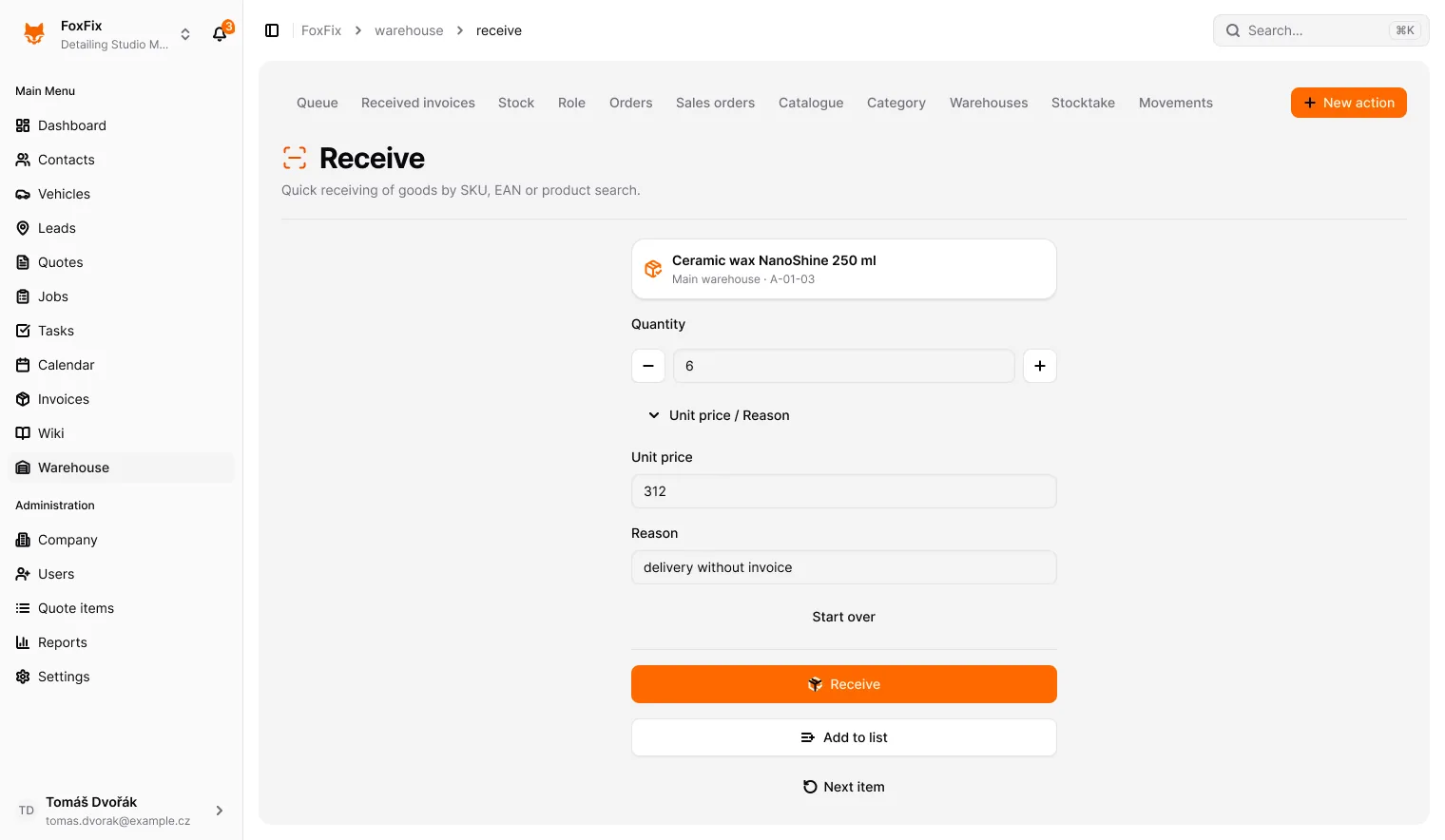
- Check the summary at the top (item, warehouse and bin).
- Enter the Quantity — with the − and + buttons or directly in the field (decimals are allowed, e.g. 2.5).
- Optionally expand Cost per unit / Reason and fill in the purchase Cost per unit (it recalculates the item's average purchase cost) and a Reason (e.g. “delivery without invoice”).
- Finish with one of the buttons at the bottom:
- Receive — receives the goods immediately (“Stock received”) and returns to step 1,
- Add to list — only adds the item to the batch (“Added to list”) and returns to scanning,
- Next item — discards the item in progress and starts again.
 (opens the full-size image in a new tab)
Goods on rolls cannot be received via Receive
For an item tracked by roll, instead of the form you will see “Roll tracking required” and a Received invoices button. Rolls are received through the invoice, where each roll gets its own QR label and length. See Rolls.
Batch receipt (several items at once)
When you choose Add to list, items are collected in the “To receive: N” card at the top:
- each row shows the item and quantity; the trash icon removes it from the list,
- once everything is scanned, click Receive all,
- result: “Received N items”. If some of them fail, you will see “Received X, failed Y” — the failed rows stay in the list, so you just try them again.
Unknown code
Wherever a scan cannot be matched to the catalogue, there is a Create in catalogue button:
- on the Receive page, when the scan finds no code,
- in the queue, in the “What is this item?” dialog (the Create a new item button),
- in the received invoice detail, on an unmatched line.
A short form opens with the name, SKU and EAN prefilled from the code. Administrators and Managers create the item straight away and carry on receiving; other roles send a proposal for a manager to approve. Details are in Catalogue — New stock card.
Scanner colours, the handheld scanner and the difference between piece and product labels are covered in Labels and scanner.
Receiving from an invoice
The fastest way to receive a whole delivery: you upload the supplier's invoice, AI extracts the header and the items, and you receive the lines with the scanning wizard. The step-by-step procedure is in Received invoices.
What happens to stock when you receive
- A Goods in movement is created in the movement history.
- If you filled in the purchase cost, the item's average purchase cost is recalculated.
- If a job is waiting for missing material, the app reserves the goods for it automatically after receipt — the job with the earliest planned start takes priority. The reservation appears in the queue.