
Ordering from a supplier
This guide takes you through buying goods from a supplier: from finding out what is running low, through creating the order, to receiving the delivery, which matches itself to the order. That way you always know what has been ordered, what is in transit and what has not arrived yet.
Before you start
- Module and plan: Inventory – on the Profi plan and above, switched on in Settings → Company → Application modules.
- Role: anyone who can see Inventory can create orders, including the Warehouse clerk role.
- Supplier: a supplier is a contact in the address book with the Supplier category – other contacts are not offered when you choose a supplier. The goods you order must be in the catalogue.
Step 1 – Find out what to order
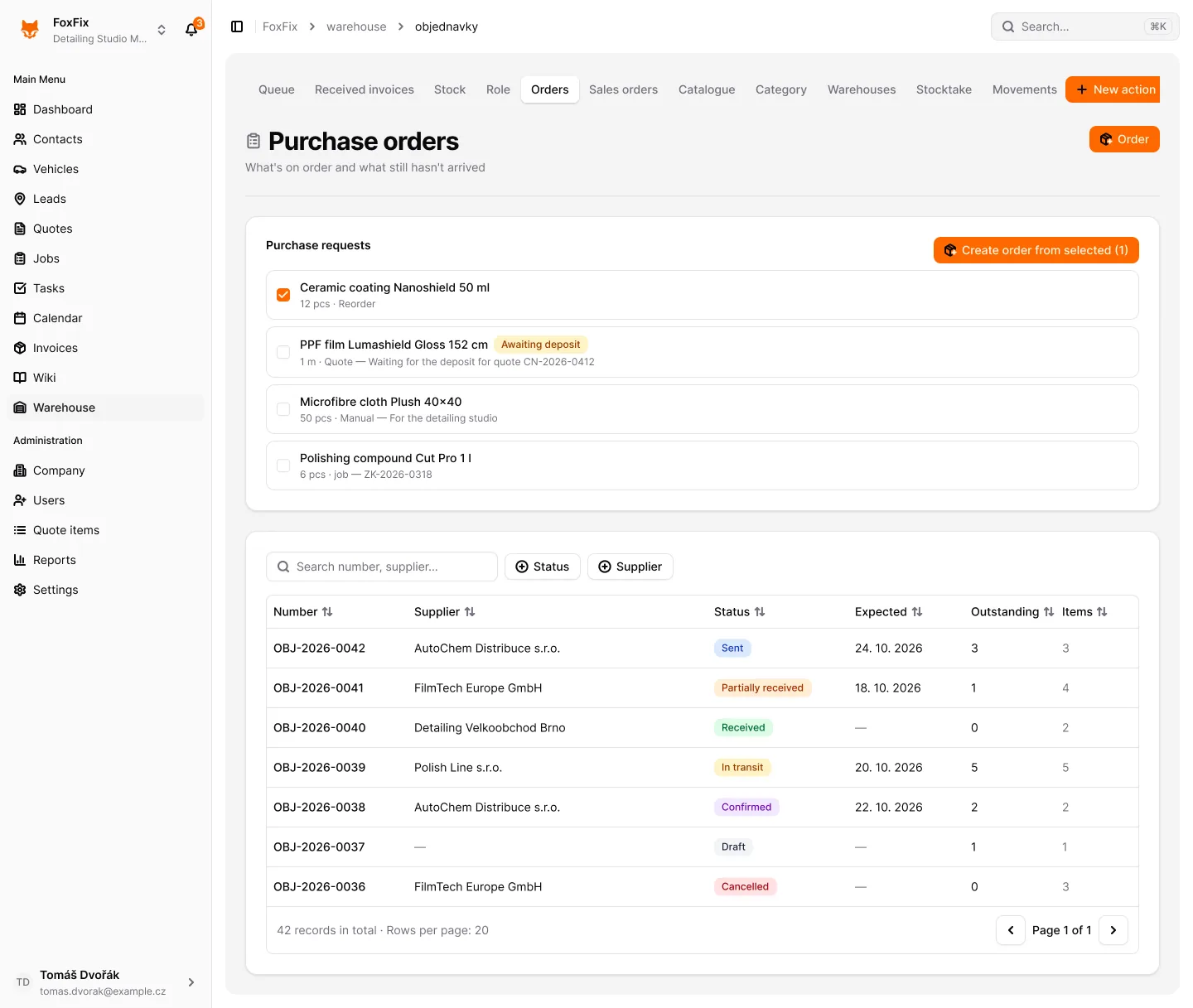
Everything that needs buying collects in the Purchase requests card on the Orders tab (the Purchase orders page). Requests are created like this:
- Reorder – on the Stock tab, switch on the To reorder filter (items with the status Low stock or Out of stock) and click Order. You will see “Created N purchase requests” and Orders opens.
- Quote and Job – missing material from approved quotes and jobs; see Turning a quote into a job. Material that requires a deposit carries the Awaiting deposit label – order it once the deposit has been settled.
 (opens the full-size image in a new tab)
Step 2 – Create the order
From requests: in the Purchase requests card, tick the rows you are ordering from one supplier and click Create order from selected (N). A form opens with the items already filled in.
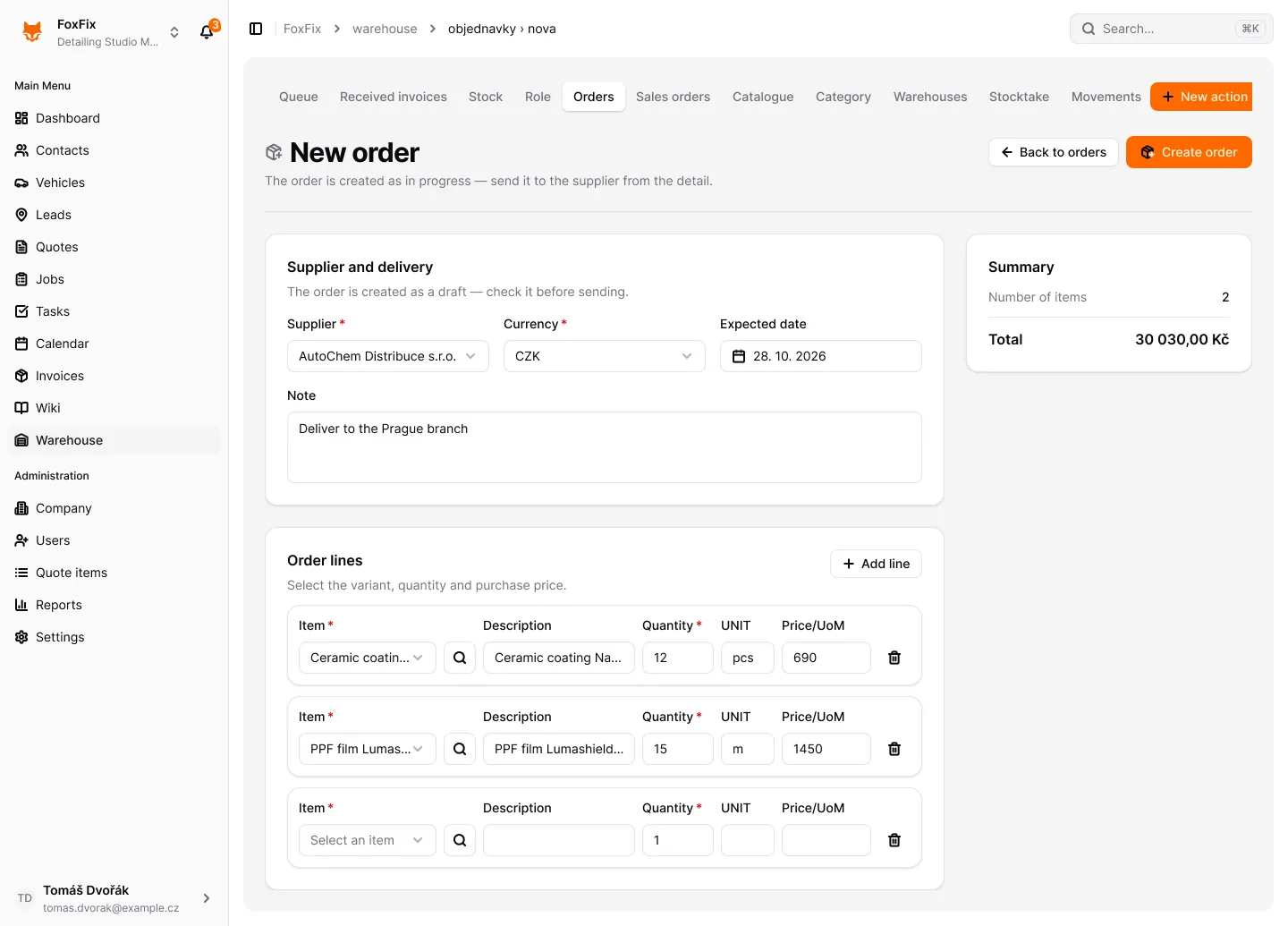
By hand: click Order in the top right, or anywhere in Inventory click New action → Order.
In the New order form:
- In the Supplier and delivery card, choose the Supplier, the Currency and the Expected date of delivery. Use the Note for things like the delivery address.
- In the Order items card, check the Item, Quantity and Price/UoM on each row. Add line adds another row. The pre-filled quantity comes from the reorder settings on the variant – adjust it to what you actually need.
- On the right, in the Summary, check the number of items and the total amount.
- Confirm with Create order. You will see “Order … created”, the order has the status Draft and the selected requests are marked as ordered.
 (opens the full-size image in a new tab)
Step 3 – Send the order to the supplier
FoxFix does not send the order to the supplier – send it by email or through the supplier's online shop as usual. Then move the status on in the order detail so the team knows where the order is:
- Mark as sent → status Sent.
- Confirmed by supplier → status Confirmed.
- Goods are in transit → status In transit.
You can change the order with the Edit button until it has been received; cancel it with Cancel order.
A draft order cannot be matched
When goods are received, only orders with the status Sent, Confirmed, In transit or Partially received are offered. So always mark the order with Mark as sent once you have sent it.
The warehouse clerk sees sent orders on the Queue tab in the In transit from suppliers section, with the expected date and the number of pieces still to arrive.
Step 4 – Receive the delivery and match it to the order
When the goods arrive with an invoice:
- On the Received invoices tab, click Upload invoice, check the extracted details and confirm with Save to queue.
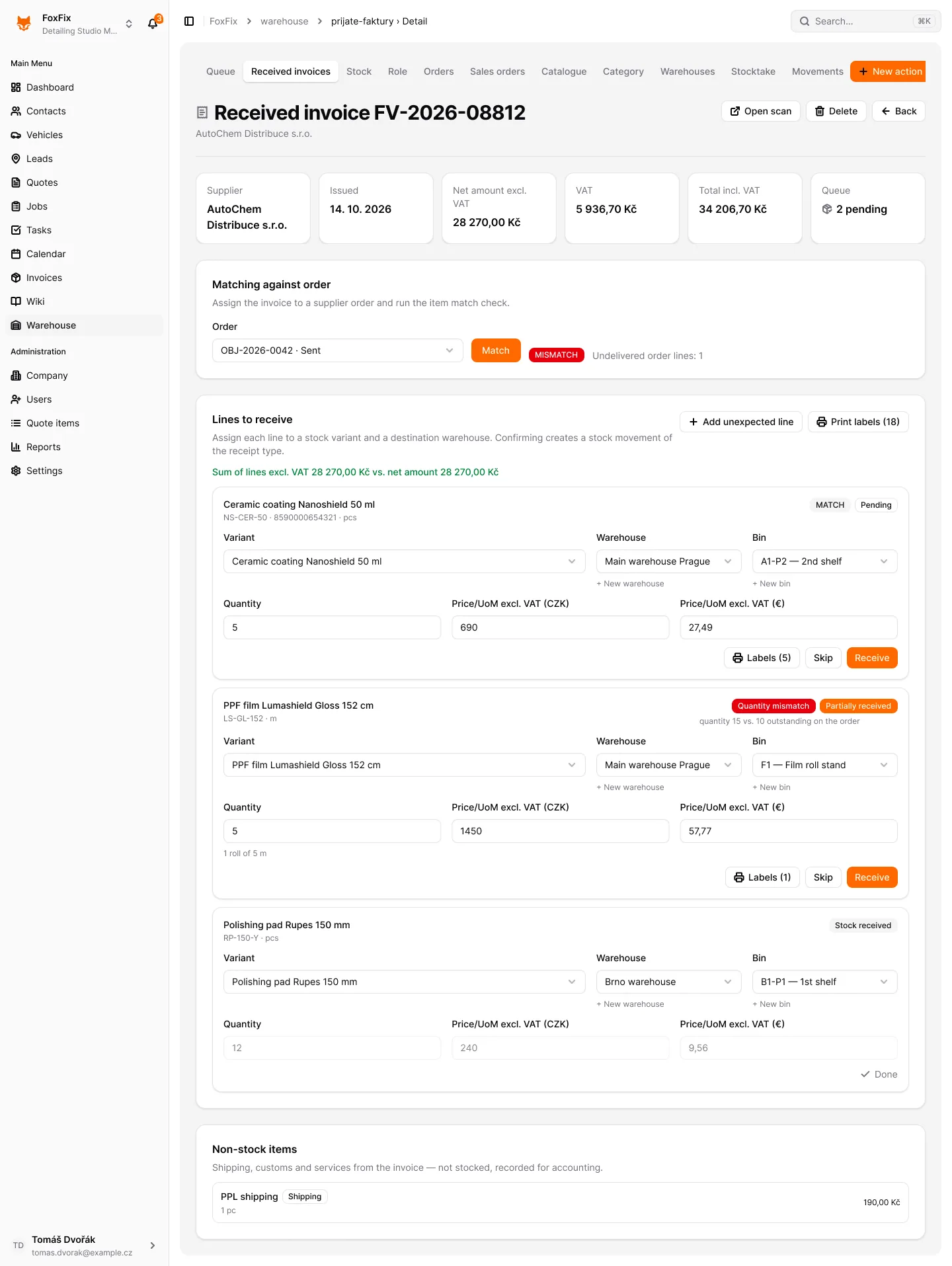
- Open the invoice. In the Matching against order card, choose the Order and click Match.
- The invoice shows MATCH or MISMATCH, and each row shows Match, Price mismatch, Quantity mismatch or Unexpected line. Below that you see “Undelivered order lines: N”.
- Receive the rows the usual way – see Receiving goods.
 (opens the full-size image in a new tab)
Tip: A different price or quantity is highlighted in red. Sort out the difference with the supplier before you receive the goods – stock takes the price from the invoice.
Step 5 – The order closes itself
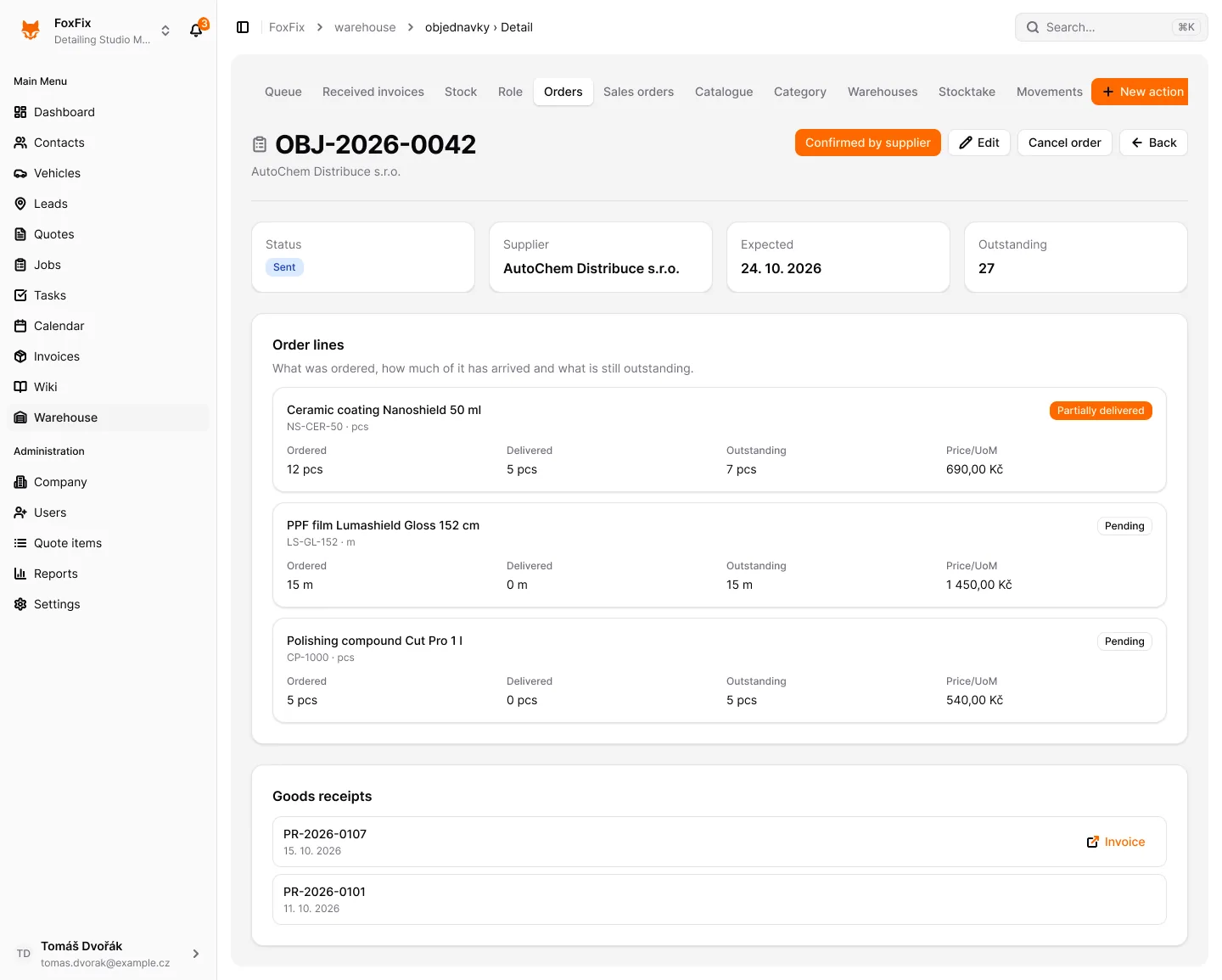
With every row you receive, the order is updated:
- the order lines show Ordered, Delivered and Outstanding,
- the order moves to the status Partially received and, once everything has arrived, to Received,
- a goods receipt linked to the invoice appears in the Goods receipts card.
 (opens the full-size image in a new tab)
Whatever has not arrived stays Outstanding, and you match it to the supplier's next invoice.
Result: the goods are in stock at the invoice price, the order has the status Received, and any jobs waiting for the material reserve it automatically.