
Signing in and your account
FoxFix runs in your browser at app.fox-fix.com (opens in a new tab). This page covers everything to do with getting into the app: signing in normally, a forgotten password, your first sign-in with a temporary password, accepting an invitation from a colleague, setting up a new company and the screens you see when something is wrong with your account.
Language of the sign-in screens
At the top right of every sign-in and sign-up screen there is a CS | EN switch. One click switches the whole screen to Czech or English.
Signing in
 (opens the full-size image in a new tab)
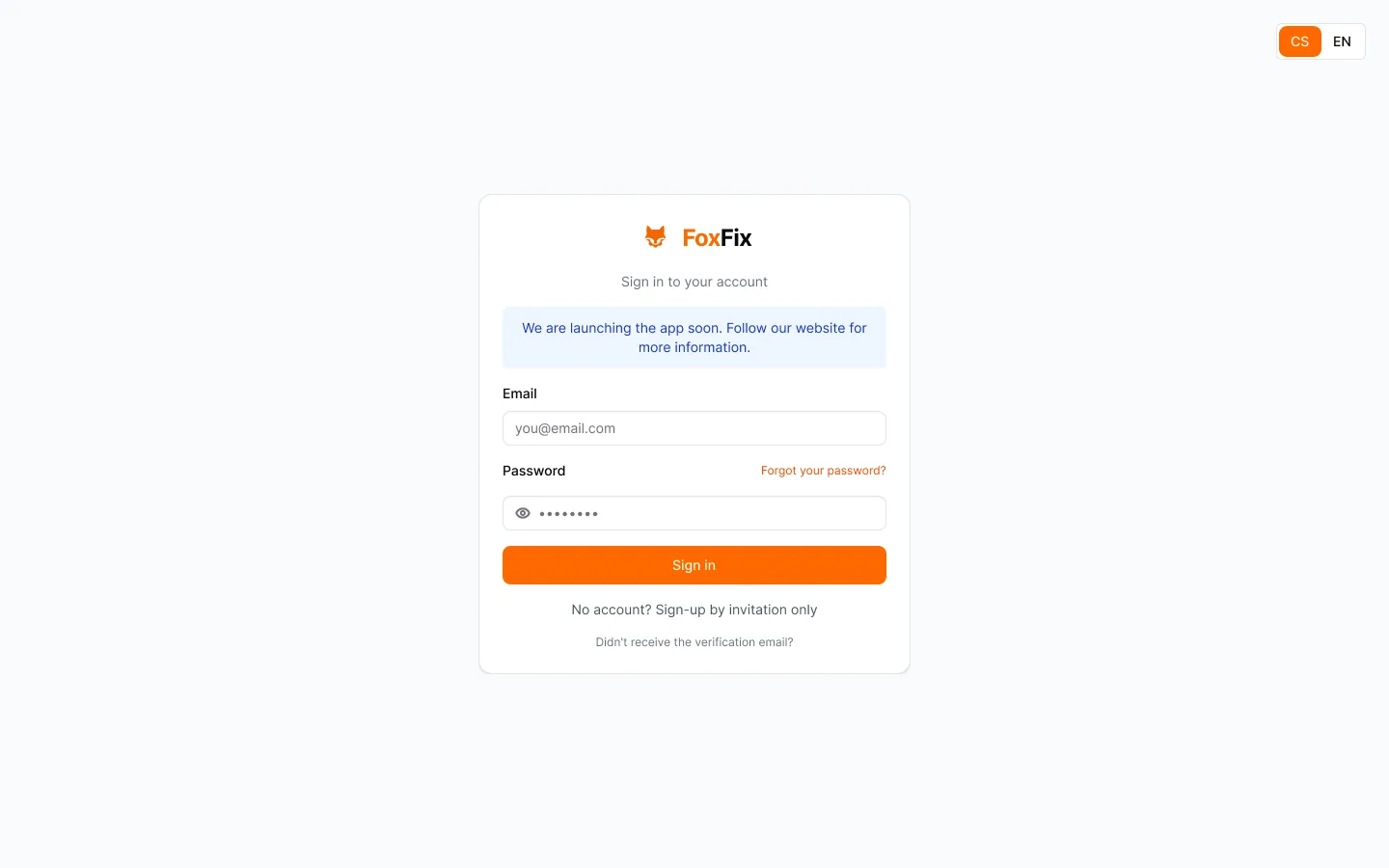
- Open app.fox-fix.com (opens in a new tab). The Sign in to your account card appears.
- In the Email field, enter the email address your account uses.
- In the Password field, enter your password. You can use the eye icon in the field to show the password and check it.
- Click Sign in. The app's home page opens (Dashboard).
You stay signed in even after you close the browser. To sign out, choose Logout in the user menu at the bottom left (see Finding your way around the app).
What the error messages mean
| Message | What to do |
|---|---|
| “Incorrect email or password” | Check for typos and upper/lower case in the password. If that does not help, reset your password. |
| “No user with this email exists” | There is no FoxFix account for this email. Try another address, or ask your company administrator for an invitation. |
| “Your account has not been verified. Enter the code from your email below or request a new one.” | Registration was not finished. Continue as described in Verifying your email. |
| “Too many attempts. Please try again later.” | After several failed attempts, signing in is blocked for a while. Wait a few minutes. |
| “This account is disabled. Please contact your company administrator.” | Someone has disabled the account. Contact your company administrator. |
Forgotten password
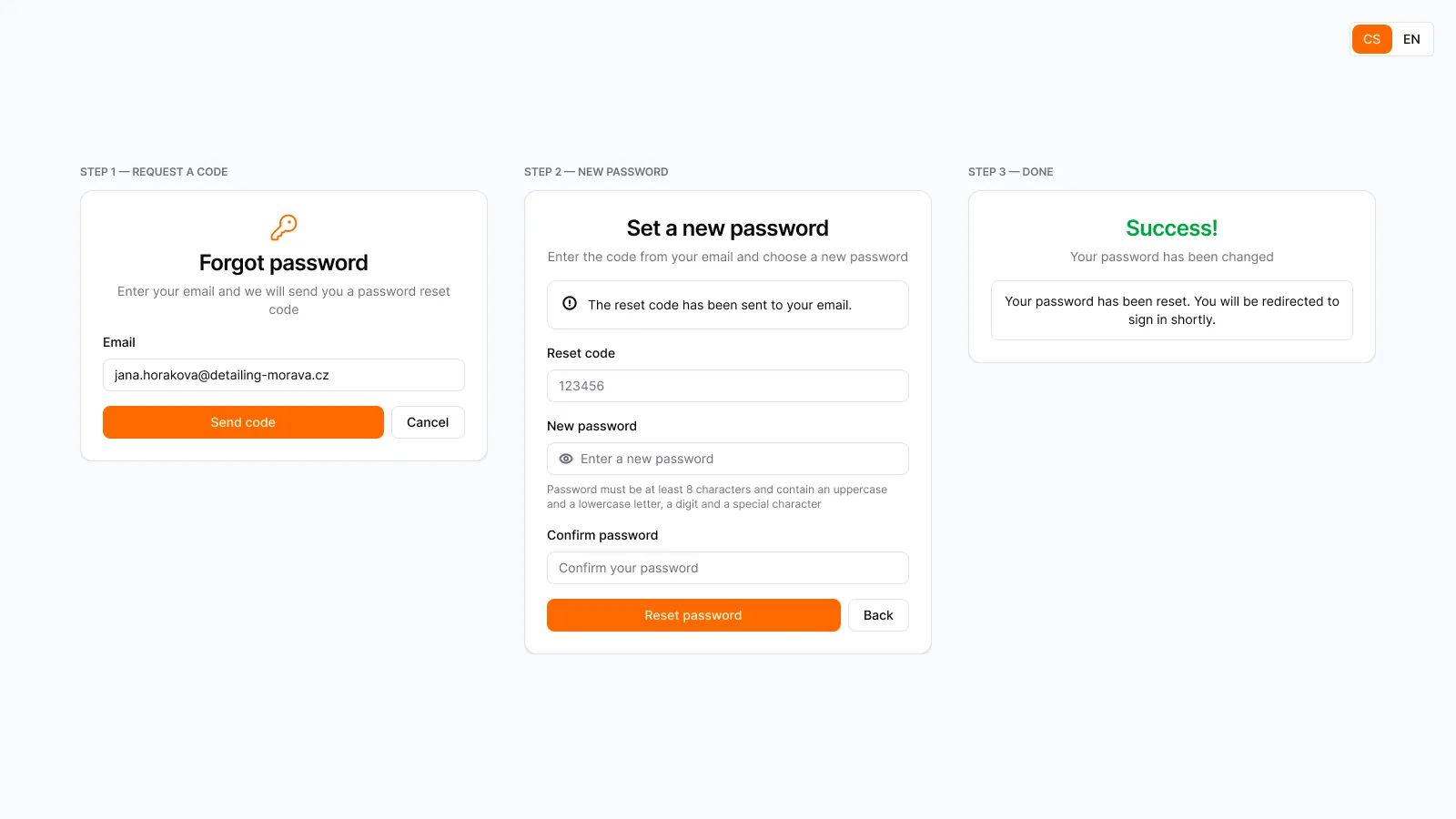
You can reset your password yourself in three steps, using a code sent to you by email.
 (opens the full-size image in a new tab)
- On the sign-in screen, click the Forgot your password? link next to the Password field.
- Enter your Email and click Send code. You will see “The reset code has been sent to your email.”
- Find the six-digit code in the email and enter it in the Reset code field.
- Fill in New password and Confirm password.
- Click Reset password. Success! appears and shortly afterwards the app takes you back to the sign-in screen, where you sign in with your new password.
Messages at this step:
- “Incorrect verification code” – make sure you copied the most recent code.
- “The verification code has expired. Request a new one.” – click Back and have the code sent again.
- “The passwords do not match” – both password fields must be the same.
Password rules
A password must be at least 8 characters long and contain an uppercase and a
lowercase letter, a digit and a special character (for example !, @,
#, %). The same rules apply when you register, reset your password or
set your own password.
First sign-in with a temporary password
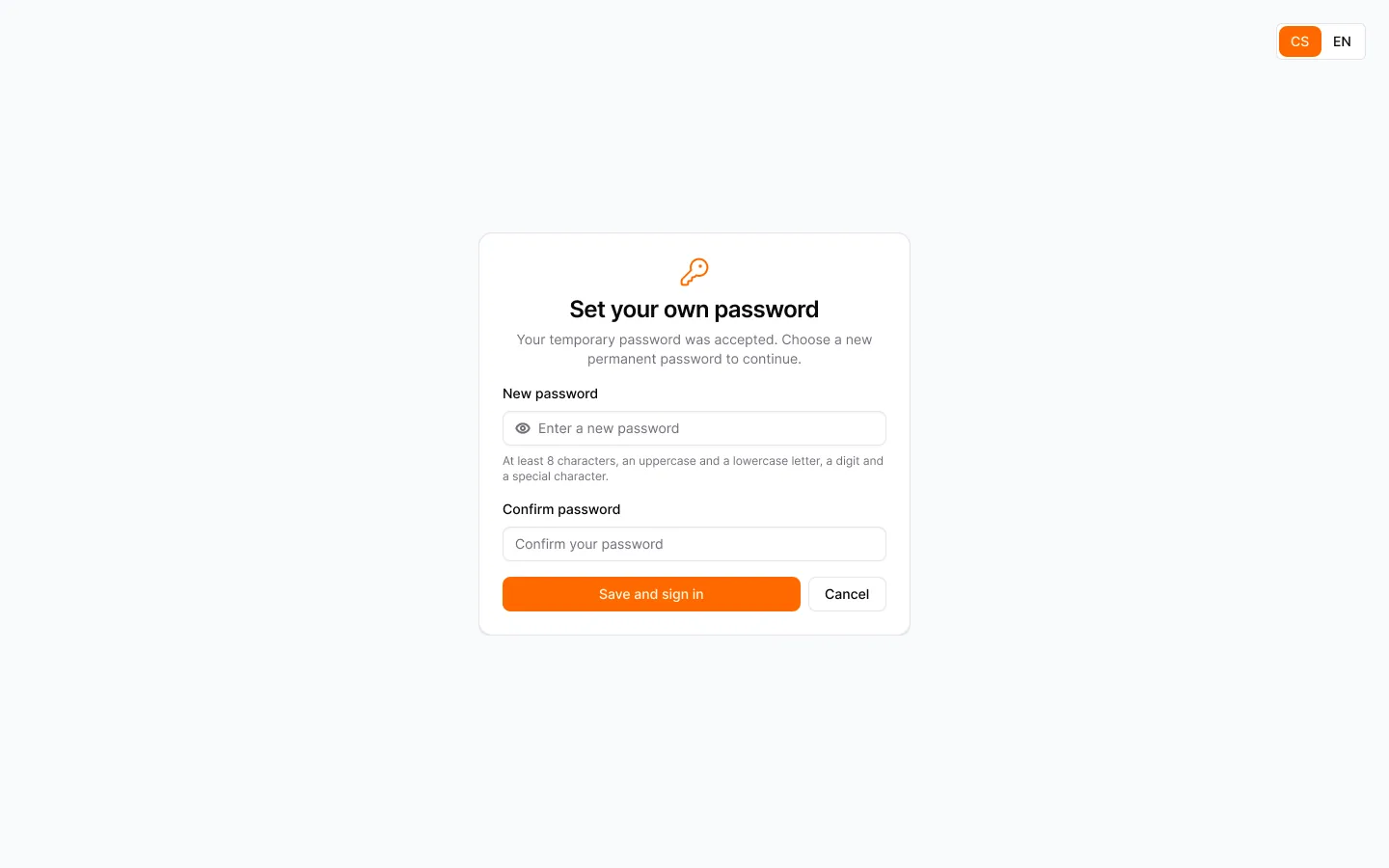
When your company's administrator or manager resets your password, they give you a temporary password. The first time you sign in with it, you must choose your own.
 (opens the full-size image in a new tab)
- Sign in with your email and the temporary password as usual.
- The Set your own password screen appears.
- Fill in New password and Confirm password following the rules above.
- Click Save and sign in. “Password set, signed in successfully!” appears and the app opens.
Cancel takes you back to the sign-in screen.
Verifying your email
Every new account has to be verified with a code sent by email. If you did not finish registering, the sign-in screen tells you so and offers the Confirm your email screen:
- In the Confirmation code field, enter the code from the email.
- Click Confirm. “Email confirmed! You can now sign in.” appears.
The code has not arrived? On the verification screen, click Resend. On the sign-in screen you can also click Didn't receive the verification email?, enter your email and confirm with Send verification code. Check your spam folder for the code as well.
Invitation to a company
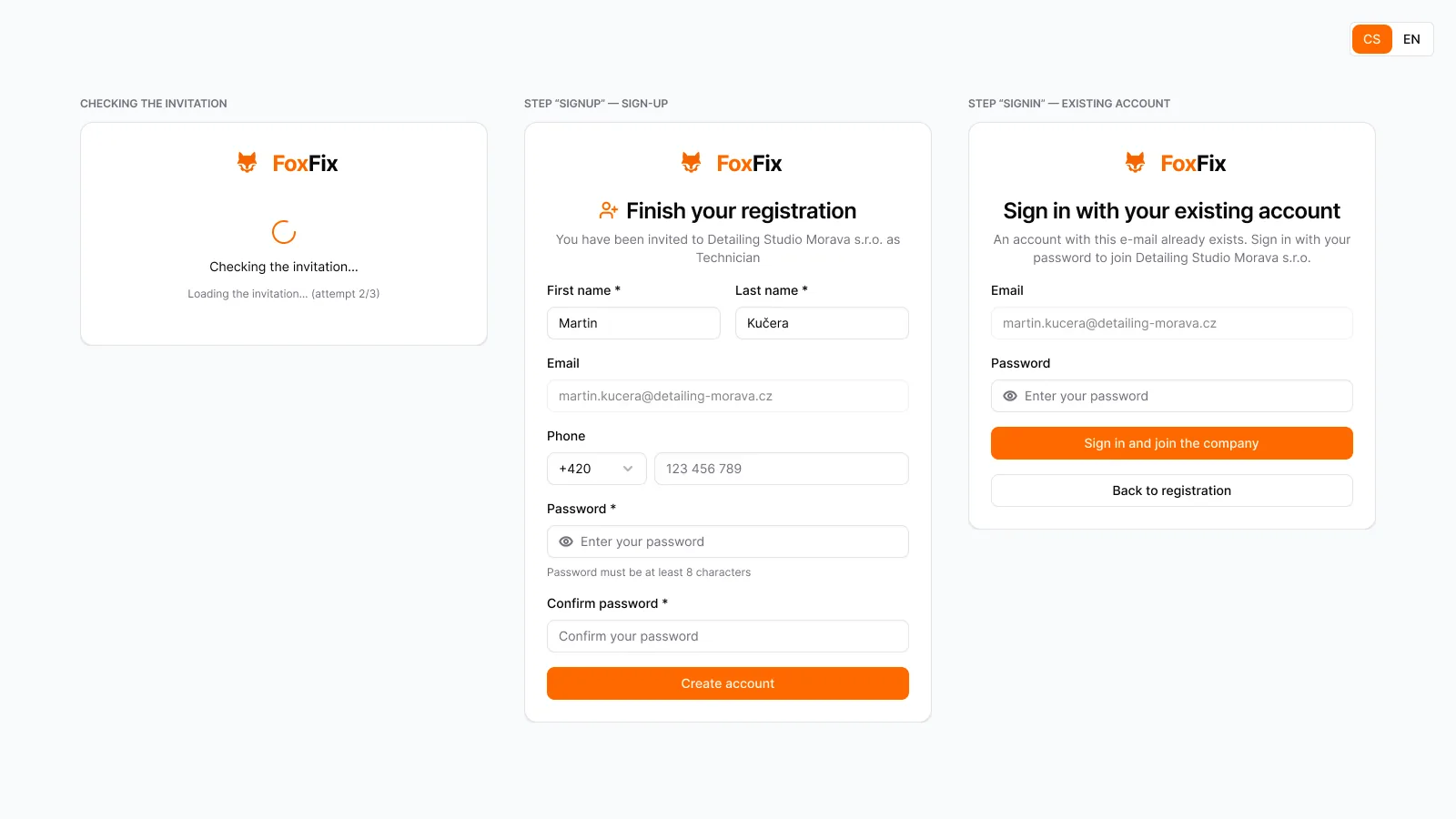
You join an existing company through an invitation. Your company's administrator or manager sends it to you as a link (by email or message). The link is valid for 7 days. The invitation page opens in your company's default language. You can change it with the CS | EN switch.
 (opens the full-size image in a new tab)
You do not have an account yet
- Open the link from the invitation. Checking the invitation... is shown for a moment.
- On the Finish your registration page you can see which company you have been invited to and with which role (e.g. “You have been invited to the company … as Technician”).
- Fill in First name, Last name and optionally Phone, and choose a Password and Confirm password. The Email field is pre-filled from the invitation and cannot be changed.
- Click Create account. A confirmation code is sent to your email.
- Enter the Confirmation code and click Confirm and finish registration.
- Registration complete appears and after a few seconds the app takes you inside. Alternatively, click Go to the app.
You already have an account (for example in another company)
The page recognises that an account with this email exists and offers Sign in with your existing account. Enter your current password and click Sign in and join the company. No new account is created. Another company is simply added to your account, and you then switch between companies in the company switcher.
When the invitation does not work
| Message | What to do |
|---|---|
| “The invitation has expired. Ask for a new one.” | The link is older than 7 days. Ask for a new invitation. |
| “This invitation has already been used.” | Registration has already taken place. Try to sign in straight away. |
| “This invitation has been cancelled.” | Someone in the company cancelled the invitation. Ask for a new one. |
| “The invitation was not found, has expired or has already been used…” | Check that you opened the complete link. Click Try again, or ask for a new invitation. |
| “Incorrect password. Try again or ask for a password reset.” | For an existing account, enter your current password. Forgotten it? Use the password reset. |
How an administrator creates the invitation is described in Inviting a new user.
Registering with an invitation but without the link
On the sign-up page (the Sign up with an invitation button) you can also register without the link: fill in your Email, name, phone and password and confirm with Create account. The invitation is only checked after you confirm your email with the code. If there is no valid invitation for your email, you will see “We could not find a valid invitation for this email…”. Using the link from the invitation is therefore always more reliable.
Registering a new company
You can set up a company in FoxFix yourself, with a 14-day free trial. Sign-up is at app.fox-fix.com/signup (opens in a new tab), and the pricing page on the FoxFix website links to it too.
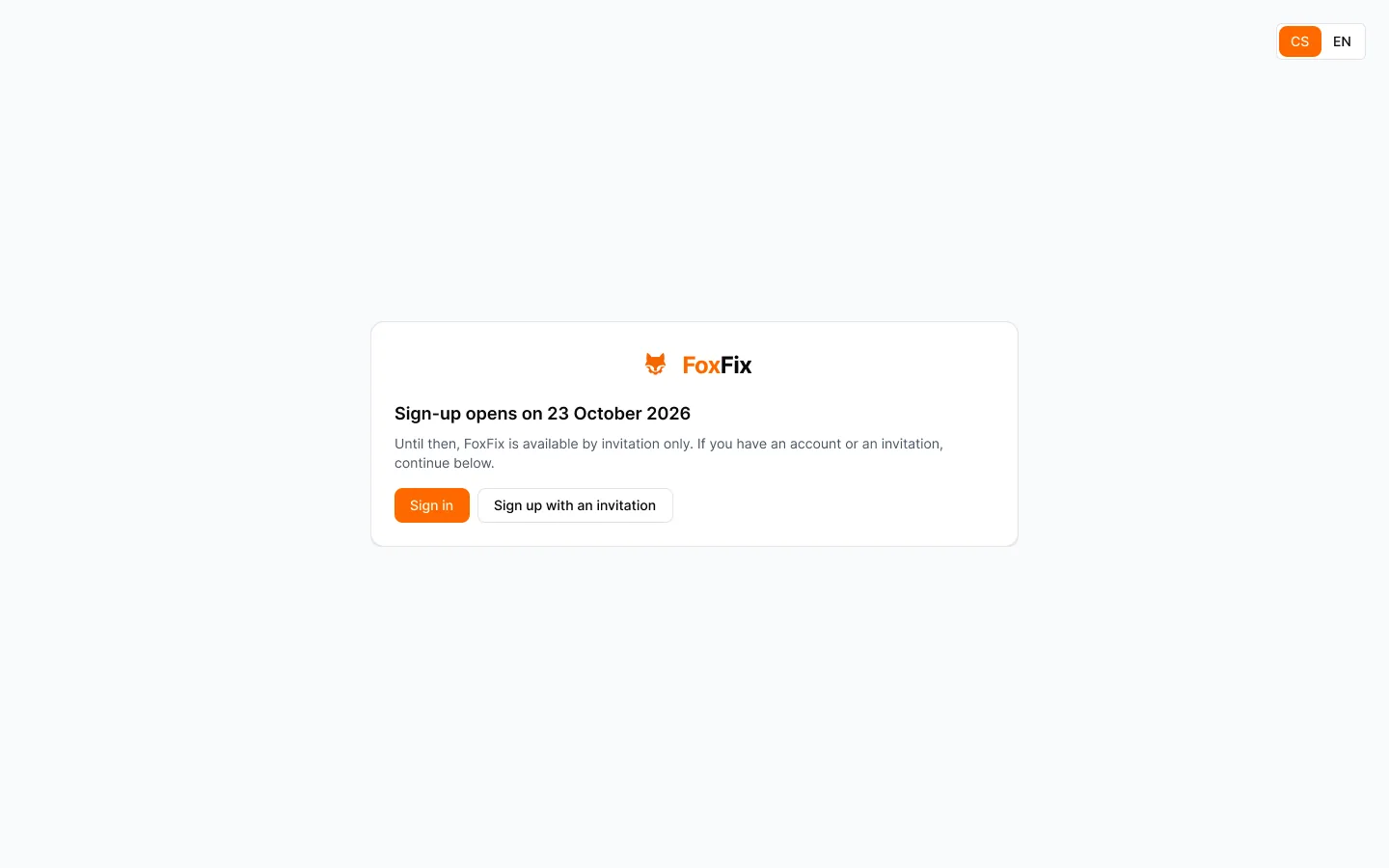
Before 23 October 2026
Public sign-up opens on 23 October 2026. Until then, the sign-up page only shows the notice “Sign-up opens on 23 October 2026” and two buttons: Sign in (if you have an account) and Sign up with an invitation (if you have an invitation from a company).
 (opens the full-size image in a new tab)
From 23 October 2026
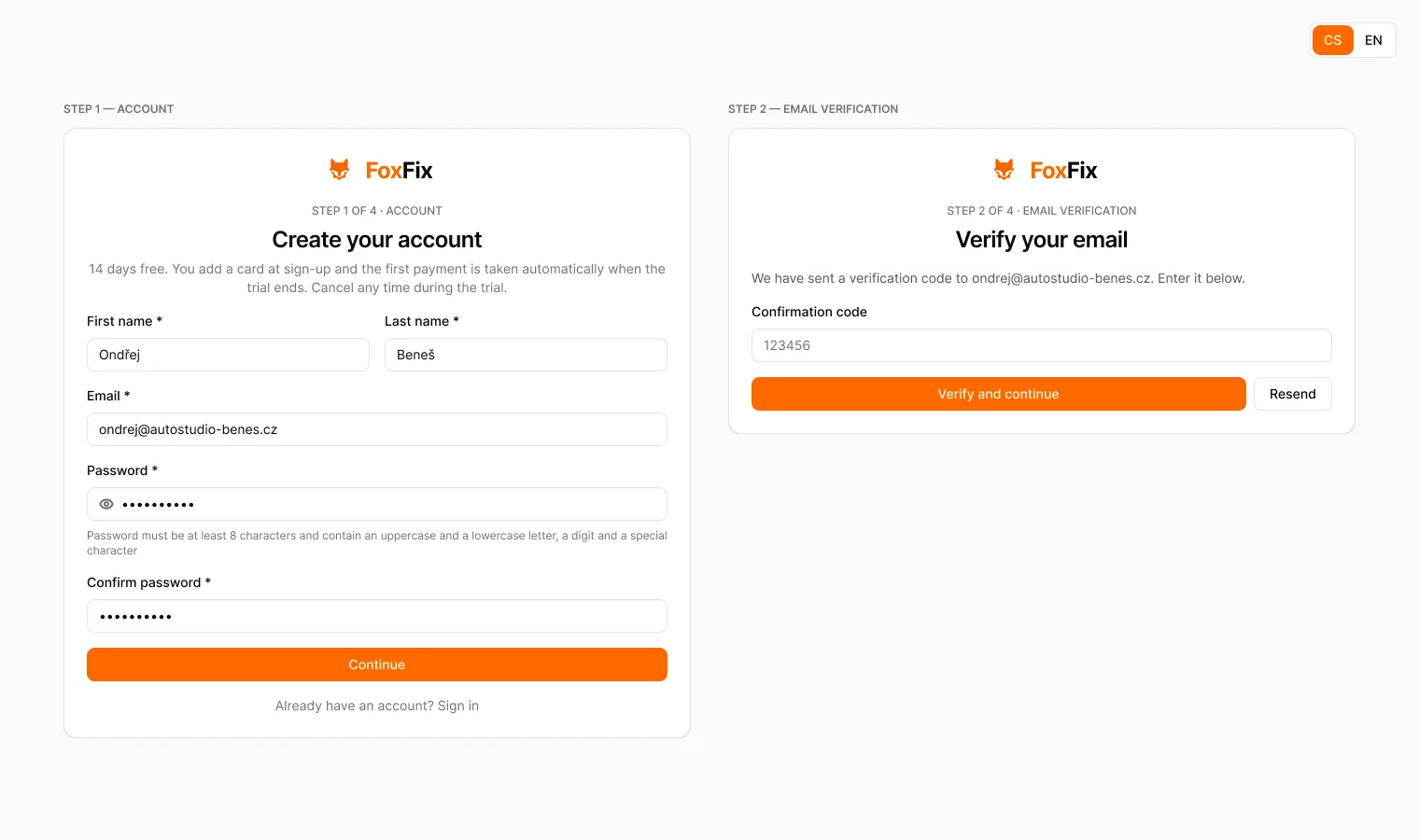
Sign-up has four steps. Above the heading you can always see which step you are on (for example Step 1 of 4 · Account).
 (opens the full-size image in a new tab)
-
Account – fill in First name, Last name, Email, Password and Confirm password and click Continue. The account is your personal sign-in; you set up the company in the next step.
-
Email verification – enter the code from the email in the Confirmation code field and click Verify and continue. The code has not arrived? Click Resend.
-
Company and plan – fill in:
- Company name and Country of registration (required).
- Company ID, VAT number and Registered address. For Czech companies, just enter the company ID (IČO) and click ARES. The details are filled in from the register (“We have filled in the company details from ARES. Please check them.”).
- Plan – choose monthly or yearly billing and one of the plans Start, Profi or Business. For each plan you can see the price and the number of users included. The currency follows the country of registration: Czech koruna for the Czech Republic, euro otherwise. Prices exclude VAT.
- Tick the box to agree to the Terms of Service and the Data Processing Agreement.
The language you fill in the sign-up in (CS or EN) is saved as the new company's default language. You can change it later in the company settings.
Then click Continue to payment.
-
Payment – “Your company is set up” appears. Click Complete payment. The Stripe payment page opens, where you enter a payment card. The card is only charged once the trial ends. You can cancel the subscription at any time during the trial.
Once you have entered the card, you return to the app, straight into the new company on the Subscription page. You are the company's administrator and can set up the company and invite colleagues.
The company does not work without a card
The Go to the app button takes you into the company even without paying, but until you enter a card you will see the “Payment not completed” screen instead of the app. An administrator completes it with the Renew subscription button and, on the Subscription page, the Complete payment button. More in Subscription.
Common situations during sign-up:
- Already signed in (for example because you interrupted the sign-up)? The page takes you straight to the Company and plan step and shows “Signed in as …” at the top. To choose a different account, use the Use another account link.
- “An account with this email already exists and the password does not match…” – sign in, or reset your password.
- A company already exists for this email? Depending on the subscription
status, the page shows what to do next:
- “You already have a trial company” – the payment was not completed. Complete it with the Complete payment button.
- “Your company is already registered” – the trial or subscription is running. Click Go to the app.
- In all other cases, you will find the subscription status and the next step in the app under Settings → Subscription.
- “The trial has already been used for this email…” – there is one trial per email address. Write to us at info@fox-fix.com.
When you cannot get into the app
After you sign in, one of the following screens may appear instead of the app.
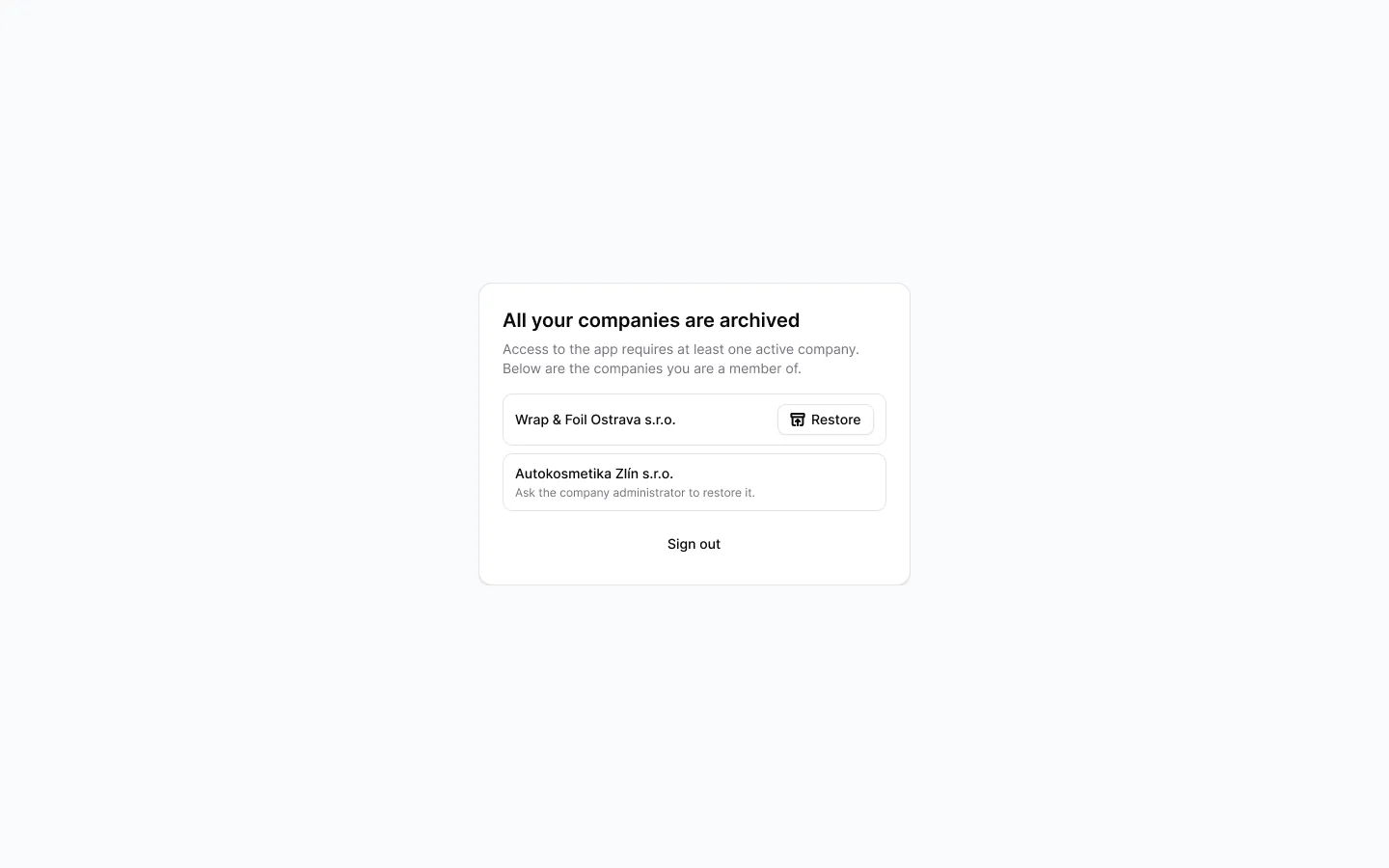
All your companies are archived
 (opens the full-size image in a new tab)
You need at least one active company to use the app. The screen shows the companies you are a member of:
- If you are an administrator in a company, click Restore next to it. The company becomes available again with all its data.
- Otherwise you will see “Ask the company administrator to restore it.” next to the company.
Sign out takes you back to the sign-in screen.
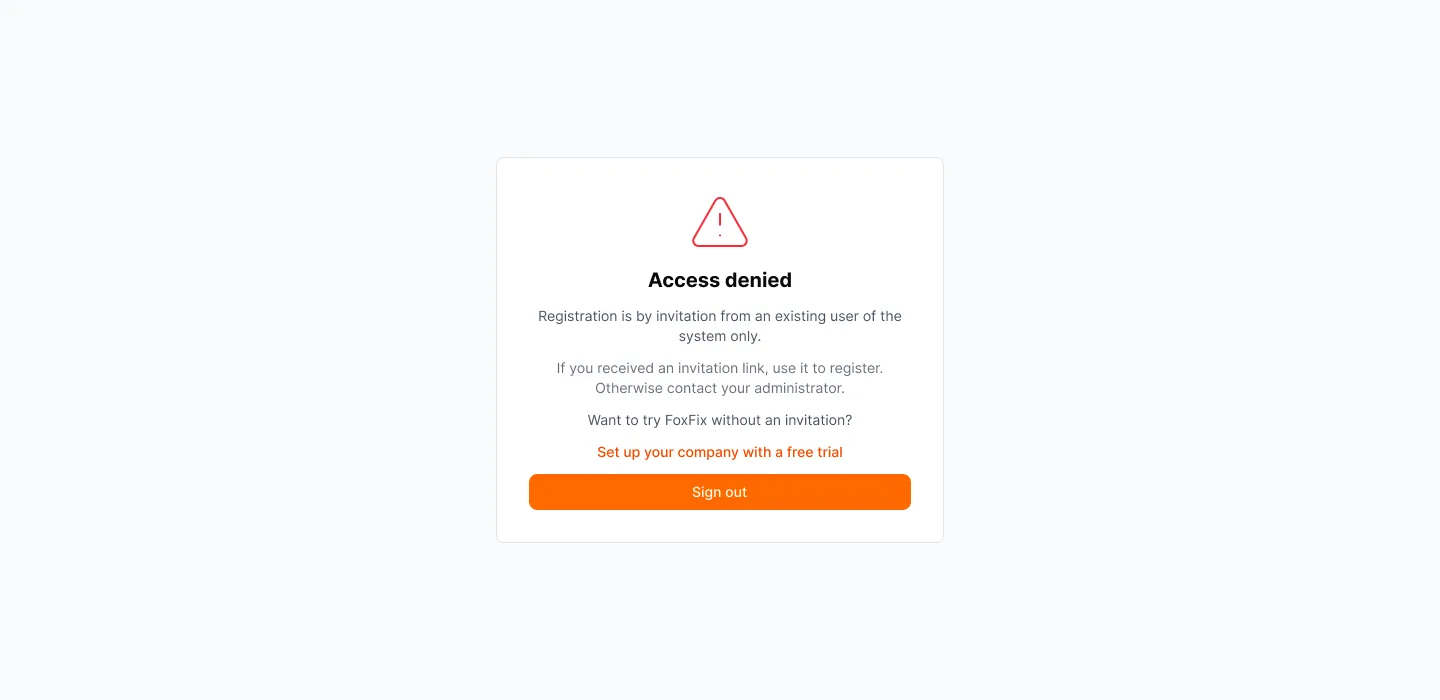
Access denied
 (opens the full-size image in a new tab)
This appears when you have a FoxFix account but are not a member of any company (typically because you registered without an invitation). You have two options:
- Ask a company administrator for an invitation and use the link in it.
- Since sign-up opened (23 October 2026), the screen also has a Set up your company with a free trial link, which lets you set up your own company (see Registering a new company).
Account setup problem
The message “Your account is not correctly assigned to a company. Contact your administrator.” means that the account exists but is not linked to a company. Your email is shown on the screen. Send it to your company's administrator, or to support at info@fox-fix.com, and sign out.
Finishing your account setup
Straight after registering from an invitation, Finishing your account setup... with the text Connecting you to your company may appear for a few seconds. Do nothing; the app opens by itself.