
Issuing an invoice
This chapter describes every way an invoice is created in FoxFix: a regular invoice from a job, a proforma and a final invoice, an internal document, an invoice without a job and an invoice directly from a quote. Every invoice starts as a Draft – it is not sent anywhere yet and you can check it at your leisure. You send it to the client and to iDoklad only in the invoice detail.
Which route to choose
| Situation | Route | Who can |
|---|---|---|
| The work on the job is done and you are invoicing it | From a job – the Issue invoice button | Administrator, Manager, Salesperson; with the Awaiting billing status, anyone |
| You want a deposit before work starts | Proforma invoice | as above |
| The deposit is paid and you are invoicing the rest | Final invoice | as above |
| A warranty claim or free work you only want to record | Internal document | as above |
| The customer paid in cash and does not want an invoice | Cash, no invoice | as above |
| You want to go through all jobs awaiting billing in one place | From the Invoices page | everyone |
| You are invoicing something that has no job | Without a job | Administrator, Manager |
| You are invoicing an approved quote without a job | From a quote | Administrator |
Selling goods from stock issues an invoice on its own – see Issues and sales.
Issuing from a job
The recommended route. The invoice takes over all the job's items, including extra work added during the job, so you invoice what was actually done.
You will find the Issue invoice button in the job detail, in the actions panel:
- With the Awaiting billing status it is the job's main action and everyone can see it. You switch the job to this status by hand in the Status field when editing the job; the Handed over to customer button, on the other hand, switches it to Handed over and completed.
- The Administrator, Manager and Salesperson roles see it as a secondary button earlier too – for a job with the Approved, Active, Awaiting payment or Handed over and completed status –, as long as no invoice exists for the job.
- There is no button for a cancelled job or for a job paid in cash without an invoice.
If an invoice already exists for the job (or for its quote), FoxFix takes you to it instead of issuing a new one.
Steps
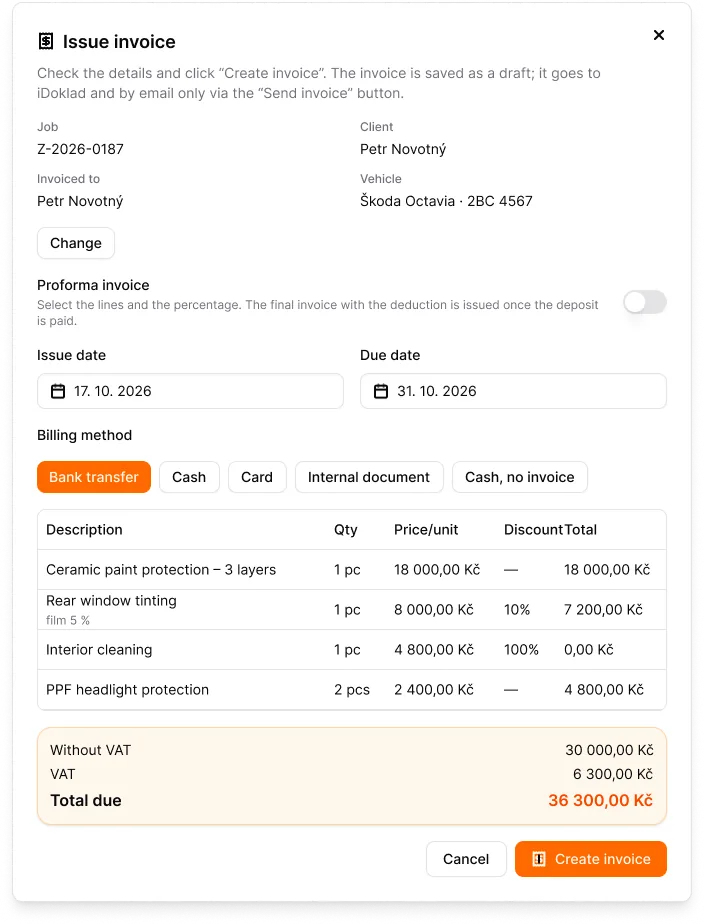
- In the job detail, click Issue invoice. The Issue invoice window opens.
- Check the header: Job, Client, Invoiced to and Vehicle. If you want to invoice another party (a leasing company, the client's company), click Change next to Invoiced to – see Who to invoice.
- Check the Issue date (pre-filled with today) and the Due date. The due date is pre-filled from the job's planned completion; if that is missing or already in the past, it is set to 14 days from the issue date.
- Choose the Billing method: Bank transfer, Cash, Card, Internal document or Cash, no invoice (see below for what each means).
- Check the lines (Description, Qty, Price/unit, Discount, Total) and the Excl. VAT, VAT and Total due summary.
- Click Create invoice. The message “Invoice … created as a draft. The job stays active until the vehicle is handed over.” appears and the detail of the new draft opens.
 (opens the full-size image in a new tab)
The due date must be after the issue date
If you enter a due date that is the same as or earlier than the issue date, the invoice is not created and you see “The due date must be later than the issue date”. iDoklad would reject such an invoice.
Issuing an invoice does not close the job. A regular invoice or an internal document switches a job that has not yet been handed over to Active; a proforma invoice does not change the job status. The job is closed only by handing over the vehicle; you follow the payment status on the invoice.
Billing method
| Option | What happens |
|---|---|
| Bank transfer | A regular invoice to be paid into your account. |
| Cash / Card | A regular invoice showing payment in cash or by card. |
| Internal document | No invoice is created, but an internal document for your own records. |
| Cash, no invoice | No document is created; the job is marked as paid in cash – see Cash, no invoice. |
Who to invoice
You do not have to issue the invoice to the job's client. Typical cases are leasing, a company car or re-invoicing.
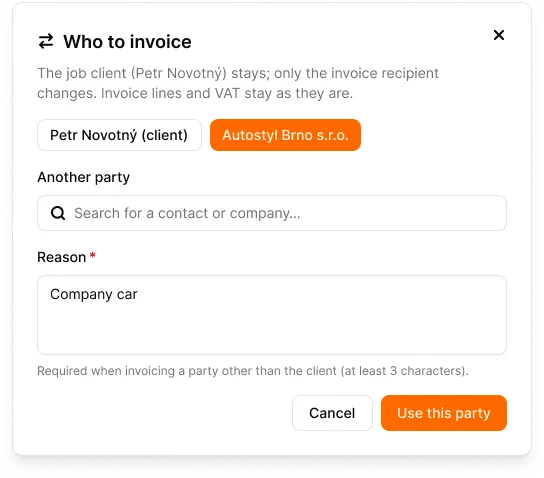
- In the Issue invoice window, click Change next to Invoiced to. The Who to invoice window opens.
- Pick one of the quick buttons – the client (marked (client)) or one of the companies the client is linked to in contacts. Find any other party in the Another party field (“Search for a contact or company…”).
- For a party other than the client, the Reason is required (“Leasing, company car, re-invoicing…”), at least 3 characters.
- Confirm with Use this party (or Invoice the client when you are going back to the client).
 (opens the full-size image in a new tab)
The job's client stays the same; only the invoice customer changes. You can also change the customer later in the invoice detail with the Change customer button – but only while the invoice is a draft and not yet in iDoklad.
Proforma invoice
Issue a proforma invoice when you want part of the money from the customer up front.
- In the job detail, click Issue invoice.
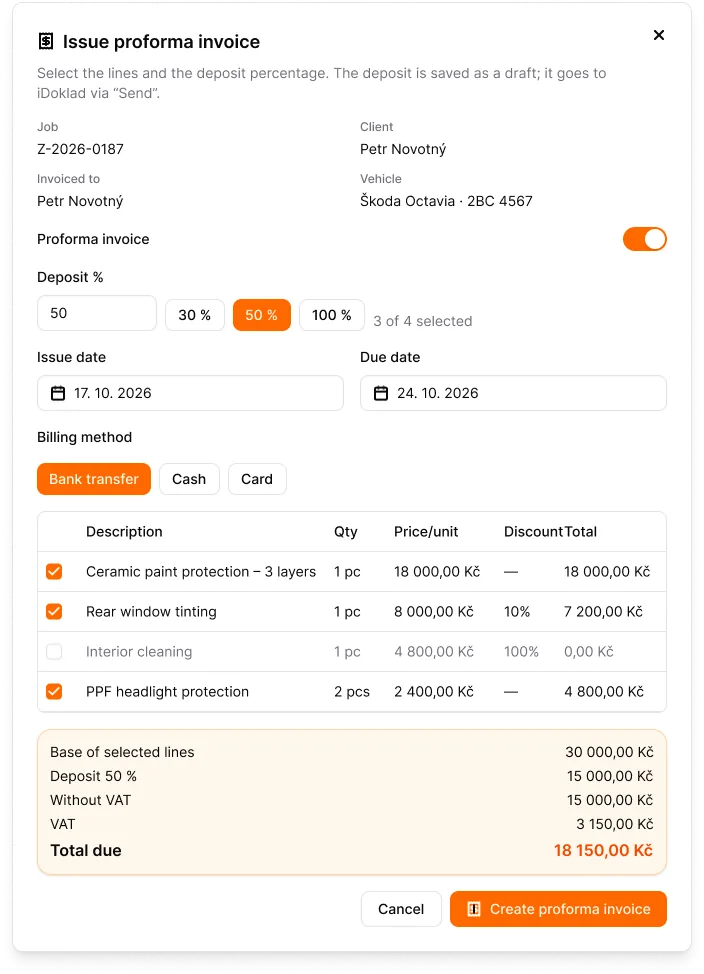
- Turn on the Proforma invoice switch. The window is renamed Issue proforma invoice and a checkbox appears next to each line.
- Tick the lines the deposit should be calculated from (the counter shows “3 of 4 selected”).
- Enter a percentage (1–100) in the Deposit % field, or use the quick options 30 %, 50 %, 100 %. The default is 50 %.
- Check the summary: Base of selected lines, Deposit N %, VAT and Total due. The deposit due date is pre-filled as 7 days.
- Click Create proforma invoice. A draft is created (“Proforma invoice … created as a draft. It goes to iDoklad via “Send”.”).
 (opens the full-size image in a new tab)
For a proforma you cannot choose Internal document or Cash, no invoice – a deposit is always a receivable.
You then send the proforma invoice from its detail just like a regular invoice. A proforma invoice is not a tax document. As soon as iDoklad records it as paid, FoxFix issues a tax document for the received payment in iDoklad within 15 minutes and sends it to the client. You will then see it in the proforma detail in the row “Tax documents for the payment: …”.
Final invoice with deposit deduction
When a proforma invoice exists for the job, the button in the job detail changes to Issue final invoice. Below it you see the deposit status, e.g. “Deposit 2026100011: paid 14/10/2026”, or “…: unpaid”.
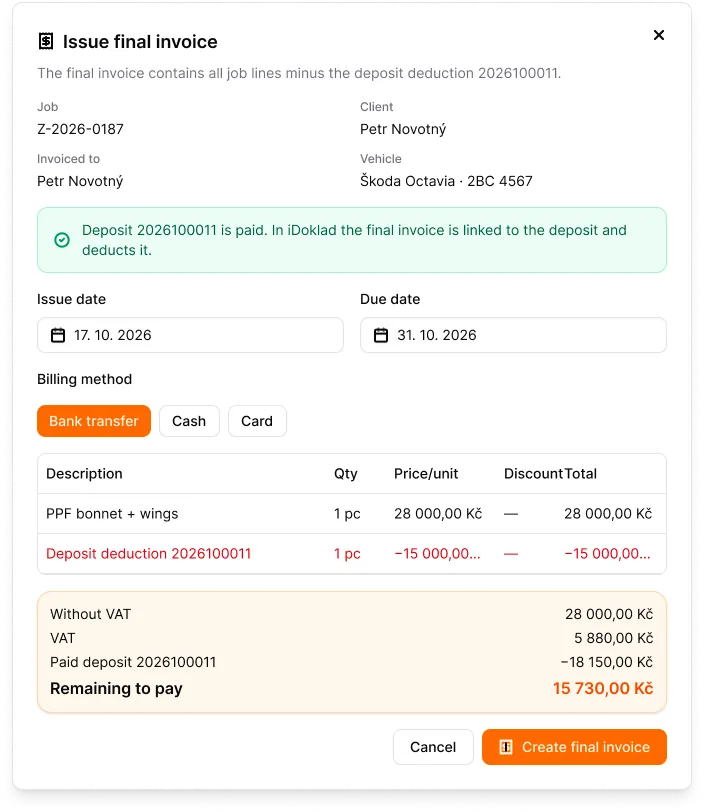
- Click Issue final invoice. The Issue final invoice window opens.
- The window contains all the job's items and, at the end, a red Deposit deduction … row. The summary shows Deposit paid … with a minus sign and, in bold, Remaining to pay.
- Check the coloured bar with the deposit status:
- green “Deposit … is paid. In iDoklad the final invoice is linked to the deposit and deducts it.” – everything is ready;
- yellow “Deposit … is not yet recorded as paid…” – you can create the draft, but it can only be sent to iDoklad once the deposit is paid.
- Click Create final invoice.
 (opens the full-size image in a new tab)
The deduction must not exceed the items
If the deposit were higher than all the job's items, the window shows a red warning and does not issue the final invoice. Adjust the quote items first.
What to do when the final invoice cannot be sent because the deposit is unpaid is described in the chapter Invoice detail.
Internal document
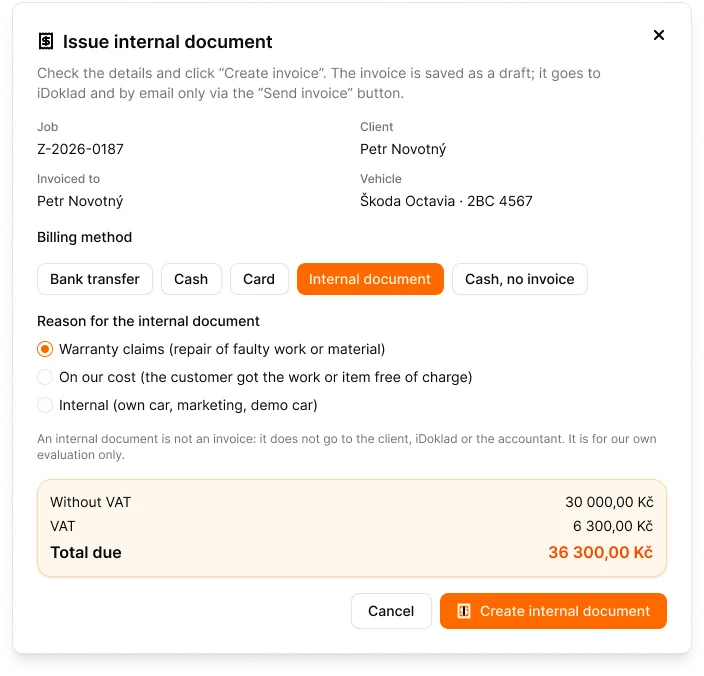
An internal document is not an invoice. It goes neither to the client, nor to iDoklad, nor to the accountant. It lets you see in your overviews how much warranty claims, free work or your own cars have cost you. In the invoice list it has the Recorded label and its number starts with IN-.
-
In the Issue invoice window, choose the Internal document billing method. The window is renamed Issue internal document.
-
Under Reason for the internal document, choose:
- Warranty claim – repairing faulty work or material,
- At our expense – the client got work or an item for free,
- Internal – your own car, marketing, a demonstrator.
For a job of the Warranty claim type, Warranty claim is preselected; otherwise At our expense.
-
Click Create internal document. “Internal document … (Warranty claim) recorded.” appears.
 (opens the full-size image in a new tab)
Internal documents are not counted in turnover. In the management overviews you will find them under Internal costs. The process for warranty claim jobs is described in Warranty claims.
Cash, no invoice – paid without an invoice
The option for when the customer pays in cash on the spot and does not want an invoice.
- In the Issue invoice window, choose Cash, no invoice. A warning appears: “The job will be marked as paid in cash without issuing an invoice. No synchronisation to iDoklad. This action cannot be undone.”
- The button changes to Mark as paid. Click it to mark the job as paid in cash.
No document is created and the Issue invoice button disappears from the job. The option is not available for a proforma or a final invoice.
Issuing from the Invoices page
This route is handy when you want to go through all the jobs awaiting invoicing in one place.
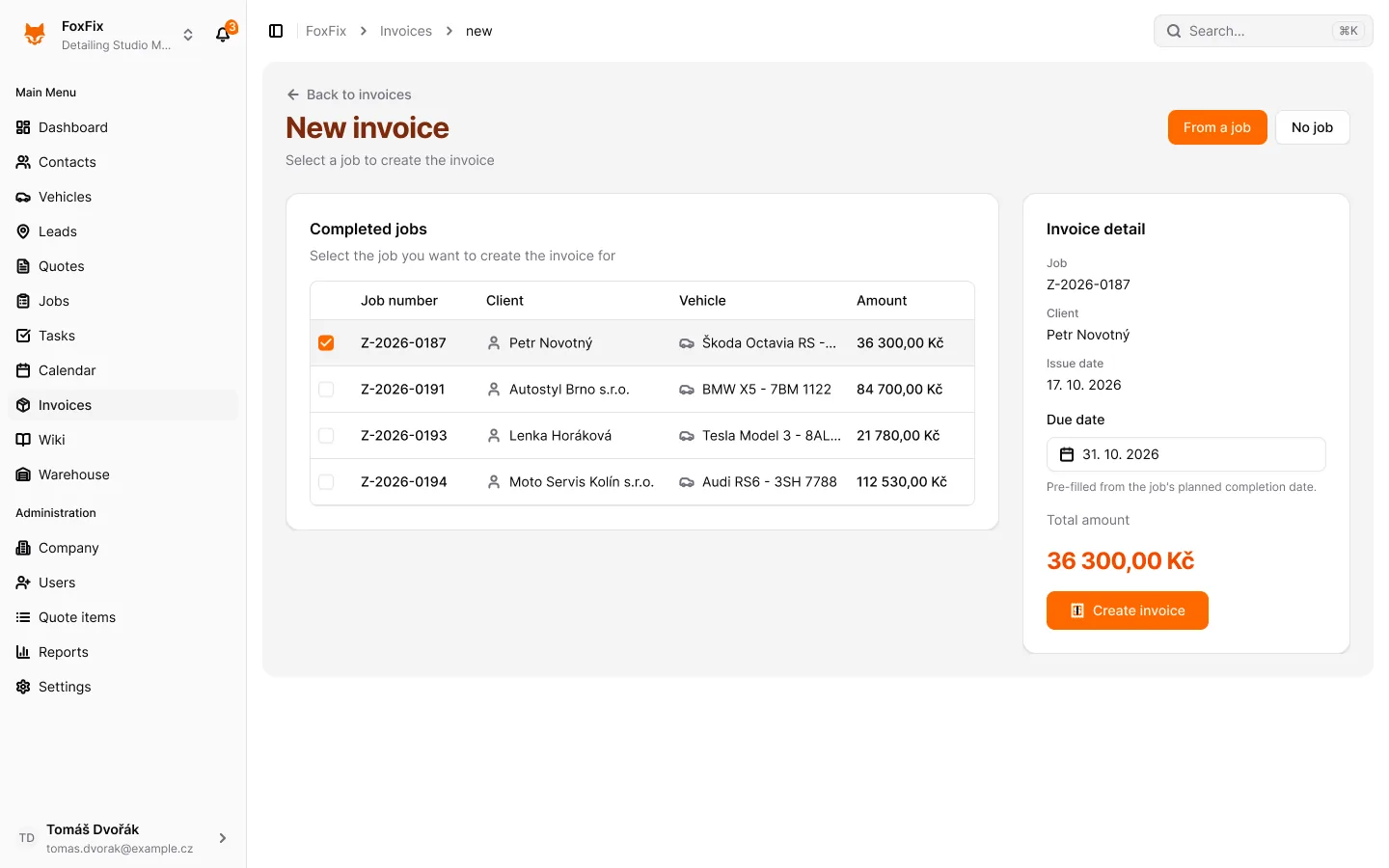
- Open Invoices and click Create invoice. The New invoice page opens.
- The Completed jobs table lists jobs with the Awaiting billing status that do not yet have an invoice. Click one to select it.
- The Invoice detail panel appears on the right with the job, client, issue date and Total amount.
- Check the Due date (“Pre-filled from the job's planned completion date.”).
- Click Create invoice. A draft is created and its detail opens.
 (opens the full-size image in a new tab)
If you see “No jobs to invoice”, no job is awaiting billing yet. The page offers only jobs with the Awaiting billing status; invoice handed-over jobs (Handed over and completed) with the Issue invoice button in their detail. After changing the status, click Refresh.
Need a deposit, an internal document or a different customer?
This page does not set the payment method or the customer. For a proforma invoice, an internal document or a cash payment, use the Issue invoice window in the job detail.
Invoice without a job
For things that have no job – a rental, selling a voucher, re-invoicing. An invoice without a job can be issued by an Administrator and a Manager. In the list you recognise it by the No job label, and reports count it separately.
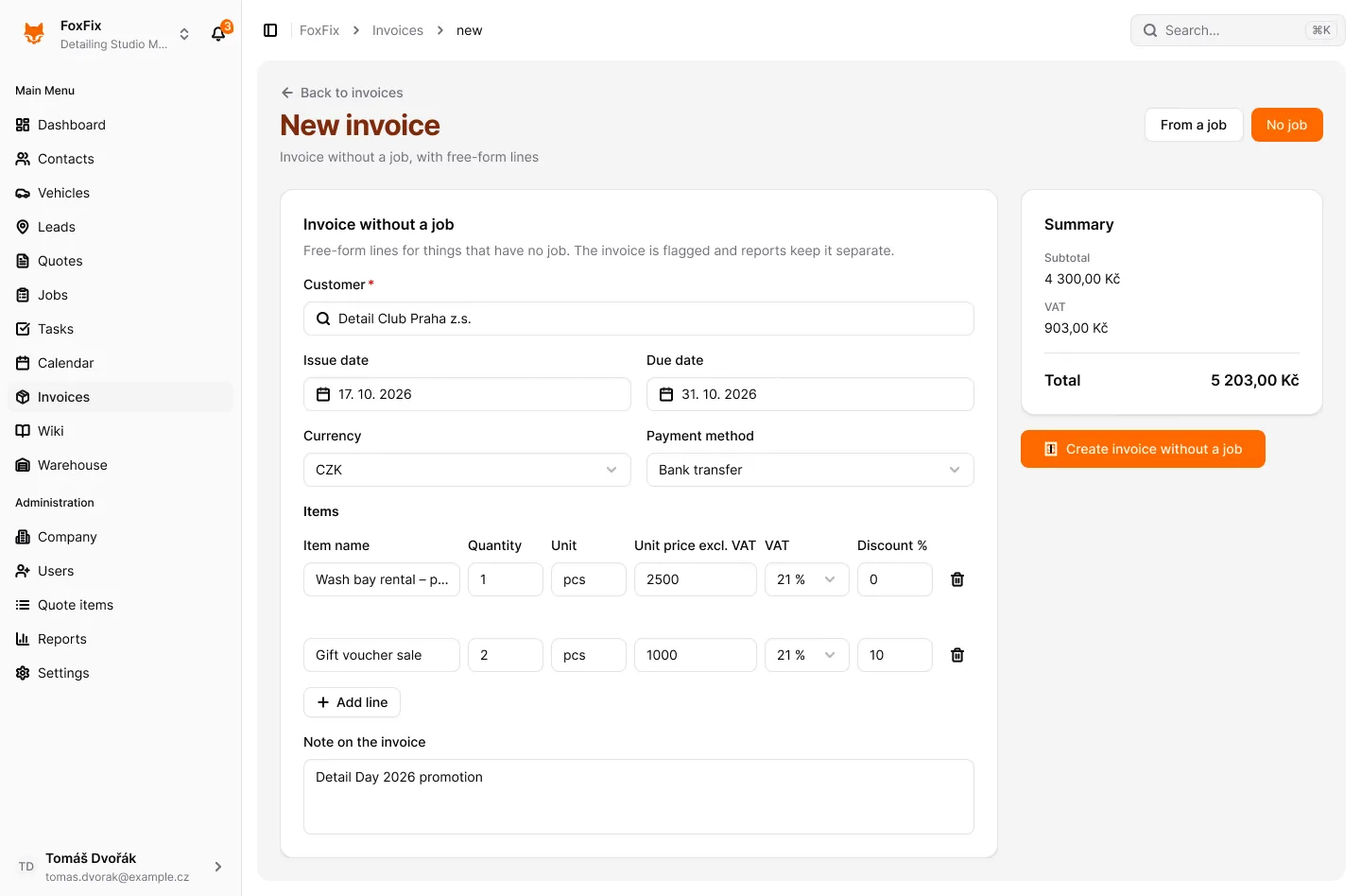
- On the New invoice page, switch from From a job to Without a job at the top.
- Choose the Customer (“Search for a contact or company…”).
- Check the Issue date (today) and the Due date (in 14 days).
- Choose the Currency (CZK or EUR) and the Payment method: Bank transfer, Cash, Card, Other or Internal document (warranty, our cost) – for the last one you also choose a reason.
- Under Lines, fill in for each row the name, Quantity, Unit, unit price excluding VAT, VAT rate (21 %, 12 % or 0 %) and, if needed, a discount in percent. Add another row with the Add line button; remove a row with the bin icon.
- Optionally add a Note on the invoice.
- Check the Summary (Subtotal, VAT, Total) and click Create invoice without a job.
 (opens the full-size image in a new tab)
Invoice directly from a quote
A route for an Administrator when you don't want to create a job (for example a plain sale). The invoice takes over what was quoted, not what was actually done.
- In the quote detail, click Create invoice. The button is missing for a cancelled or rejected quote. If an invoice from the quote already exists, you see the link “Invoice … already exists” instead.
- Confirm the question “Create an invoice directly from the quote?” with the Continue button.
- On the New invoice page you see a yellow panel “The invoice is being created directly from quote #…”. Click Create invoice from quote.
- A draft with a 14-day due date is created. The quote moves to the Job created status, so you can no longer create a job from it.
If the quote contains stock items, the material is reserved for the invoice.
EUR currency and reverse charge
- The invoice Currency is taken over from the job, and the job's from the quote. So to get an invoice in euros, create the quote in EUR (€). For an invoice without a job you choose the currency directly in the form.
- To send euro invoices to iDoklad, an administrator must choose a bank account under Invoicing in EUR in Settings → iDoklad. Without it, the euro invoice refuses to synchronise.
- Reverse charge is set automatically when the customer has an address outside the Czech Republic and a VAT ID filled in. All lines then have 0% VAT – in the app, in the PDF and in iDoklad. What decides is the invoice customer, not the job's client.
- Likewise, a quote saved with the Without VAT VAT mode creates an invoice with 0% VAT on all lines.
In the detail of a euro invoice you also see an approximate conversion to CZK below the amount, based on the CNB rate or the company rate.
Draft or issued invoice – what can be edited
While an invoice is a Draft, it exists only in FoxFix. As soon as you send it, it is issued – it is in iDoklad and the client has received it.
| Draft | Issued invoice | |
|---|---|---|
| Who can edit | anyone | Administrator and Manager only |
| What can be changed | status, dates, payment method, amounts, reloading the lines from the job, customer | dates and payment method; amounts are read-only |
| Where the change goes | FoxFix only | to iDoklad, and the edited invoice is emailed to the accountant |
An issued proforma invoice and an issued final invoice with a deposit deduction cannot be edited in FoxFix – correct them directly in iDoklad. A cancelled invoice cannot be edited.
How to edit an invoice
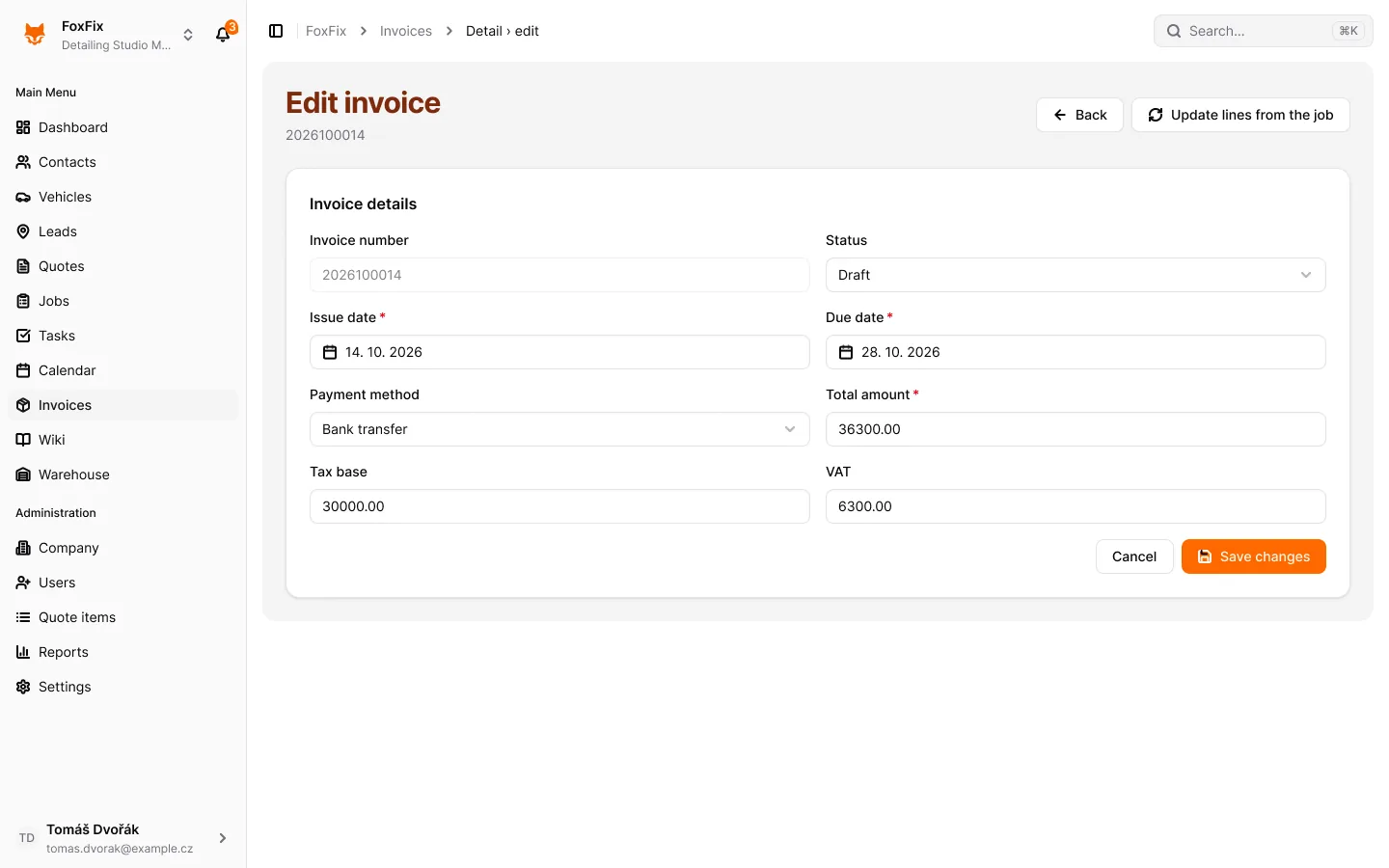
- In the invoice detail, click Edit. The Edit invoice page opens (for an issued invoice, Edit issued invoice with the yellow warning “The invoice has already been issued. After saving, the change is pushed to iDoklad and the invoice is sent to the accountant.”).
- Change what you need: Status, Issue date, Due date, Payment method, Total amount, Tax base, VAT.
- Have the job's items changed in the meantime? For a draft, click Update lines from the job at the top – the current items, including discounts, are loaded and the amounts are recalculated.
- Click Save changes. You return to the invoice detail.
 (opens the full-size image in a new tab)
You set the accountant's email, where edited invoices are sent, in Settings → iDoklad under Sending invoices (the Accountant email field). If it is empty, the accountant set in iDoklad is used.