
Labels and scanner
Inventory in FoxFix is built around scanning: instead of typing numbers, you scan the rack, the goods or the label and the app works out what it is. This chapter describes how the scanner works, which labels FoxFix prints and where each one goes.
How to scan
Wherever you scan (Receive, the receiving wizard, picking, issuing metres, stocktake, transfer, job scan), you have two options:
- Camera — a square preview from the rear camera. Point it at the code; it reads barcodes (EAN, UPC, Code 128/39) as well as QR codes. The Torch button turns on the phone's light, if it has one.
- Field below the camera — “Or scan with a handheld scanner / type the code”. The field is always ready: a handheld barcode scanner “types” the code into it and confirms it automatically. You can also type the code and press Enter.
Scanner colours
The camera frame and the field change colour, so you can tell the result without reading any text:
| Colour | Text below the scanner | What it means |
|---|---|---|
| Grey | “Starting the camera…”, “Point at the code” | The scanner is waiting for a code. |
| Orange | “Code read, verifying…” | The code has been read and is being looked up in the catalogue. |
| Green | “Scanned” or a specific result | Done. The phone vibrates briefly. |
| Red | “Scan error” or an explanation | The code does not fit, e.g. “This is a bin code, not a product” or “I don't know this code”. |
The green and red states stay on for a moment, then the scanner goes back to looking for the next code by itself.
When the camera does not work
The reason and advice on what to do appear below the preview. The most common ones:
| Message | What to do |
|---|---|
| “The browser does not have permission to use the camera.” | Click the lock icon in the address bar, allow Camera and choose Try again. |
| “Another app or tab is using the camera.” | Close other apps that use the camera (Teams, Zoom, another tab) and choose Try again. |
| “The device has no camera.” | Use a phone or a handheld scanner, or type the code in. |
| “This browser does not support the camera for scanning.” | Open the app in Chrome or Safari (not in another app's built-in browser). |
You can always type the code into the field below the scanner.
Which labels FoxFix prints
| Label | What is on it | Where it goes |
|---|---|---|
| Piece or roll label | QR code of one physical piece, product name, SKU and sequence (e.g. “3/12”). | Stuck on the piece or roll when receiving from an invoice. Scanned when picking and issuing metres. Does not belong in Receive. |
| Product label (general) | QR code of the variant, name, SKU and EAN. | On a rack, or on goods without a manufacturer EAN. Scanned in Receive and works just like a manufacturer EAN. |
| Bin label | QR code of the bin, code, name and warehouse. | On a rack or shelf. Scanned when receiving and picking. |
| Job QR code | QR code of the job. | Shown by the technician in the warehouse; scanned with the Scan job button in the queue. |
Piece and product labels measure 62 × 30 mm, bin labels 62 × 40 mm. They are set up for the Brother QL-820NWBc label printer with DK-22205 continuous tape (62 mm wide). Printing goes through the browser's normal print window — choose the label printer there.
Printing piece and roll labels
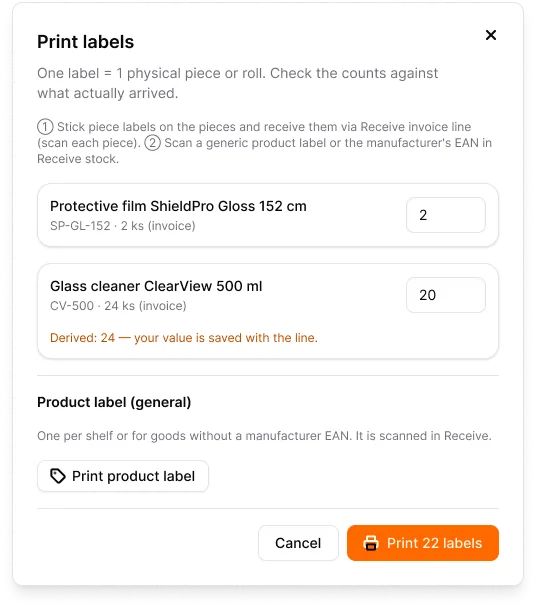
Piece labels are printed from the lines of a received invoice: with the Labels (N) button on a line, or Invoice labels (N) / Print labels (N) for the whole invoice.
- The Print labels dialog opens (“One label = 1 physical piece or roll. Check the counts against what actually arrived.”).
- Check the number of labels on each line. The count is derived from the invoice; if you change it, you will see “Derived: 24 — your value is saved with the line.”
- Confirm with Print N labels.
For goods tracked by roll the number of labels equals the number of rolls; for goods counted in pieces, the number of pieces. You can print missing labels later directly in the receiving wizard with the Print missing labels (N) button.
 (opens the full-size image in a new tab)
Product label
The general product label is useful for goods without a manufacturer barcode, or for a rack you pick from repeatedly. You can print it in two ways:
- in the variant detail — enter the number (1–50) and click Print label,
- in the Print labels dialog on an invoice — the Product label (general) section and the Print product label button.
Unlike a piece label, a product label can be reused — it does not identify a specific piece, but a kind of goods.
Scanned a piece label in Receive?
The wizard recognises it: it shows “The label belongs to invoice … — line …” and offers Open line receiving. Pieces are always received through the invoice line.
Bin labels
You print rack and shelf QR labels in the warehouse detail with the QR icon next to the bin and then the Print button. The procedure is in Warehouses and bins.