
AI assistant
The AI assistant is a helper you chat with in FoxFix in everyday language. It finds a customer or a job, works out an overview (such as unpaid invoices or revenue for the month), tells you how to do something in the app, and drafts a new record that you just check and save.
Who can see it
The assistant is only available in companies where an administrator has switched it on (see Switching the assistant on). In a company where it is not switched on, the assistant button does not appear at all.
 (opens the full-size image in a new tab)
How to open the assistant
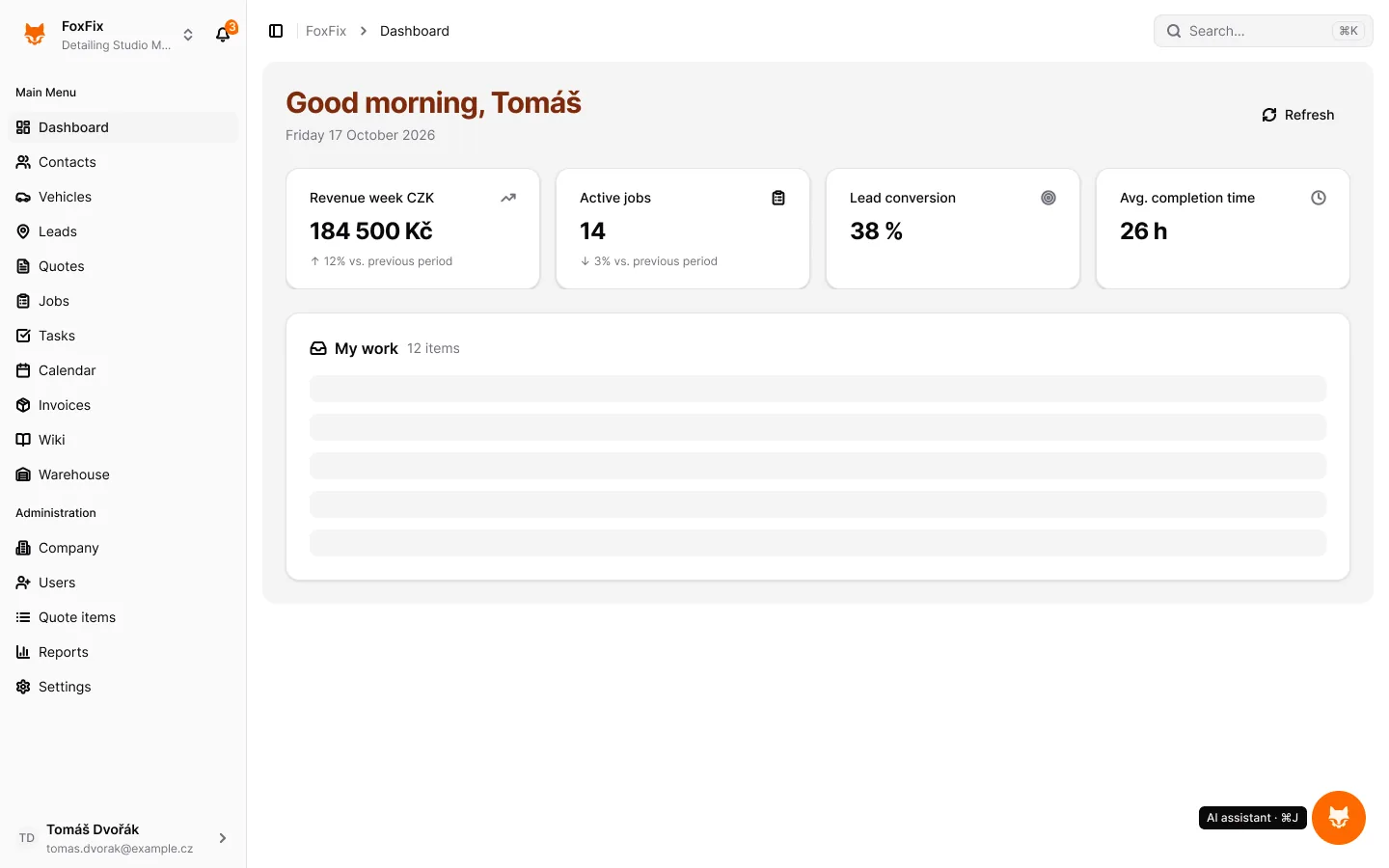
- Click the round orange fox button at the bottom right. On mobile it is above the bottom bar.
- Or press ⌘J (Mac) / Ctrl+J (Windows). The shortcut works on every page, even where the fox button is not visible (in Inventory during a stocktake and goods in).
 (opens the full-size image in a new tab)
The panel slides out from the right (full screen on mobile). Close it with the cross at the top right, the Esc key or the ⌘J / Ctrl+J shortcut again.
How to ask
 (opens the full-size image in a new tab)
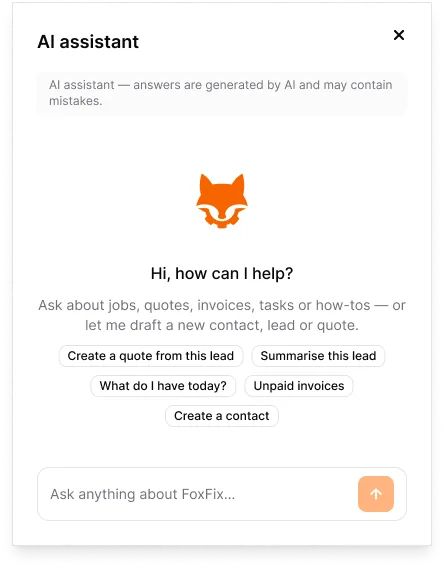
- Type your question in the “Ask anything about FoxFix…” field at the bottom.
- Press Enter or click the arrow. Use Shift+Enter for a new line.
- The answer appears gradually. While it works, the assistant shows what it is doing, for example “Looking up the contact…” or “Checking unpaid invoices…”.
In an empty panel you will find quick actions, ready-made questions you send with one click: What do I have today?, Unpaid invoices and Create a contact. In a lead detail you also get Create a quote from this lead and Summarise this lead, and in a job detail What is left on this job?. The assistant knows which page you are on, so you can ask about “this lead” or “this job”.
The New chat button in the panel header starts a new conversation. As long as your browser tab stays open, the conversation is not lost when you move between pages or close the panel.
What the assistant can do
| Area | Example questions |
|---|---|
| Finding records | “Find the contact Emma Clark”, “What vehicle does Mr Bennett have?”, “What is the status of job Z-00142?” |
| My work | “What do I have today?”, “What tasks do I have?”, “What is in my calendar this week?” |
| Overviews and figures | “How many unpaid invoices are overdue?”, “What was the revenue for September?”, “How many quotes have we won this year?”, “Who are our biggest customers?”, “How busy are the technicians?” |
| Price list | “How much does a ceramic paint coating cost?” |
| How-tos | “How do I issue a proforma invoice?”, “How do I invite a new colleague?” It answers from this handbook. |
| Record proposals | “Create a contact Oliver Bennett, 731 555 210, client”, “Prepare a quote for full-car PPF for this lead”, “Create a task to call Mr Clark tomorrow” |
The assistant only works with the data of the company you are currently working in. It cannot see other companies' data. It does not use modules that your company has not switched on.
Record proposals and confirming them
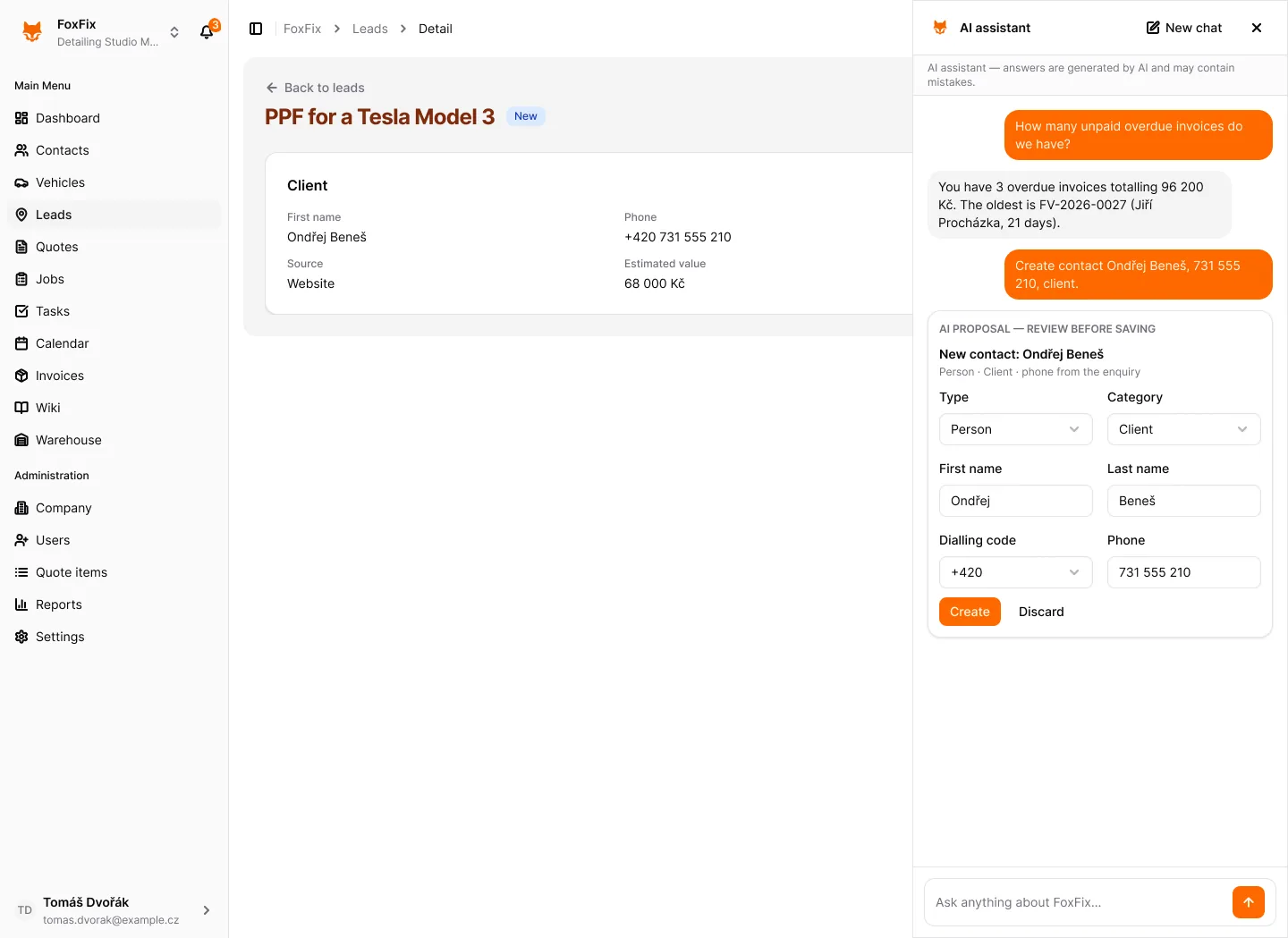
The assistant can draft a new contact, vehicle, lead, task, quote, job or note. It never saves anything by itself, though. You always get an AI proposal — review before saving card, and you decide whether to save it.
- Go through the fields on the proposal card (for example First name, Phone, Category). You can correct anything directly in the card.
- Click Create. Created. appears with an Open record link.
- For a quote and a job there is an Open in editor button instead. The usual form opens with the details pre-filled, where you check everything and save it the normal way. Prices in a quote proposal come from the price list and exclude VAT.
- Don't want the proposal? Click Discard. Only a note that the proposal was discarded stays in the conversation.
Duplicate check
If a contact with the same email or phone already exists, the card tells you (“A contact with the same email or phone already exists:” with a link to the existing record). First check whether it is the same customer. You can still create the new contact with the Create anyway button.
Limits and privacy
- Below the panel header there is a permanent notice: “AI assistant — answers are generated by AI and may contain mistakes.” Check any figures and details that matter in the relevant module before you act on them.
- The company has a monthly allowance for the assistant. Once it is used up, the assistant replies “Your company has used up its monthly AI allowance. Contact your administrator to raise the limit.”
- Conversations are kept for the period an administrator has set (90 days by default) and are then deleted automatically.
- The message “The assistant isn't responding right now. Check your connection and try again.” means the connection dropped. Try your question again in a moment.
Switching the assistant on
The assistant is switched on and set up by the company's administrator:
- In the left menu, open Company (the Administration section).
- Find the AI assistant section and turn on the Enable AI assistant switch. By switching it on, you confirm that the company has read the data processing terms for AI features.
- Optionally adjust Conversation retention (days) and Monthly token limit and click Save settings.
From then on, the assistant is available to all users in the company. You switch it off with the same switch. The other company settings are described in Company settings.