
Document templates
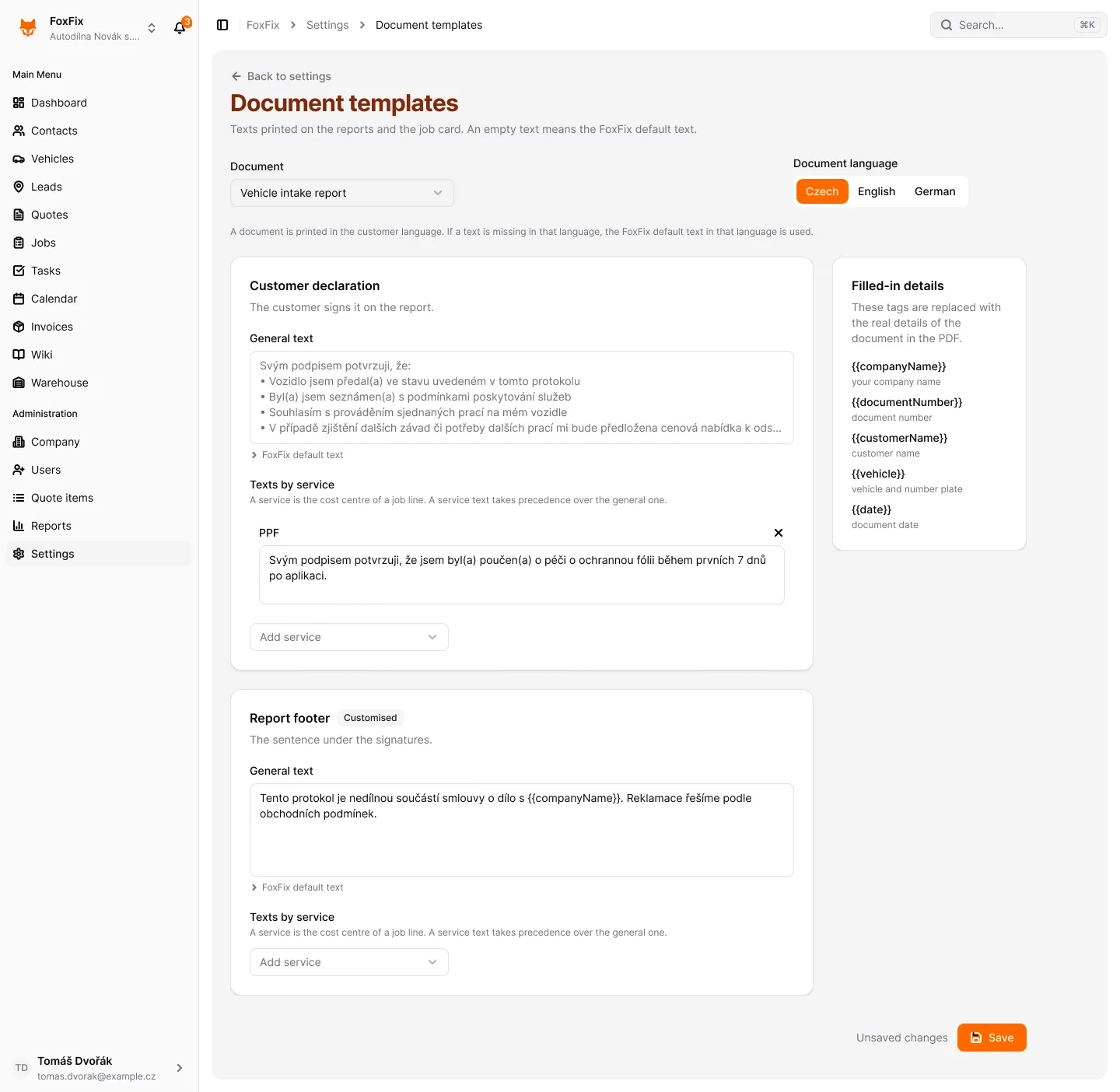
On the Document templates page you edit the texts printed on the vehicle intake and handover reports and on the job card. Each text can have a Czech, English and German version, and its own wording for single services (cost centres).
Who sees it
- Managing director, CFO, Administrator and Back office – change the texts.
- Other roles – see the page but cannot change anything.
Permissions follow the roles in Settings → Roles and permissions (the row “Settings (general)”).
Open the page in Settings → Document templates. It is part of the November 2026 update and appears once your company has it switched on.
 (opens the full-size image in a new tab)
Which texts are here
| Document | Texts |
|---|---|
| Vehicle intake report | Customer declaration, report footer |
| Handover report | Customer declaration, vehicle care, warranty, report footer |
| Job card | Terms on the job card |
The default intake declaration includes the sentence “We accept no liability for items left in the vehicle.” The default handover declaration confirms that the work has been carried out properly and in full.
Editing a text
- Choose the Document.
- Choose the Document language.
- Write your own wording in General text. An empty field means the FoxFix default text, shown in grey in the field and expandable below it.
- Click Save.
Language
A document is printed in the customer's language. If you leave a text empty in that language, the FoxFix default text in the same language is used – an English customer never gets your Czech text.
Texts by service
A service is the cost centre of a job line (for example PPF or Detailing).
- Click Add service under a text and choose a cost centre.
- Write the text for this service.
A service text takes precedence over the general one. If the job has several services, the text of the first service (in line order) that has a text in the customer's language is printed. For Vehicle care the text of each service carried out is printed; if no service carried out has its own text, the general care text is printed. Warranty and Vehicle care have no default text – they are printed only when you fill them in.
Filled-in details
You can put tags into a text; the PDF replaces them with the document's details:
{{companyName}}     your company name
{{documentNumber}}  document number
{{customerName}}    customer name
{{vehicle}}         vehicle and number plate
{{date}}            document date
The page does not save an unknown tag and shows which one it is.
Frequently asked questions
Where do I set the logo and colours? In Document appearance.
Does a text change affect a report already printed? No. The new text is used the next time you create the report.