
New job from an enquiry
This guide takes you along the whole sales path in FoxFix: from the customer's first enquiry (a lead) through the quote and its approval to a finished job. Use it every time a new customer gets in touch — by phone, email or through the website form.
The order of the steps is not random; the system enforces it:
- The lead holds the sales stage (not called, contacted, quote sent, won…).
- The quote needs a client — you cannot save it without one.
- The job is created only from an approved quote. The Create job button appears only in the Approved status, so no work the customer has not agreed to gets into the workshop.
Before you start
- Modules: Leads, Contacts, Quotes and Jobs; for vehicles and checklists also Vehicles. All of them are in every plan and switched on for a new company.
- Role: every user except the Warehouse clerk role can create leads, quotes and jobs; usually it is the Salesperson. Steps reserved for the management (Administrator, Manager) are pointed out.
Step 1 — Create a lead (enquiry)
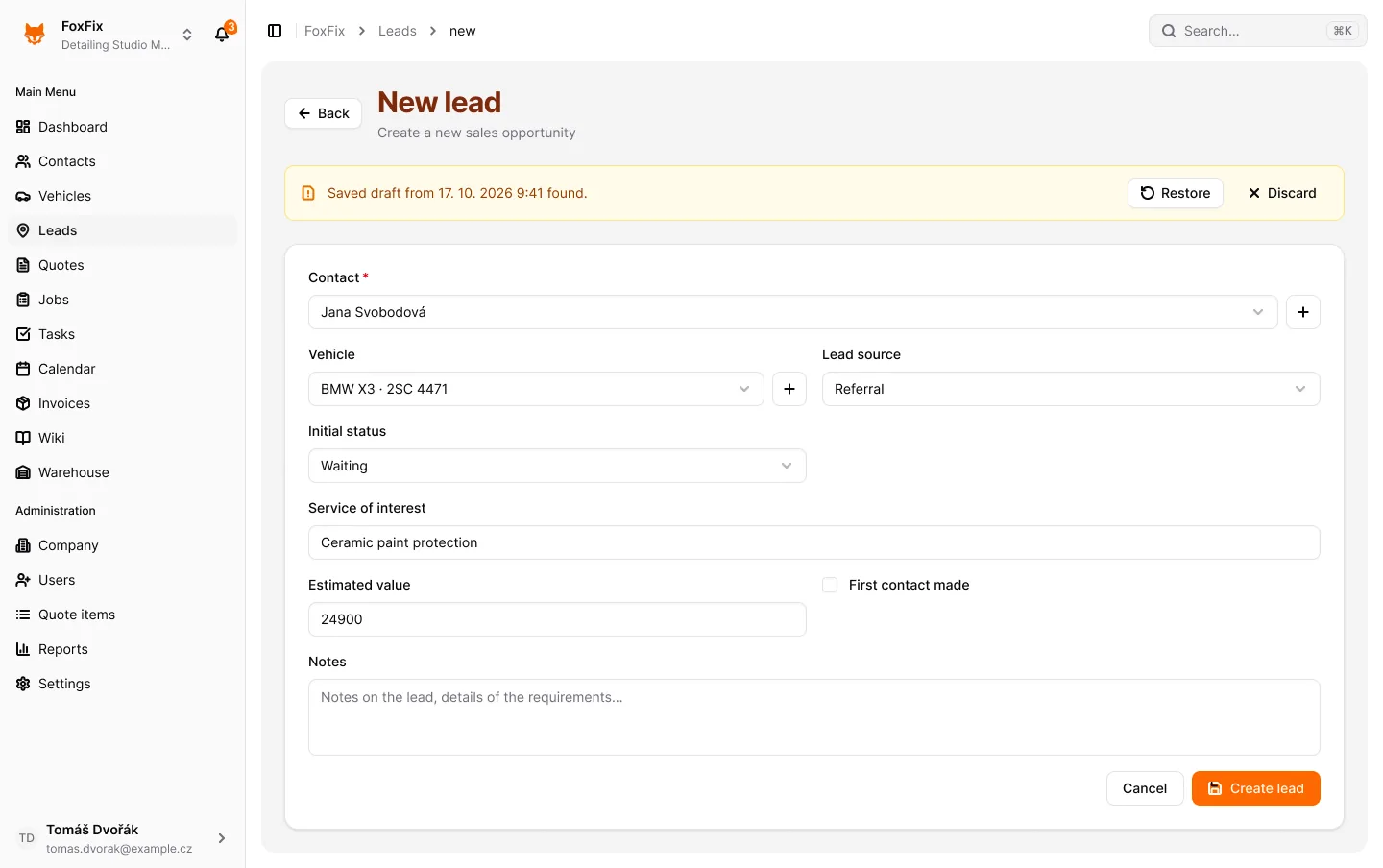
- In the left menu open Leads (the Sales opportunities page) and click New lead.
- Fill in the form:
- Contact * — select an existing contact, or click +. In the New contact dialog you choose Person or Company (you can look a company up in ARES, the Czech business register), and after saving, the contact is selected straight away.
- Vehicle — optional; it becomes available once a contact is selected. You can just as well add it later in the quote.
- Lead source — Website, Referral, Manual (default), API / integration or a custom source of your company.
- Initial status — leave Waiting if you haven't spoken to the customer yet. It also offers your board's custom columns.
- Service of interest ("PPF, tinting, detailing...") and Estimated value ("E.g. 25000") — these help with prioritising and reports.
- First contact made — tick it if you have already spoken to the customer.
- Notes — details of the request.
- Confirm with Create lead. The lead detail opens and the lead gets an assignee according to the company settings.
 (opens the full-size image in a new tab)
Tip: Enquiries from the website form are created automatically (source Website or Tilda). You will find the message text in the lead detail on the Notes card as a locked Website enquiry entry. You only create enquiries from the phone, email and so on by hand.
Step 2 — Call the customer and record the first contact
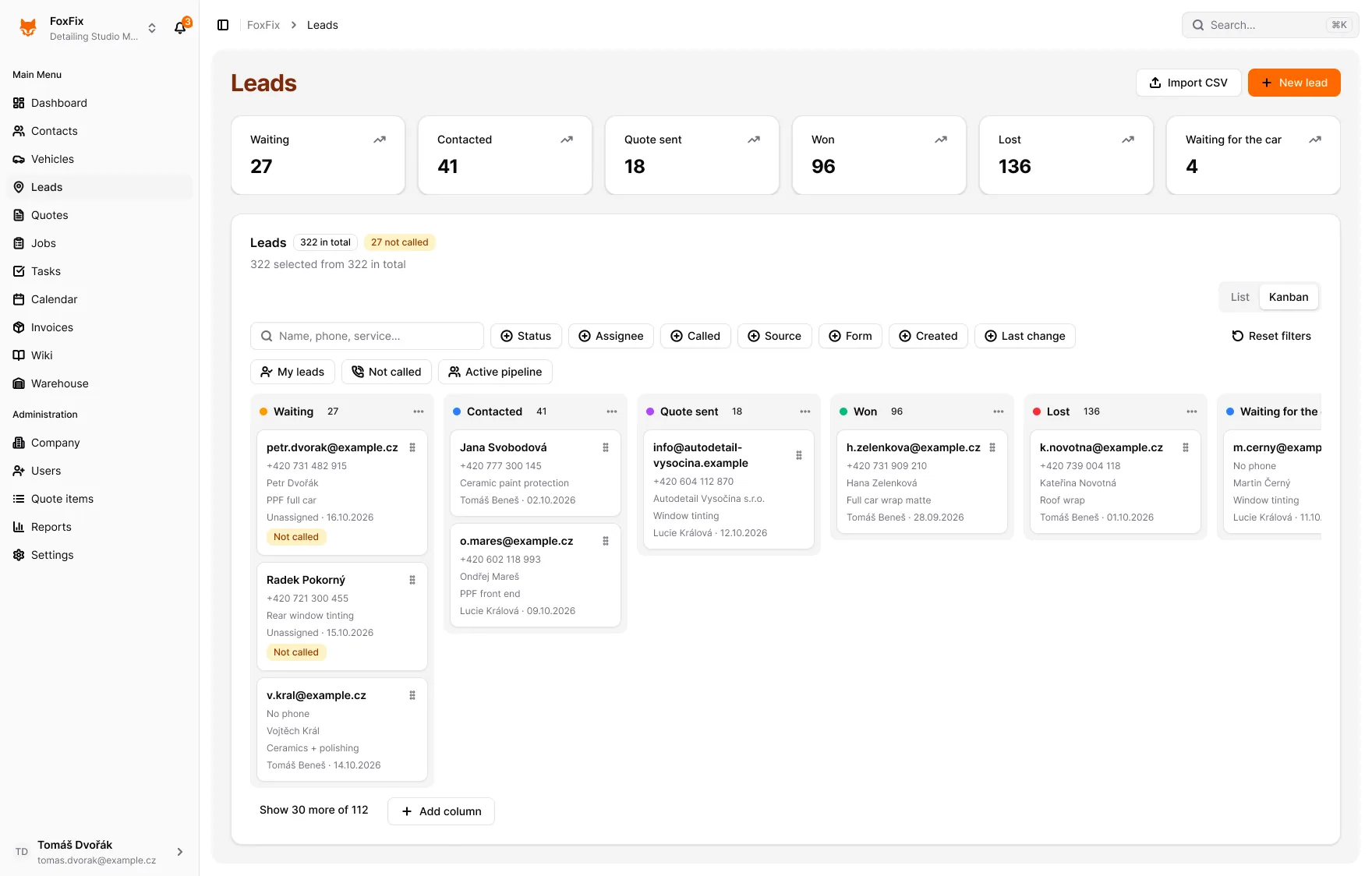
You can recognise leads that have not been called by the Not called badge and the "N not called" counter. Find them quickly with the Not called switch, and your own leads with the My leads switch.
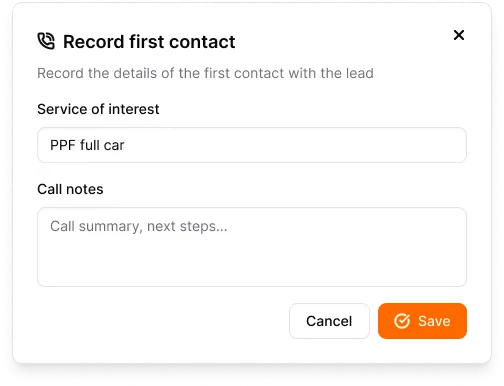
- In the list, open the actions menu (⋯) on the lead and choose Record first contact.
- Fill in Service of interest and Call notes ("Call summary, next steps...") and confirm with Save.
- The lead moves to the Contacted stage and you become its assignee.
 (opens the full-size image in a new tab)
You can change the lead stage in other ways too:
- Switch on the board with the List / Kanban switch and drag the card to another column.
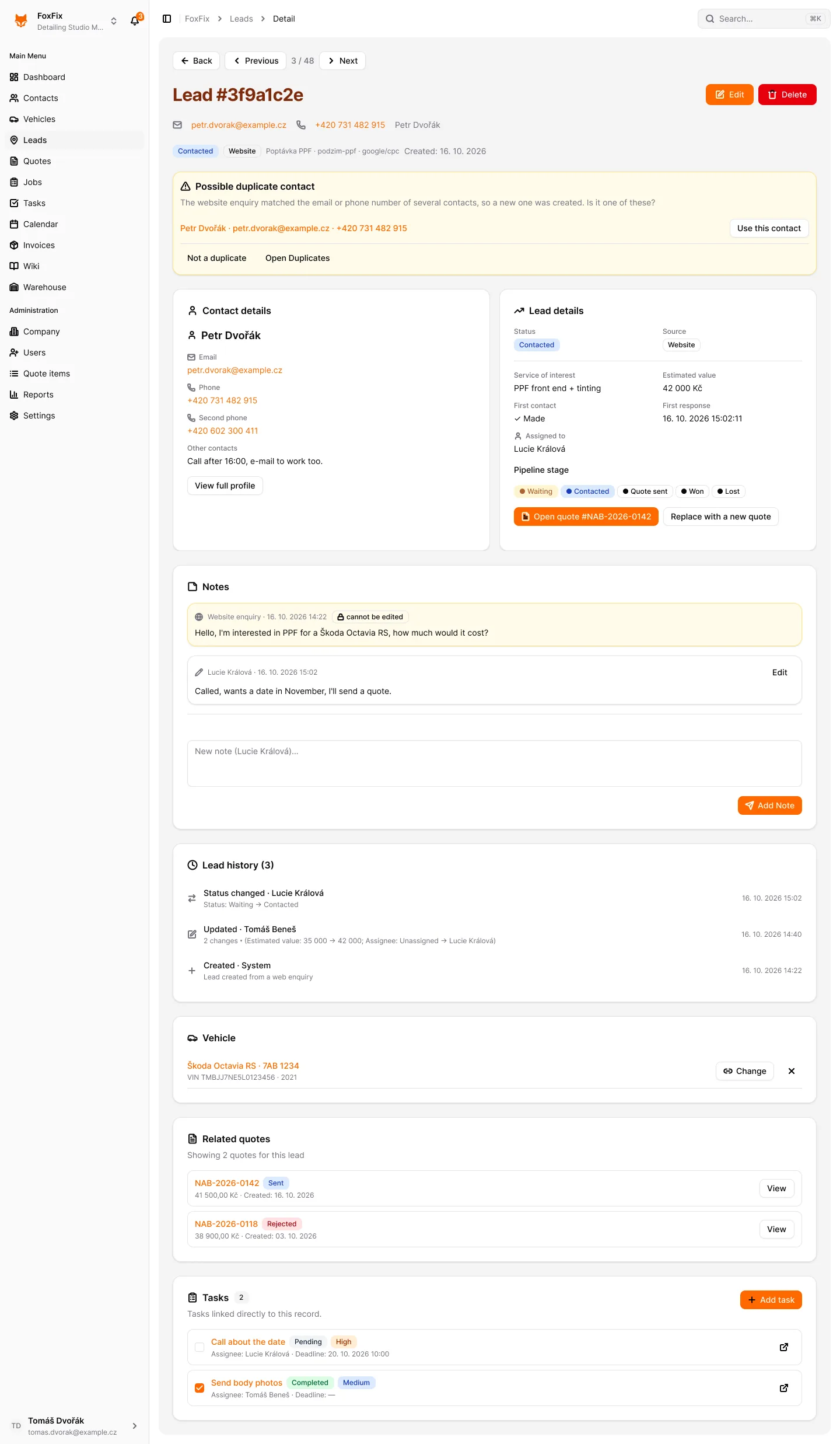
- In the lead detail, click the stage in the Pipeline stage row.
 (opens the full-size image in a new tab)
The company can customise the board columns: the Column settings icon in the column header opens a menu (Column name, Colour, Delete column), you drag a column to another place by its handle, and below the board there is Add column. Built-in statuses can be renamed and moved, but not deleted. Leads from a deleted column return to Waiting.
Tip: In the lead detail you switch between leads with the Previous and Next buttons (or the ← → arrow keys) in the order you have them in the list. Handy when working through a call list.
Step 3 — Create a quote from the lead
Create the quote from the lead detail with the Create quote button. The client is prefilled and the quote is linked to the lead, so the lead stage will keep moving on by itself. If the lead already has a quote in progress, you will see Open quote #… instead of the button.
 (opens the full-size image in a new tab)
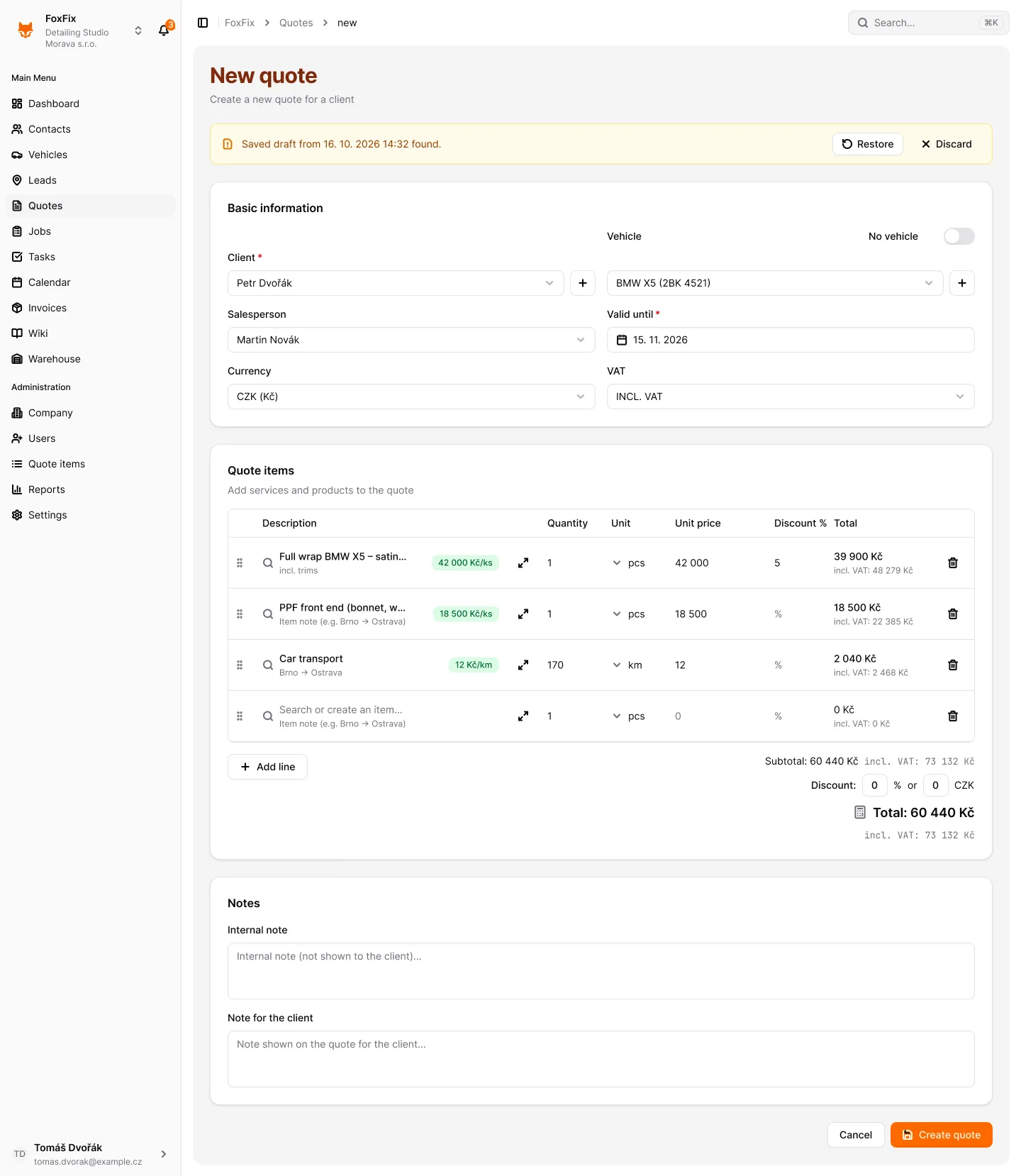
The New quote form opens:
- On the Basic information card, check:
- Client * — prefilled from the lead.
- Vehicle — select the client's car, or create it with the + button. The New vehicle dialog requires the Brand, Model and Position; the Licence plate is right below them, the VIN and other details under More fields. If a match is found by VIN or licence plate, you will see "This vehicle already exists in the directory" and can choose Use existing.
- The No vehicle switch — for selling a service or goods without a specific car; the job is then created without a vehicle and checklists.
- Salesperson, Valid until * (preset to 30 days), Currency (CZK (Kč) or EUR (€)) and VAT (With VAT or Without VAT).
- On the Quote items card, add services and products:
- Type the name into the "Search or create an item..." field and pick the item from the price list. For stock items you also see the availability.
- An item missing from the price list can be created right here by an Administrator or Manager. Others propose it with the Propose “…” for the price list option and the management approves it.
- Check the Quantity, Unit, Unit price and Discount %; the Add item button adds another row. At the bottom you can enter an overall Discount as a percentage or an amount.
- The Don't forget to add panel reminds you of related items (e.g. material that belongs to the selected service) — add them with the Add button.
- Optionally fill in the Internal note (the client does not see it) and the Note for the client (printed on the quote).
- Confirm with Create quote.
 (opens the full-size image in a new tab)
The quote is created in the Draft status and the lead moves by itself to the Quote sent stage (and its estimated value is filled in from the quote total).
It won't work without a client and items
The form checks the minimum: "Please select a client", "Please select a vehicle" (except in No vehicle mode) and "Please add at least one item". A discount above the stock card's limit is reported as "The …% discount on … is above the card's …% limit", and only a manager can exceed it, giving a reason. A quote in progress is saved continuously as a draft — when you come back, a banner offers to Restore it.
Step 4 — Send the quote and record the customer's decision
Each button in the quote detail corresponds to one step:
- Draft → Prepare to send.
- Ready to send → Send to client. The PDF preview opens; with the Confirm sending button the status changes to Sent and the PDF is saved to the version history. FoxFix does not send the quote itself — download the PDF (Download PDF) and email it to the client.
- Sent → depending on the customer's response, Approve or Reject (with a rejection reason).
You will find details on the statuses in the guide Turning a quote into a job.
Tip: Does the customer want a completely different option? An Administrator or Manager uses Replace with a new quote in the lead detail — the old quote is marked as rejected and the form for a new one opens.
Step 5 — Create a job from the approved quote
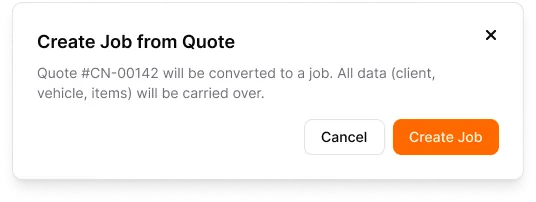
- In the detail of the approved quote, click Create job.
- Confirm the Create a job from the quote window — the client, vehicle and items are carried over unchanged.
- You will see "Job created successfully" and the detail of the new job opens in the Approved status.
 (opens the full-size image in a new tab)
The quote moves to the Job created status and is read-only. You cannot create a second job from the same quote. If you use Inventory, the job reserves the material straight away and creates purchase requests for anything missing.
Before the technician clicks Start work, fill in the Planned completion in the job (and for a job with a vehicle, go through the intake checklist).
Step 6 — Close the lead
Creating the job does not close the lead by itself — it stays in the Quote sent stage. Once the deal is certain, move it manually:
- to Won — in the lead detail under Pipeline stage, or by dragging it on the board;
- to Lost, if the deal fell through. In the lead detail the system asks for the Lost reason (Price, No response, Competitor…), which is used in reports. When you drag it on the board, no reason is asked for and Other is saved — if you want the exact reason, change the stage in the detail.
Result: you have an approved quote, a job ready for the workshop and the lead in the Won stage.