
FoxFix on mobile
FoxFix works in your phone's browser at the same address as on a computer, app.fox-fix.com (opens in a new tab). There is nothing to download from an app store. The layout adapts to the width of the screen by itself. This is especially handy in the workshop (checklists and photos on a job) and in the warehouse (scanning codes with the camera).
 (opens the full-size image in a new tab)
 (opens the full-size image in a new tab)
What is different on mobile
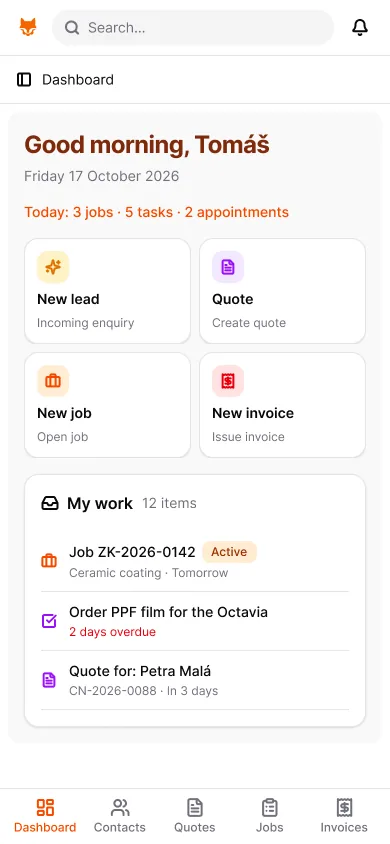
The top bar contains the logo, a full-width Search... field and the notifications bell. Tap Search... to open global search full screen.
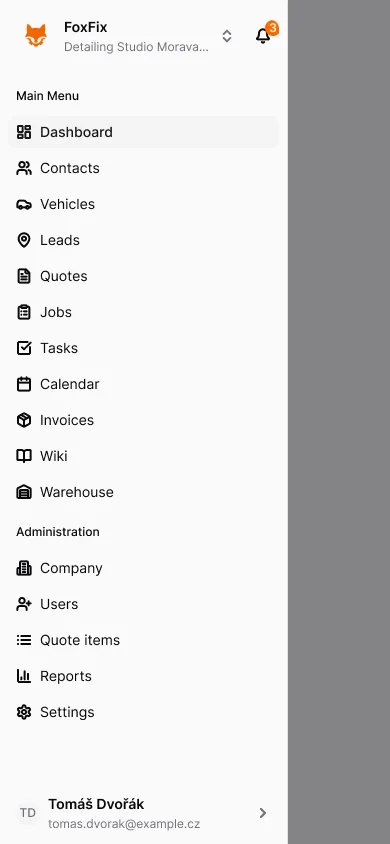
Below it is a row with the panel icon and the page name. The panel icon slides out the whole side menu from the left, including the company switcher and the user menu (language, logout). Tap outside the menu to close it.
The bottom bar gives you the most used sections in a single tap:
| Icon | Opens |
|---|---|
| Dashboard | Overview of the day |
| Contacts | Customer directory |
| Quotes | Price quotes |
| Jobs | List of jobs |
| Invoices | Invoices |
The section you have open is orange in the bottom bar. Modules that your company has not switched on, or that are not in its plan, do not appear in the bottom bar. You open the other sections (Vehicles, Leads, Tasks, Calendar, Wiki, Inventory and administration) from the side menu.
The AI assistant (if your company has it switched on) has a round fox button at the bottom right above the bottom bar. On mobile, the assistant panel opens full screen. See AI assistant.
Installing on your phone's home screen
You can add FoxFix to your home screen as an app. It then opens with a single tap on the fox icon, full screen, without the browser's address bar.
iPhone and iPad (Safari)
- Open app.fox-fix.com (opens in a new tab) in Safari and sign in.
- Tap the Share button (a square with an upward arrow).
- Choose Add to Home Screen and confirm with Add.
Android (Chrome)
- Open app.fox-fix.com (opens in a new tab) in Chrome and sign in.
- Tap the browser menu ⋮ at the top right.
- Choose Install app, or Add to Home screen, and confirm.
On a computer with Chrome or Edge you can install FoxFix the same way, using the install icon in the address bar.
Updates download by themselves
The installed app is still the same FoxFix as in the browser. New versions download automatically and take effect the next time you open or refresh the page. You do not need to update anything.
Tips for working out and about
- Weak signal – when the connection drops, an orange bar appears below the top bar: “You are offline — showing the last loaded data”. The data you see may not be up to date. Save changes once the green “Connection restored” bar appears.
- Camera – to scan barcodes and QR codes in the warehouse, allow the browser to use the camera when it asks. More in the Inventory chapter.
- Job photos – take photos for checklists and of vehicle damage straight with your phone's rear camera. See Jobs.