
Contacts
Contacts are the address book of your customers, suppliers and other business partners. Every contact is either a person or a company. Leads, vehicles, quotes, jobs and invoices all refer to a contact, so its detail shows the whole history of your work together.
Who can see this
All users of the company, as long as the company has the Contacts module turned on (it is in every plan). Only administrators and managers see the Duplicates button and can delete contacts.
 (opens the full-size image in a new tab)
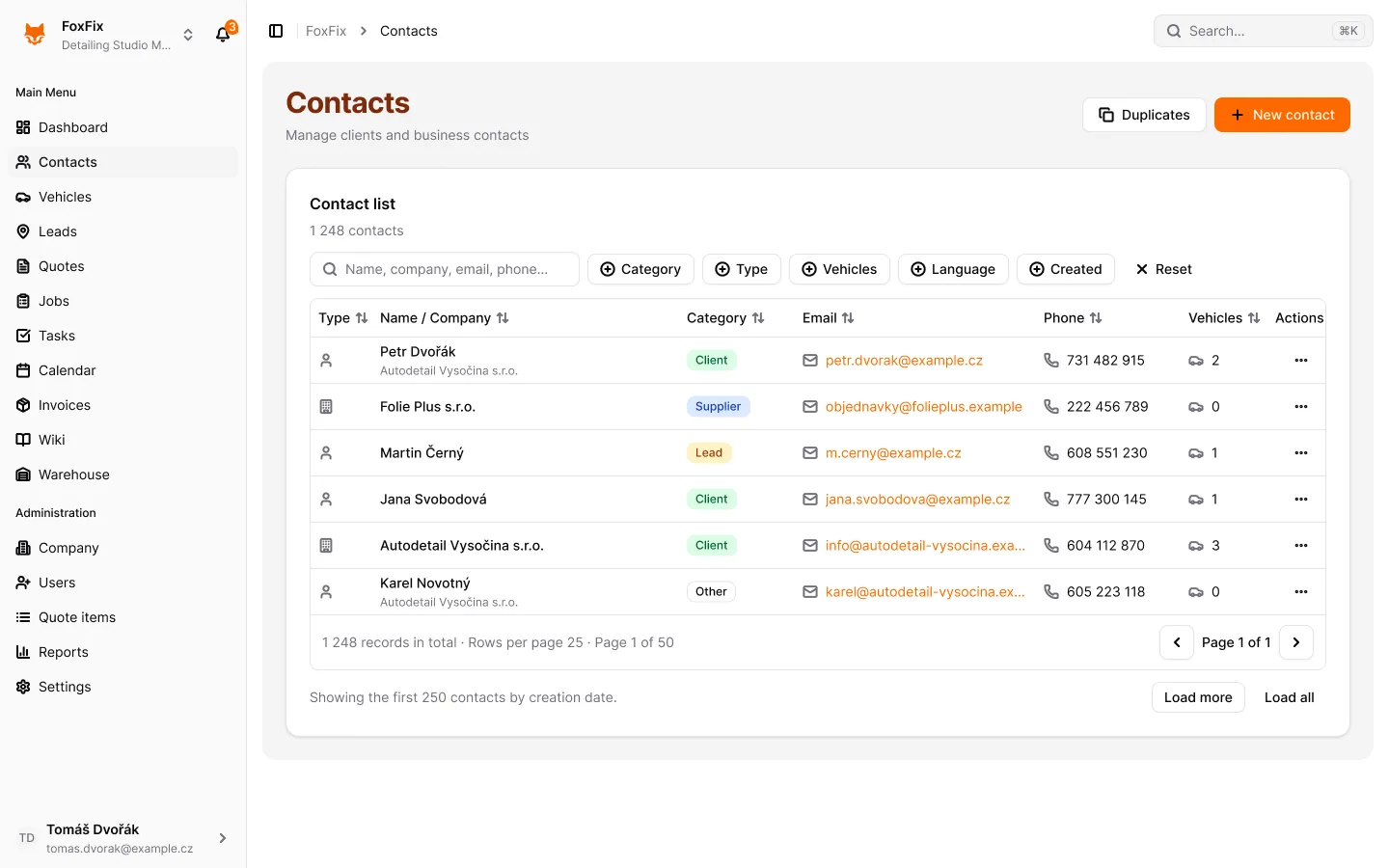
What you will find on the page
- Buttons at the top — Duplicates (administrators and managers) and New contact.
- Number of contacts below the heading of the Contact list card.
- Search and filters.
- Contact table with pagination.
Table columns
| Column | Meaning |
|---|---|
| Type | A person icon, or a building icon (company). |
| Name / Company | The person's name or the company name; for a person, their company appears below the name. |
| Category | Client (green), Supplier (blue), Lead (yellow), Other. |
| A clickable email address. | |
| Phone | The phone number. |
| Vehicles | The number of vehicles the contact owns. |
Click a row to open the contact detail. Click a column header to sort the table. By default, the newest contacts come first. On a phone the contacts are shown as cards.
Person or company
- Person — a specific individual. They may work for a company that is also in the address book.
- Company — a legal entity or a sole trader with a company ID. It has linked people (employees, owners, a billing contact).
You manage the links between people and companies in the contact detail.
Category
| Category | When to use it |
|---|---|
| Client | A customer you work for or will work for. |
| Supplier | A company you buy from (film, chemicals, parts…). |
| Lead | A prospect you are still in talks with. |
| Other | A contact that does not fit any category. |
How to find a contact
- Search — start typing into the “Name, company, email, phone…” field; the table filters straight away.
- Category — Client, Supplier, Lead, Other.
- Type — Person, Company.
- Vehicles — Has vehicles or No vehicles.
- Language — the contact's document language (Czech, English, Slovak, Polish, German, Hungarian).
- Created — when the contact was created; the quick options Today, Last 7 days, This week, Last week, Last 30 days, This month, or a custom range From – To.
The Reset button clears all filters.
For companies with a large address book, only part of the contacts loads at first (“Showing the first N contacts by creation date.”). Load more with the Load more and Load all buttons; when you search or filter, all contacts load automatically.
Contact actions menu
The ⋯ menu at the end of the row offers:
- View details — opens the contact detail.
- Edit — opens the edit form.
- Add vehicle — opens the new vehicle form.
- New quote — opens a new quote with the client already filled in.
- Delete — administrators and managers only; after confirmation (“Are you sure you want to delete this contact?”) the contact is deleted.
Before you delete a contact
If a contact has vehicles, quotes, jobs or invoices, do not delete it. If it is a duplicate, use duplicate merging instead — the links move to the correct contact and nothing is lost. You can mark a contact you no longer work with as inactive when editing it.
Tips and common problems
- Merged contacts do not appear in the list. You can only reach them through a link (for example from the history), and their detail shows which contact they were merged into.
- If the list does not load, you will see “An error occurred while loading contacts.” and a Try again button.